Classifier
This module trains and runs text/image classifiers entirely on the local machine. Files are first converted to vectors by the EmbeddingGemma 2 multimodal embedding model, and a small classifier is then trained on those vectors. While designing a flow, click "TRAIN" to train a classifier file from a samples folder. When the flow runs automatically, the module uses that classifier file to classify a single file and writes the class label to output.txt in the working folder. Note that this module is only available in the Enterprise edition.
The first time you train or predict, the module downloads about 316MB of model files from the EMILY CDN to the local machine and shows the progress. After that it reads the local files and does not download again. Computation prefers WebGPU and automatically falls back to the slower CPU (WASM) when WebGPU is unavailable.
Prepare Training Samples
Under the samples root folder, each subfolder name is a class label, and each subfolder holds the sample files of that class:
samples/
├── invoice/
│   ├── 001.jpg
│   └── 002.png
├── contract/
│   ├── a.txt
│   └── b.md
└── other/
    └── x.jpg
- Supported sample formats are txt, md, jpg, jpeg, png. Other extensions and hidden files are skipped.
- There must be at least 2 class subfolders, and each class must have at least 1 sample; otherwise training fails.
- Only files directly inside each subfolder are read. Deeper folders are not read.
- Empty text files and unreadable images are skipped. Text beyond 2048 tokens is truncated.
Parameters
TRAIN
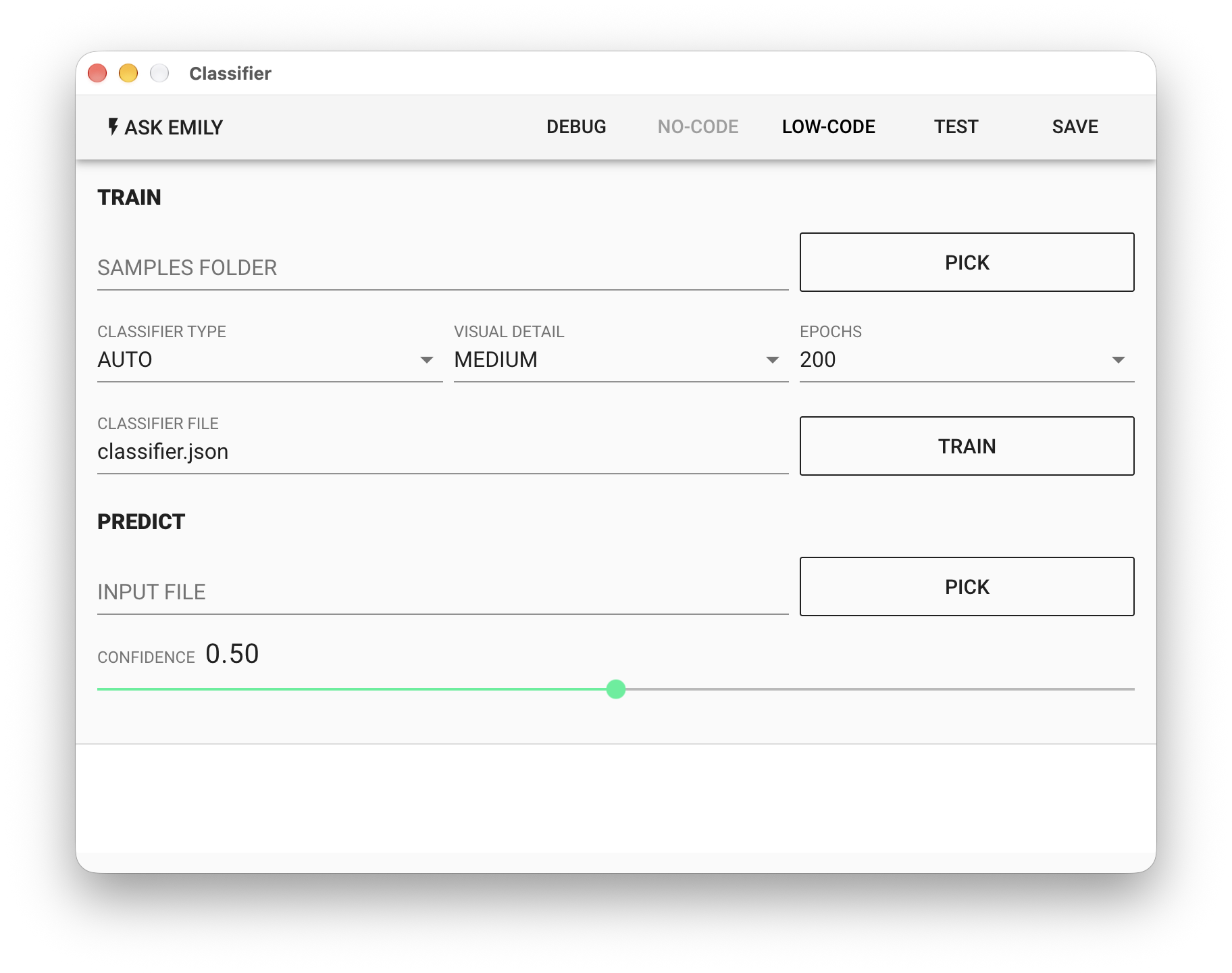
SAMPLES FOLDER - Root folder of the training samples. Click "PICK" to choose a folder, type a path, or use the %FILENAME% variable.
CLASSIFIER TYPE - Type of classifier:
- AUTO - Default. Holds out part of the samples for validation, tries both linear and mlp, picks the one with the higher validation accuracy, then trains it on all samples.
- LINEAR - Linear classifier. Fast, and more stable with few samples.
- MLP - Neural network with one hidden layer. Fits more complex decision boundaries but needs more samples.
VISUAL DETAIL - How much detail the image embedding keeps: LOW, MEDIUM (default), HIGH, or MAX. Higher levels preserve small text and local patterns better, but the computation time and memory per image grow roughly in proportion. Only affects image samples.
EPOCHS - Number of training epochs, default 200. Pick from the menu or type a number. With few samples a higher value helps convergence but takes longer. When CLASSIFIER TYPE is AUTO, this number is the upper bound of the search.
CLASSIFIER FILE - Classifier file name, default classifier.json, written to the working folder. Created by "TRAIN" and read by "TEST" and by automatic flow runs.
Click "TRAIN" to start training: the module computes embeddings for all samples, trains the classifier, and writes CLASSIFIER FILE when done. Progress and a result summary are shown at the bottom of the window.
AUTO only runs the comparison when every class has at least 8 samples and there are at least 20 samples in total. Otherwise it trains a linear classifier directly for the number of epochs given in EPOCHS.
After the comparison, the CLASSIFIER TYPE and EPOCHS fields are changed to the winning type and the best epoch count. Clicking "TRAIN" again then trains with these settings directly, without comparing.
PREDICT
INPUT FILE - The file to classify, in txt, md, jpg, jpeg, or png format. Click "PICK" to choose a file, type a file name in the working folder, or use the %FILENAME% variable.
CONFIDENCE - Minimum confidence, from 0 to 1 in steps of 0.05. When the probability of the predicted class is below this value, output.txt is empty, so later steps of the flow can detect "class uncertain" and handle it separately. Set it to 0 to always output the class with the highest probability.
Click "TEST" to classify INPUT FILE with CLASSIFIER FILE. The result and probability are shown at the bottom of the window, and the class label is written to output.txt in the working folder. An automatic flow run does exactly the same thing and does not retrain.
When the flow runs, the working folder must contain the CLASSIFIER FILE produced by "TRAIN"; otherwise a classifier not found error occurs.
Embedding settings such as VISUAL DETAIL are stored in the classifier file at training time, and prediction uses the settings in the file. After changing these settings you must "TRAIN" again for them to take effect.
Choosing CONFIDENCE
When training with AUTO and the comparison is performed, metrics.validation in the classifier file records how the validation samples perform at confidence thresholds 0, 0.5, 0.6, 0.7, 0.8, 0.9, and 0.95. Use it to choose CONFIDENCE:
| Field | Meaning |
|---|---|
coverage | Share of samples whose probability reaches the threshold and therefore get a class output |
accuracy | Share of correctly classified samples among those that get a class output |
classes | recall, precision, and f1 of each class |
Raising the threshold usually increases accuracy and decreases coverage: fewer misclassifications, but more empty outputs left for manual handling. metrics.validation.confusion also records how often each class is mistaken for another.
These numbers are measured on a model that holds out 20% of the samples for validation, while the final classifier is trained on all samples. When you choose LINEAR or MLP directly, no validation samples are held out and the classifier file does not contain these numbers.
Low-Code Editor
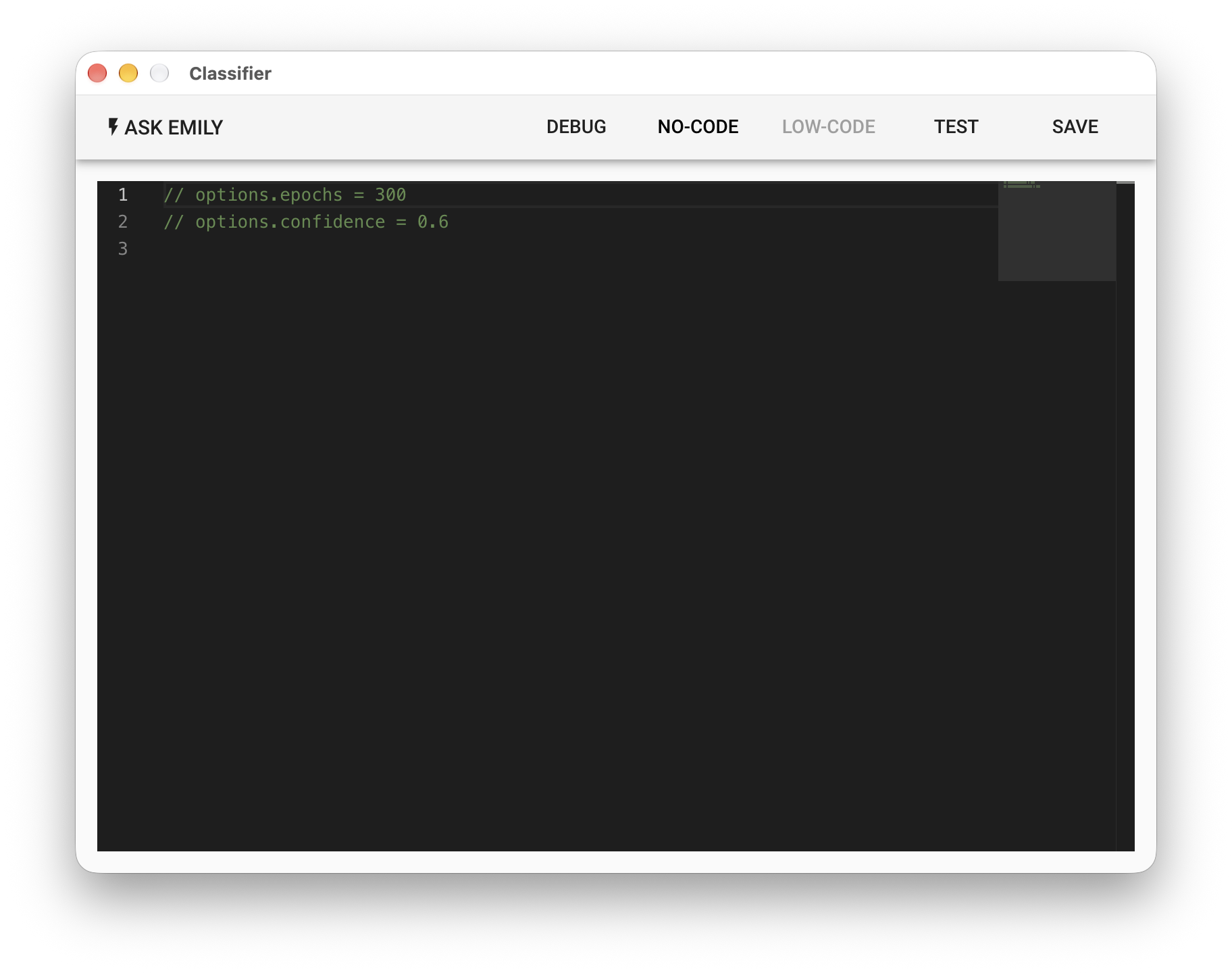
The Low-Code script is called before training or prediction starts. It can modify options to adjust settings that are not on the No-Code page, or define how the output is processed after prediction.
input Object
{
  action,         // 'train' or 'predict'
  samplesfolder,  // SAMPLES FOLDER, with variables applied
  filepath        // full path of INPUT FILE, with variables applied
}
options Object
{
  action,           // 'train' when TRAIN is clicked; 'predict' for TEST and automatic runs
  classifierType,   // 'auto', 'linear' or 'mlp'
  confidence,       // minimum confidence, 0 to 1
  epochs,           // number of training epochs
  softTokens,       // tokens per image: LOW 140, MEDIUM 280, HIGH 560, MAX 1120
  batchSize,        // training batch size, default 32
  hiddenUnits,      // mlp hidden layer width, default 256
  dropout,          // mlp dropout rate, default 0.2
  learningRate,     // learning rate, default { linear: 0.01, mlp: 0.001 }
  validationSplit,  // share of samples auto holds out for validation, default 0.2; 0 skips the comparison and uses linear
  patience,         // during the auto comparison, stop early after this many epochs without validation accuracy improvement, default 20
  maxTokens,        // text beyond this many tokens is truncated, default 2048
  textPrefix,       // prefix added before each text before embedding
  device,           // 'auto', 'webgpu' or 'wasm'
  postProcess       // function called after prediction; a returned string replaces the content written to output.txt
}
The prediction result object passed to postProcess:
{
  label,          // class label with the highest probability
  probability,    // probability of that class
  classes,        // array of all class labels
  probabilities,  // array of probabilities matching classes
  file            // path of the classified file
}
Example:
// adjust training settings
options.epochs = 300
options.hiddenUnits = 512

// write the class label together with its probability to output.txt, e.g. "invoice,0.973"
options.postProcess = (result) => `${result.label},${result.probability.toFixed(3)}`
// output the probabilities of all classes as JSON
options.postProcess = (result) => JSON.stringify(_.zipObject(result.classes, result.probabilities))
When postProcess returns a string, that string is written whether or not the probability reaches CONFIDENCE. To keep the "empty output below the threshold" behavior, compare result.probability with options.confidence yourself in the function and return an empty string when the threshold is not met.
The Low-Code shared APIs available in this module are api.files(), api.read(), api.write(), and api.remove().
Typical Flow
- Organize the samples folder by class, choose
SAMPLES FOLDERin the "Classifier" module, and click "TRAIN" to produceclassifier.json. - Set
INPUT FILEto the name of the file to classify or the %FILENAME% variable, click "TEST" to check the result, adjustCONFIDENCEaccording to the validation numbers, and finally click "SAVE". - When the flow runs, the module writes the class label to
output.txt, and later modules decide what to do based on its content. Empty content means the confidence was too low, and the file can be handed over for manual review.