PowerShell
Execute PowerShell scripts. Note that if used to control Microsoft Office applications, ensure the software is installed and usable on the local machine.
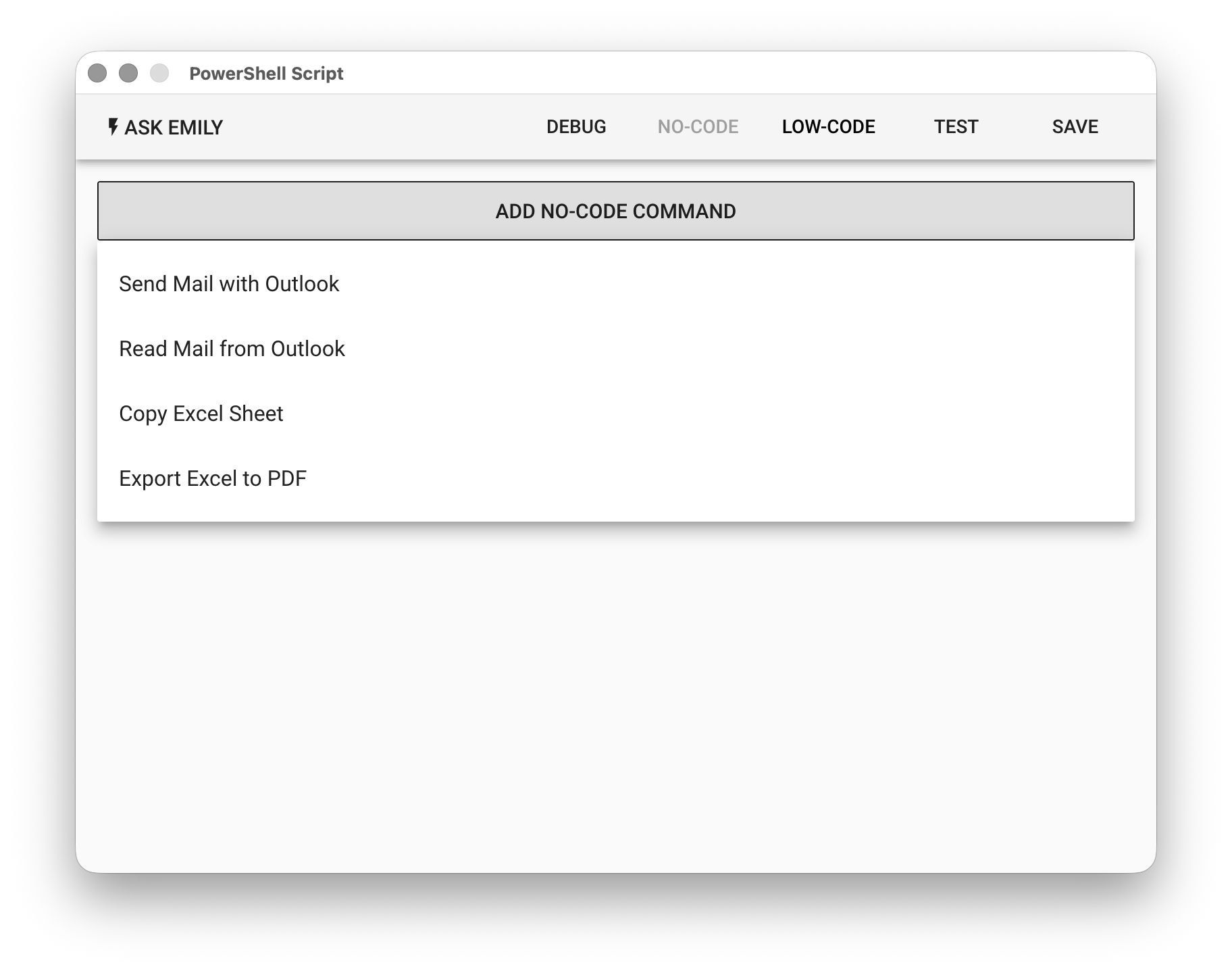
No-Code Editor
Provides No-Code commands such as: "Send Email from Outlook", "Read Email from Outlook", "Copy Excel Worksheet", "Export Excel to PDF".
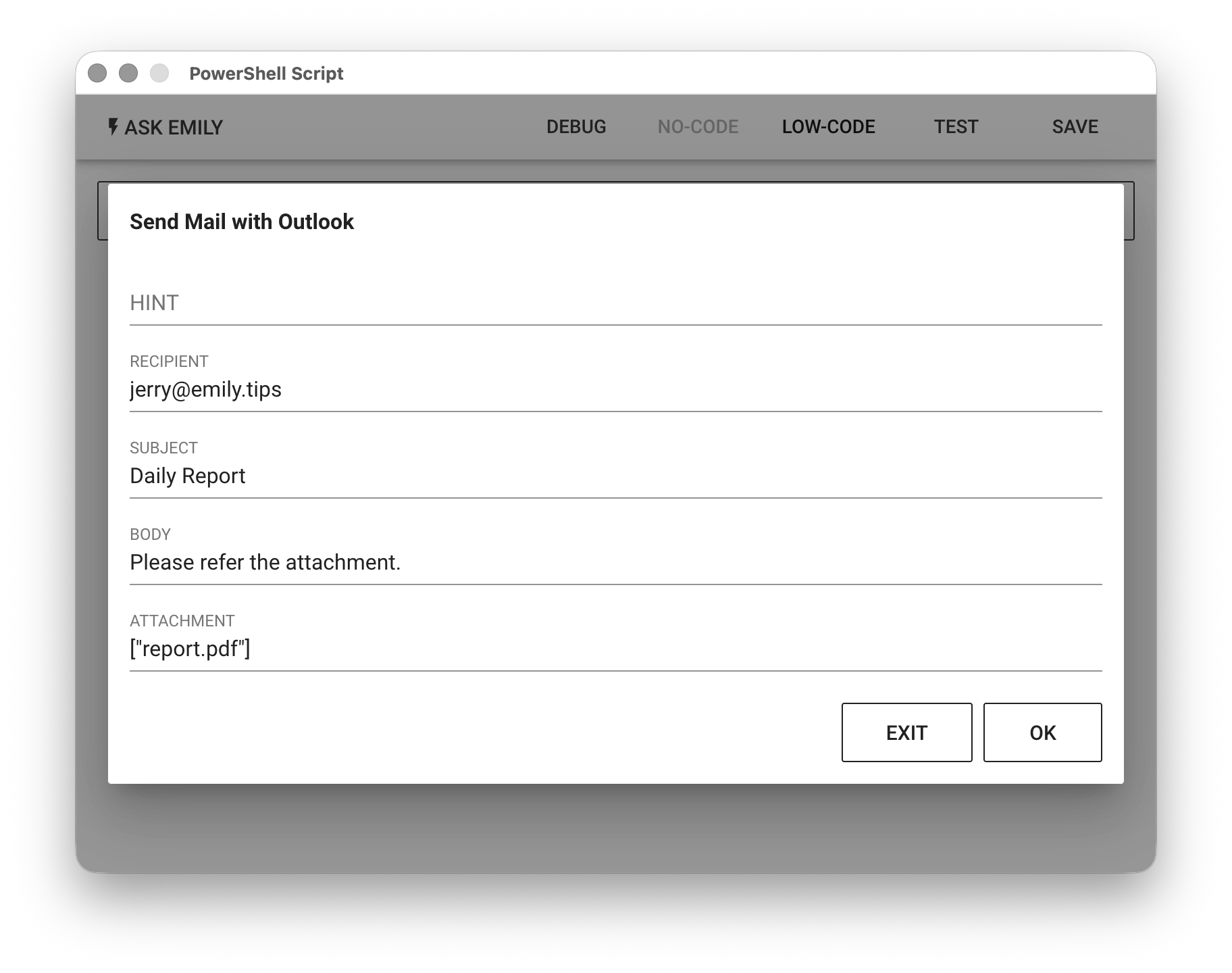
For example, send an email from the local Outlook application to jerry@emily.tips, with the subject Daily Report, body content Please refer to the attachment, and the attachment being the report.pdf file in the working folder.
Low-Code Editor
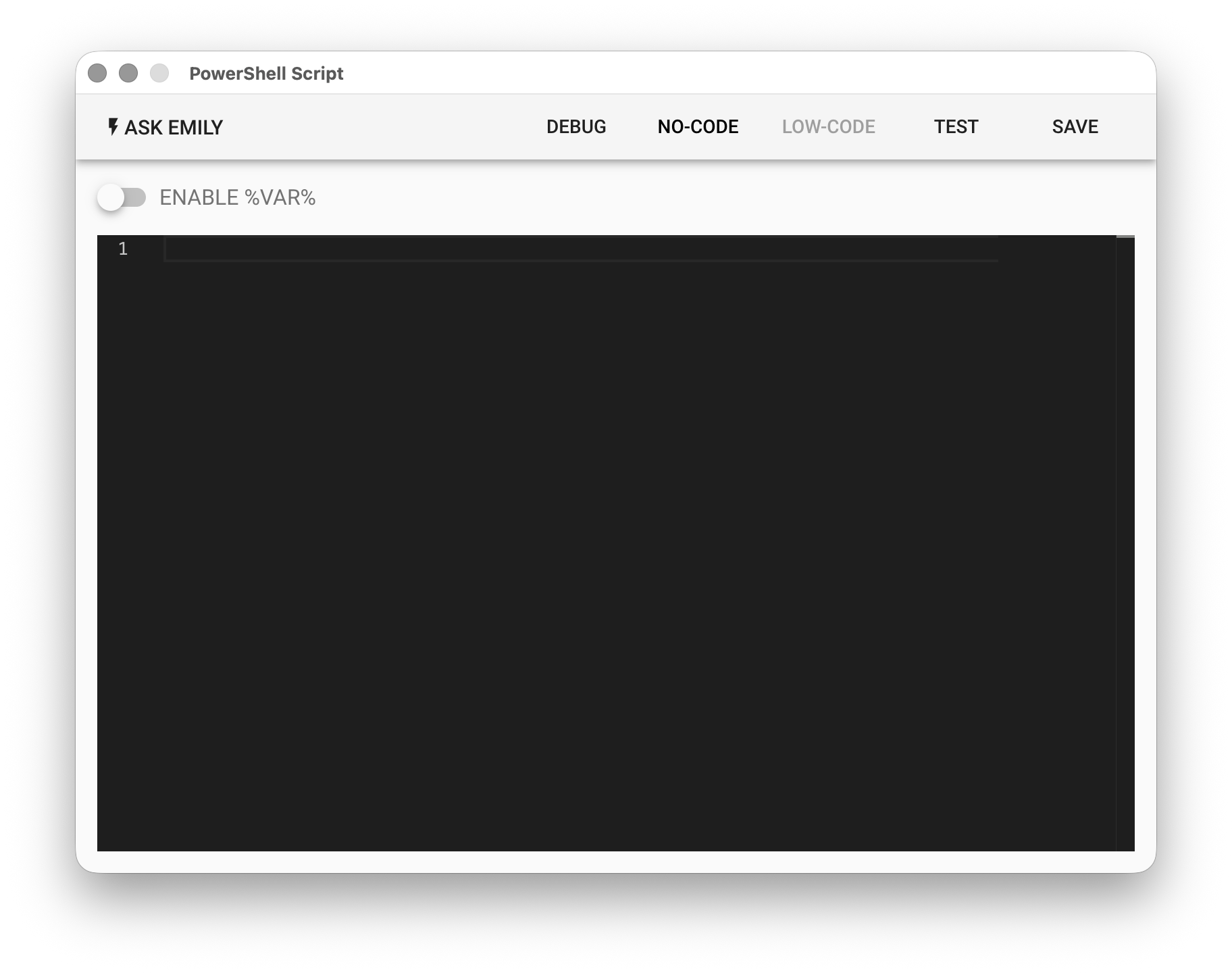
Write and execute PowerShell scripts in the Low-Code editor. The standard text output produced during execution will be written to the output.txt file in the working folder. For PowerShell script usage, refer to the documentation.
# Example: Get a list of all available commands:
Get-Command

# Example: Get a list of all processes on the operating system
Get-Process
ENABLE %VAR%
From version 2.2.20230225 and above, the document variable %FILENAME% template is supported in PowerShell scripts. When enabled, the %FILENAME% string in the script will be replaced with the content of FILENAME.txt in the working folder before execution by PowerShell.
# Replace %content% with the content of content.txt in the working folder, then execute via PowerShell
Write-Output "%content%"
Notes
When the %VAR% feature is enabled, avoid using the percent sign % in script comments (lines starting with #). The Low-Code editor only supports sequential command (Cmdlet) execution, running commands line by line from top to bottom. If you need flow control such as for, foreach, if, switch, while, until, etc., save the script as a ps1 file and call it from Low-Code:
# myscript.ps1 prints 1 to 100
for ($i = 1; $i -le 100; $i++) {
    Write-Output $i
}
# PowerShell Low-Code, call the ps1 script file above
./myscript.ps1
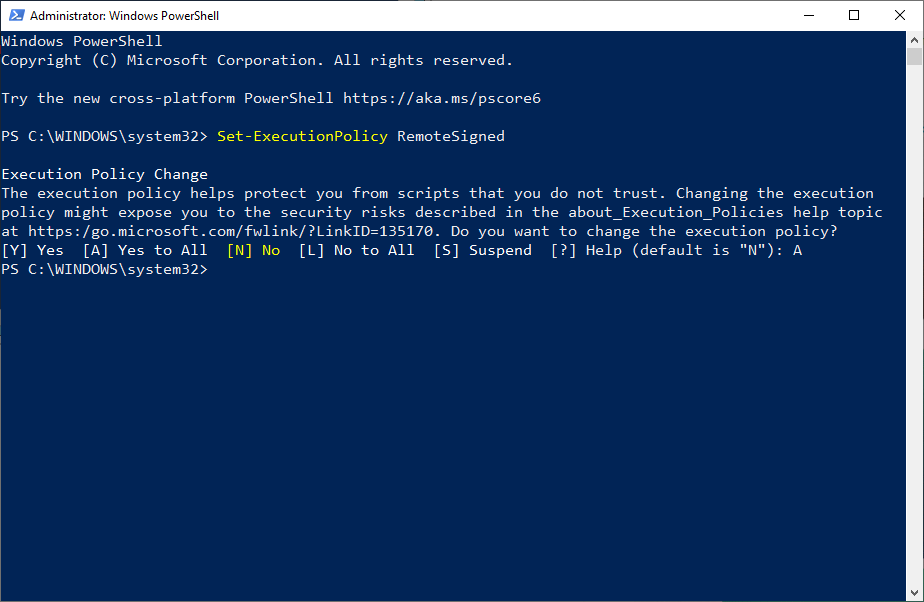
Windows PowerShell restricts calling ps1 files by default. You can resolve this by launching Windows PowerShell in administrator mode (Run as Administrator) and using the Set-ExecutionPolicy command to update the setting to RemoteSigned:
PowerShell Low-Code can be used to automate various MS Office applications, for example, running a VBA macro in an Excel file:
# Define the Excel file path
$filePath = "./excel.xlsm"

# Create an Excel object
$excel = New-Object -ComObject Excel.Application

# Open the Excel file
$workbook = $excel.Workbooks.Open($filePath)

# Call VBA Macro "VBA_Macro_Name"
$excel.Run("VBA_Macro_Name")

# Close the Excel file and release memory
$workbook.Close()
$excel.Quit()
[System.Runtime.Interopservices.Marshal]::ReleaseComObject($excel) | Out-Null