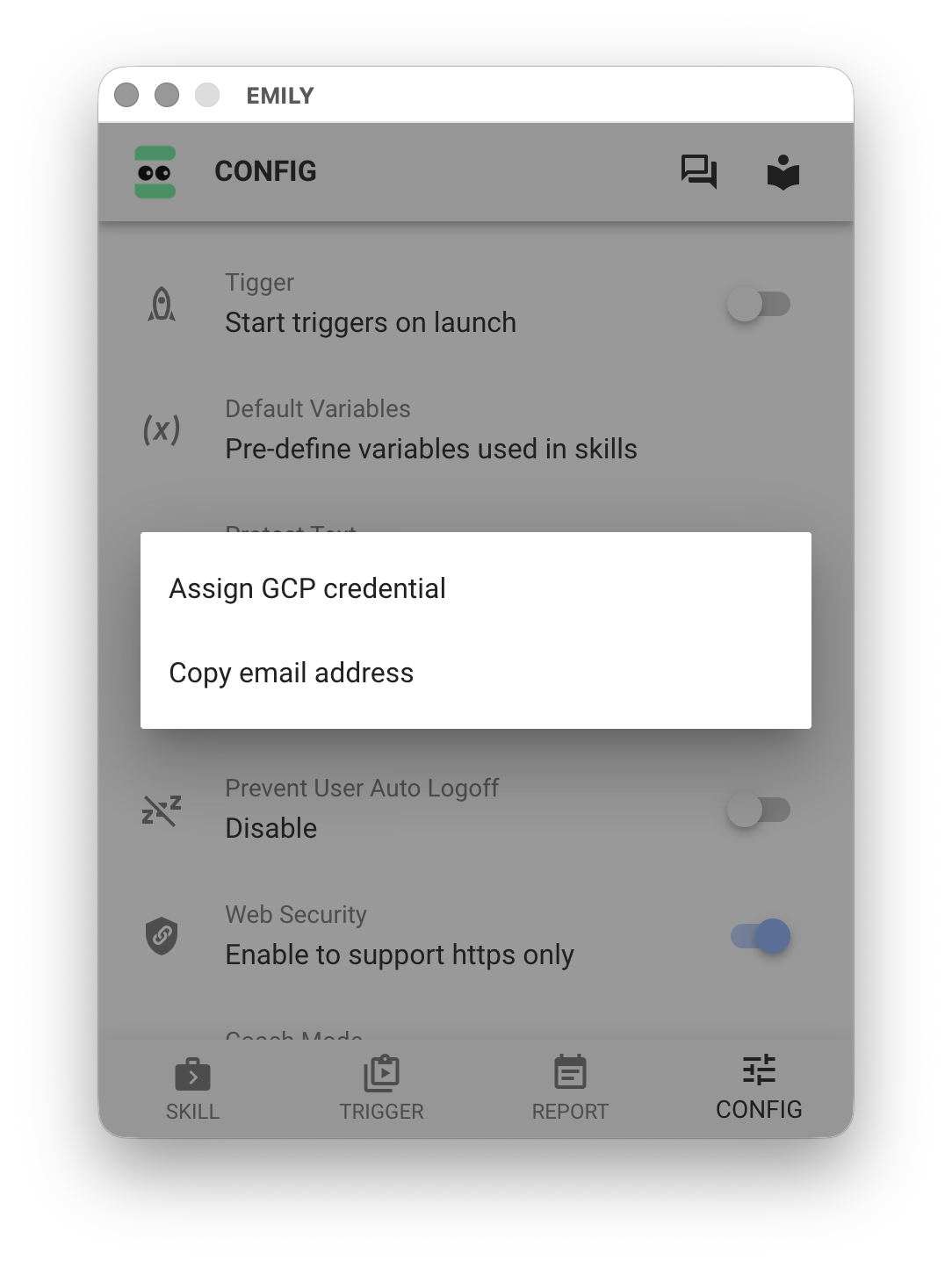
Account Settings
EMILY.RPA's account authorization, version updates, and other settings are all found on the "Account Settings" page. Available updates (if any), version number, account name, and license expiration date can be found directly on the page.
Version
Clicking the version item opens the version details page. If an update is available, the page will show two options: "Update Now" and "Manual Download". If the automatic update fails, you can use manual download instead — this may happen because antivirus software or endpoint protection software blocks the download of executable installation files. When downloading manually, make sure your firewall allows connections to the domain cdn.emily-rpa.com.
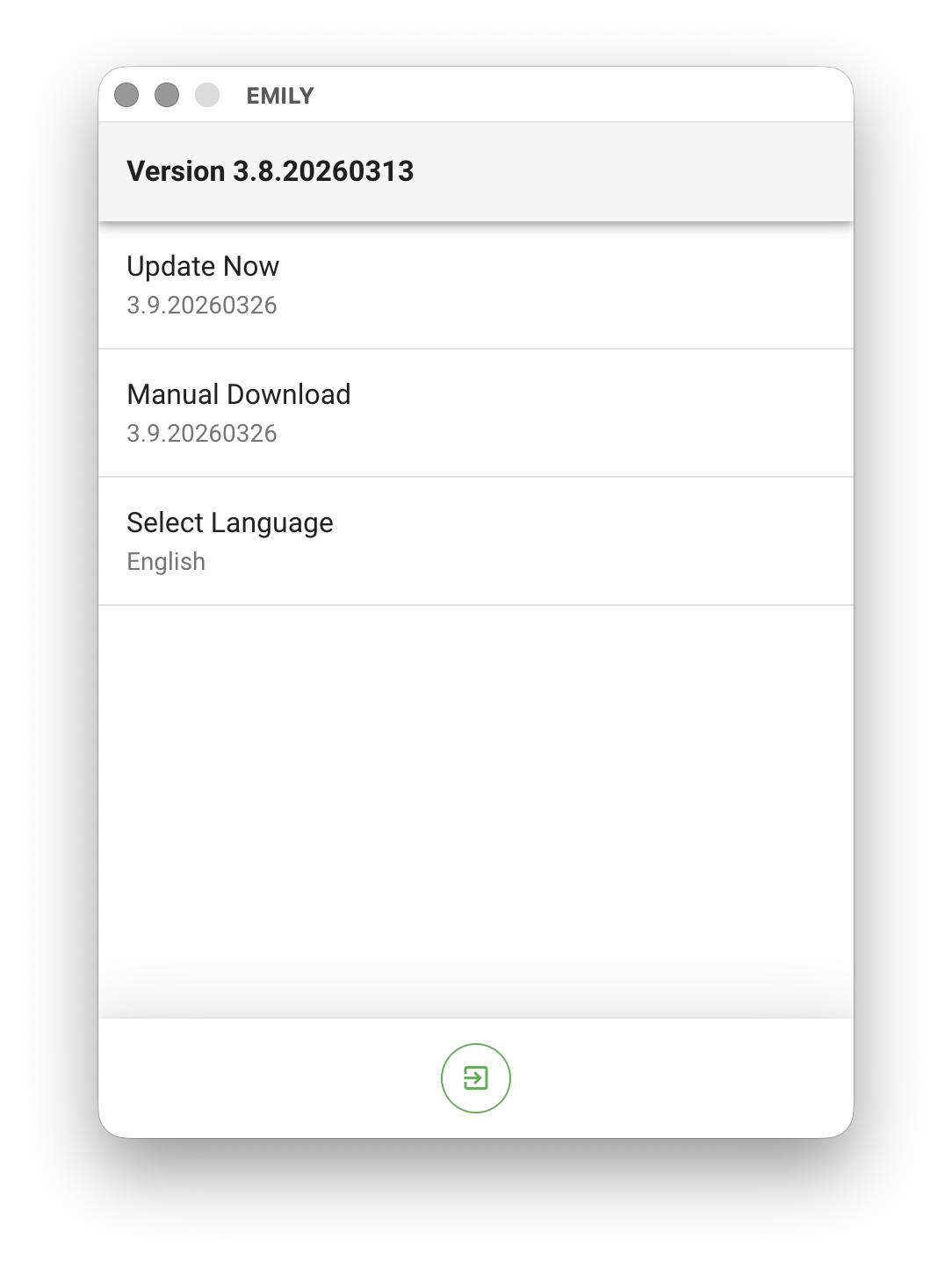
The user interface language can be changed by clicking "Select Language" to open the language menu. Currently, English, Traditional Chinese, and Japanese are supported.
Account
Clicking the account item opens the account details page, which includes "Expiration Date", "Licensed Computers", "Group", and "License History". Licensed Computers and Group require an enterprise plan to configure. The default number of licensed computers is one, meaning EMILY.RPA can only be open on one computer at a time. The Group feature provides skill sharing and permission management across multiple accounts in an enterprise — contact your sales representative for details.
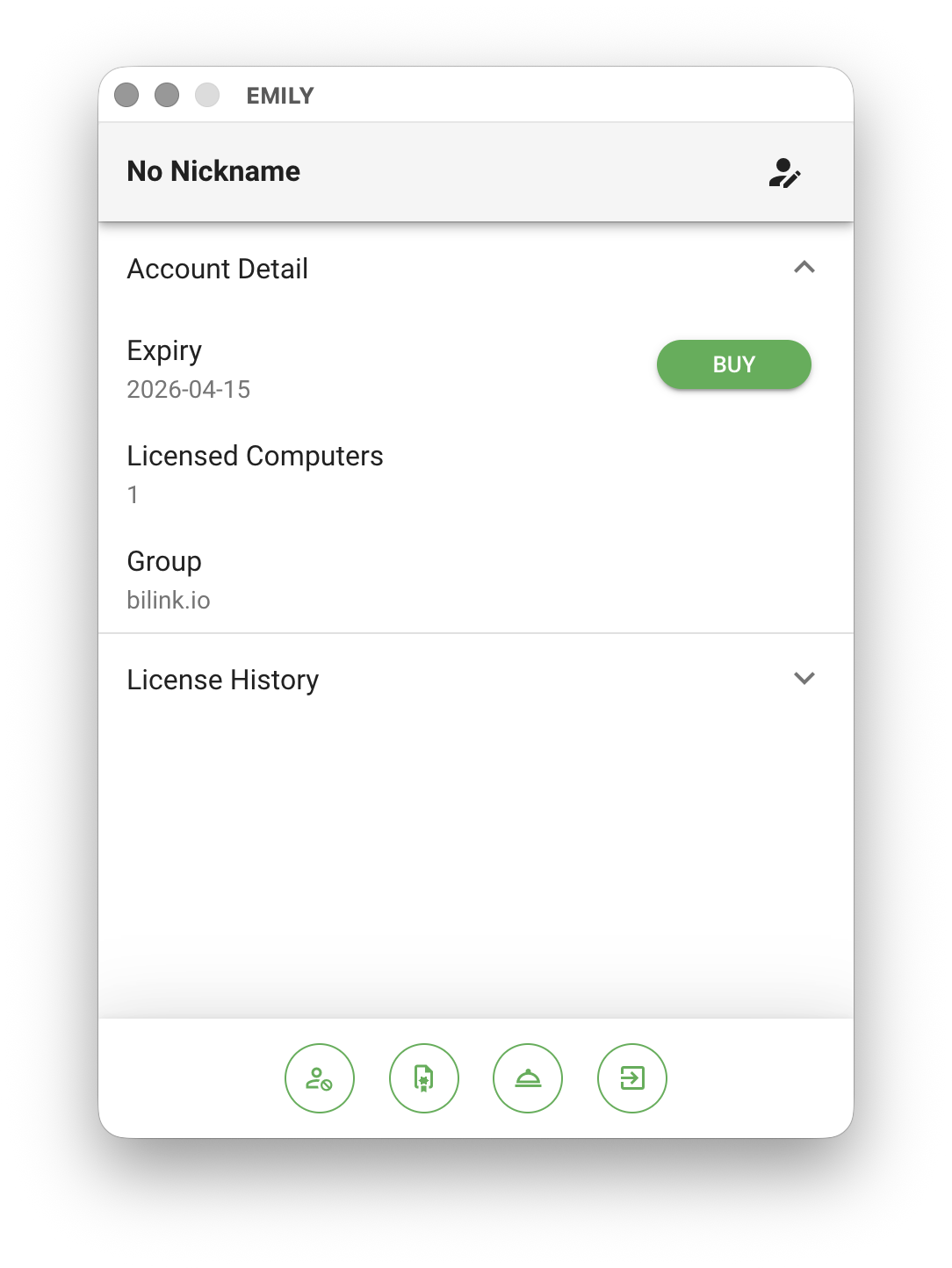
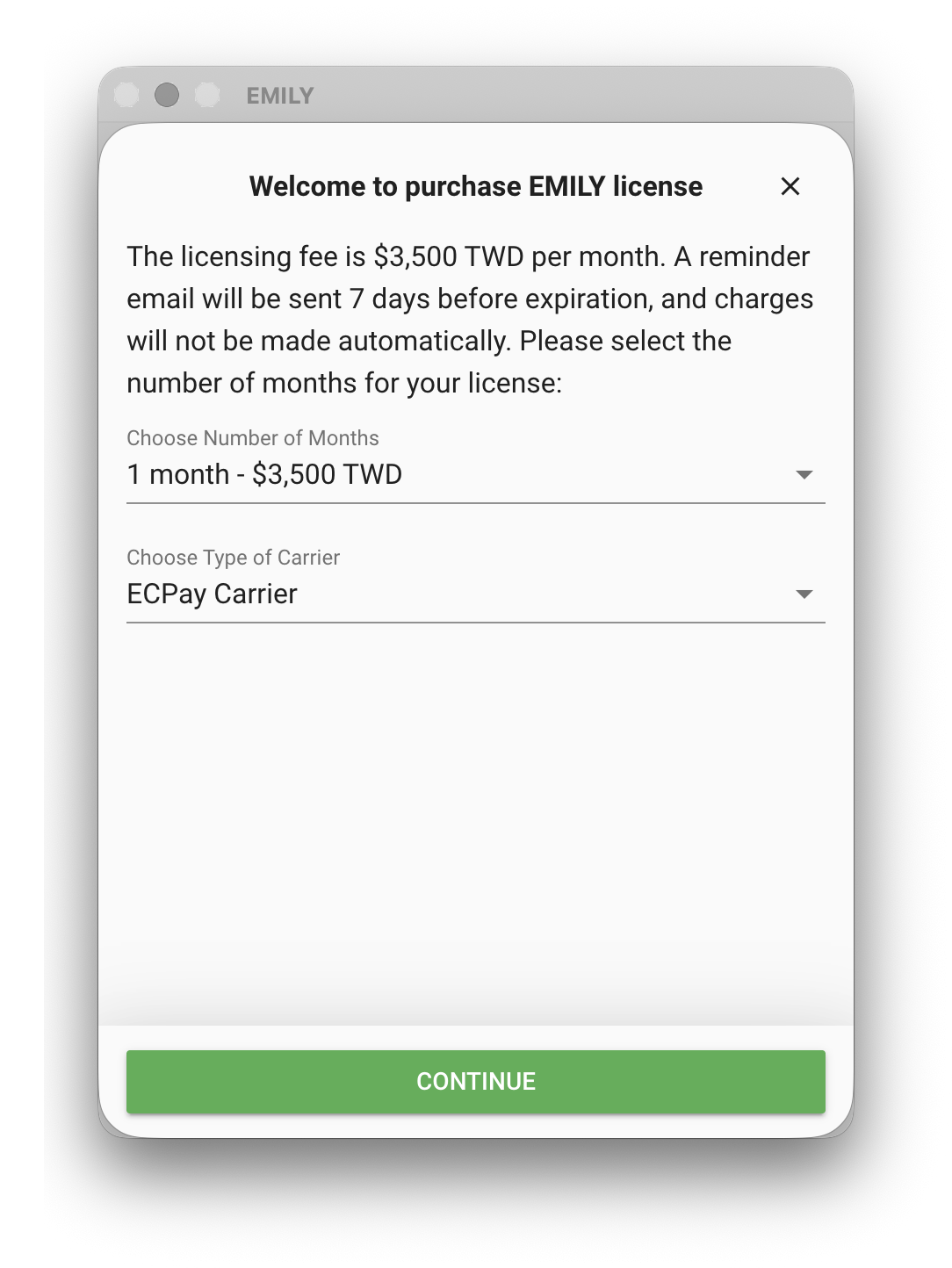
"Purchase License" allows a one-time online credit card purchase of an account license. You can choose the license duration, and you will only be notified upon expiration — there is no automatic charge. If you need an invoice for reimbursement, you can select a tax ID number under "Select Carrier", or choose a carrier for lottery purposes.
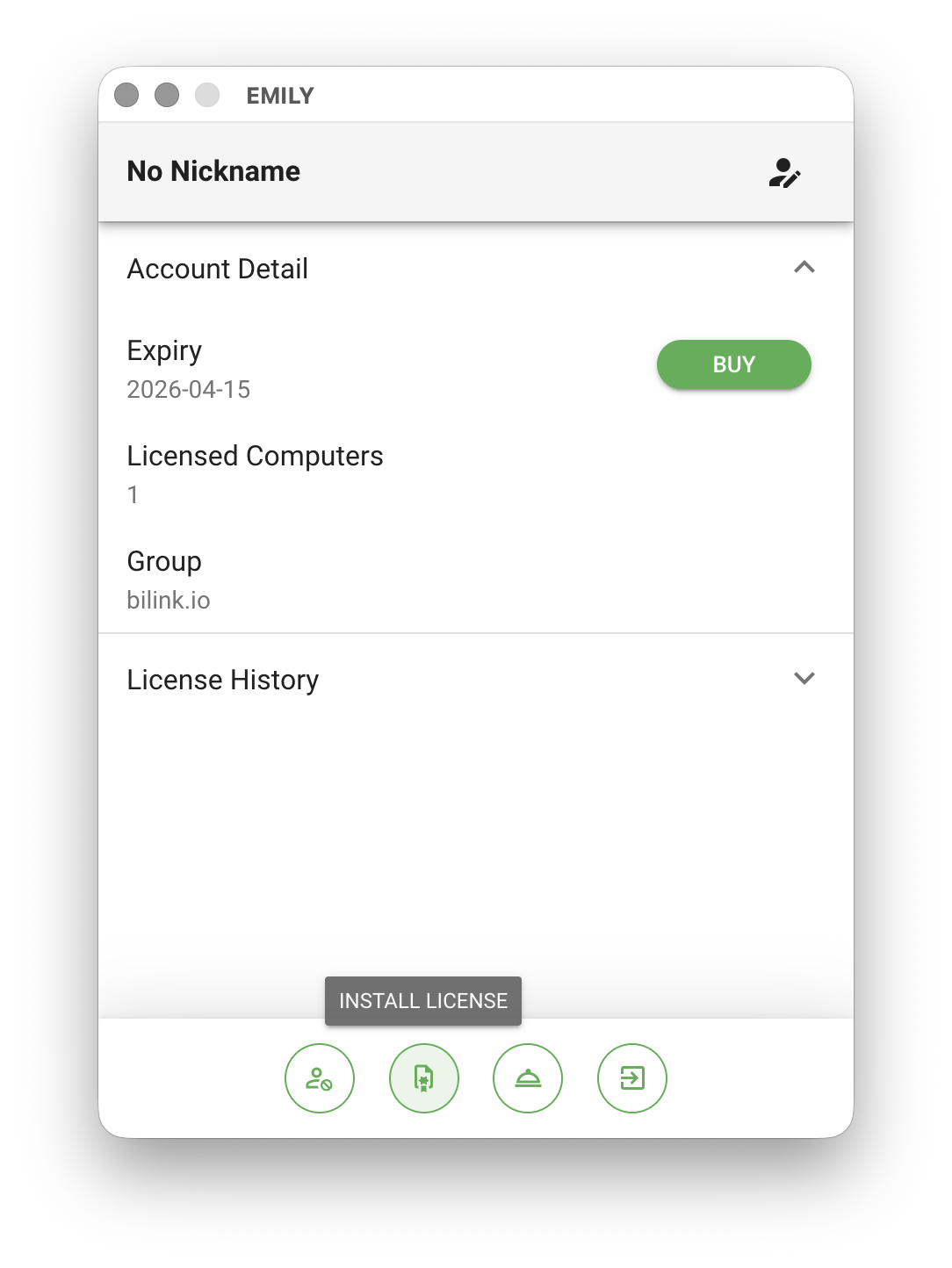
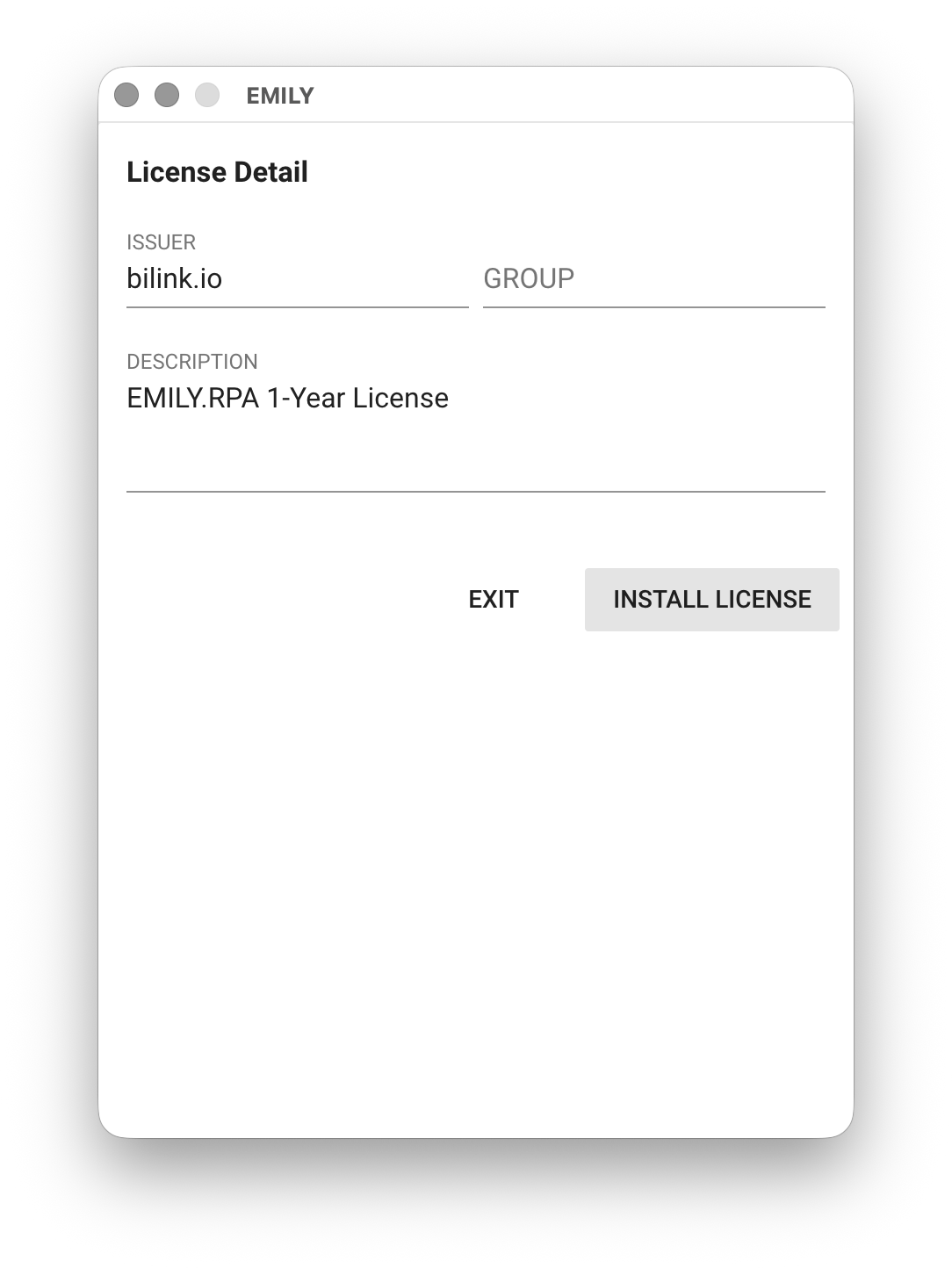
If you are an enterprise plan customer, your sales representative will provide a license file for your authorization purchase. The license file name typically looks like 8e3fa754-e8e0-4836-b452-d9be3978b7d6-39f9ff5e8031.json. After clicking "Install License", a file manager will appear to select the license file. Once selected, the license details will be displayed — click "Install License" again to begin the installation.
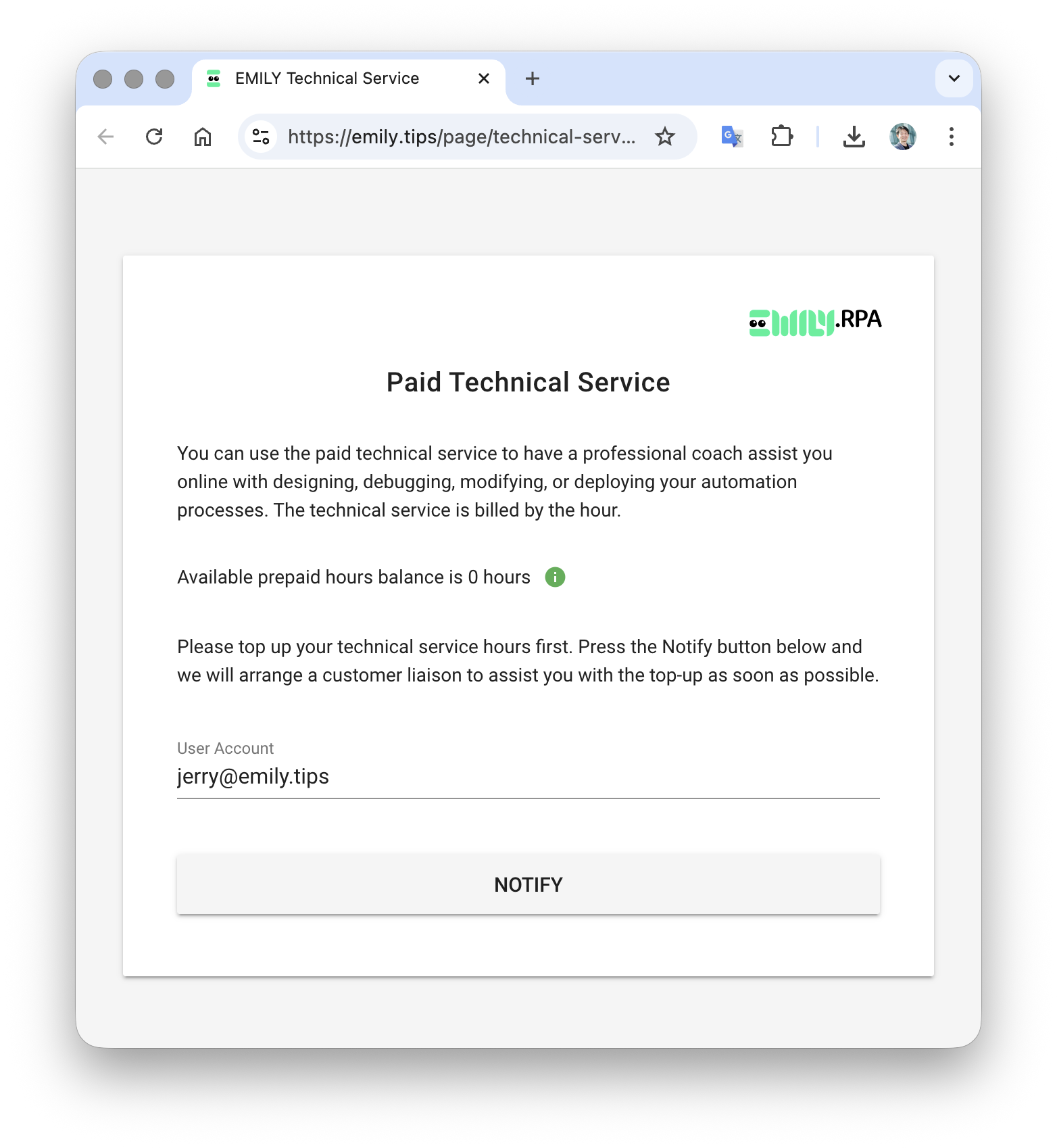
For technical issues such as workflow design, deployment, or debugging, you can click the "Technical Support" button to open the paid technical support request page. If you haven't added credit yet, you can also use that page to have a customer representative contact you.
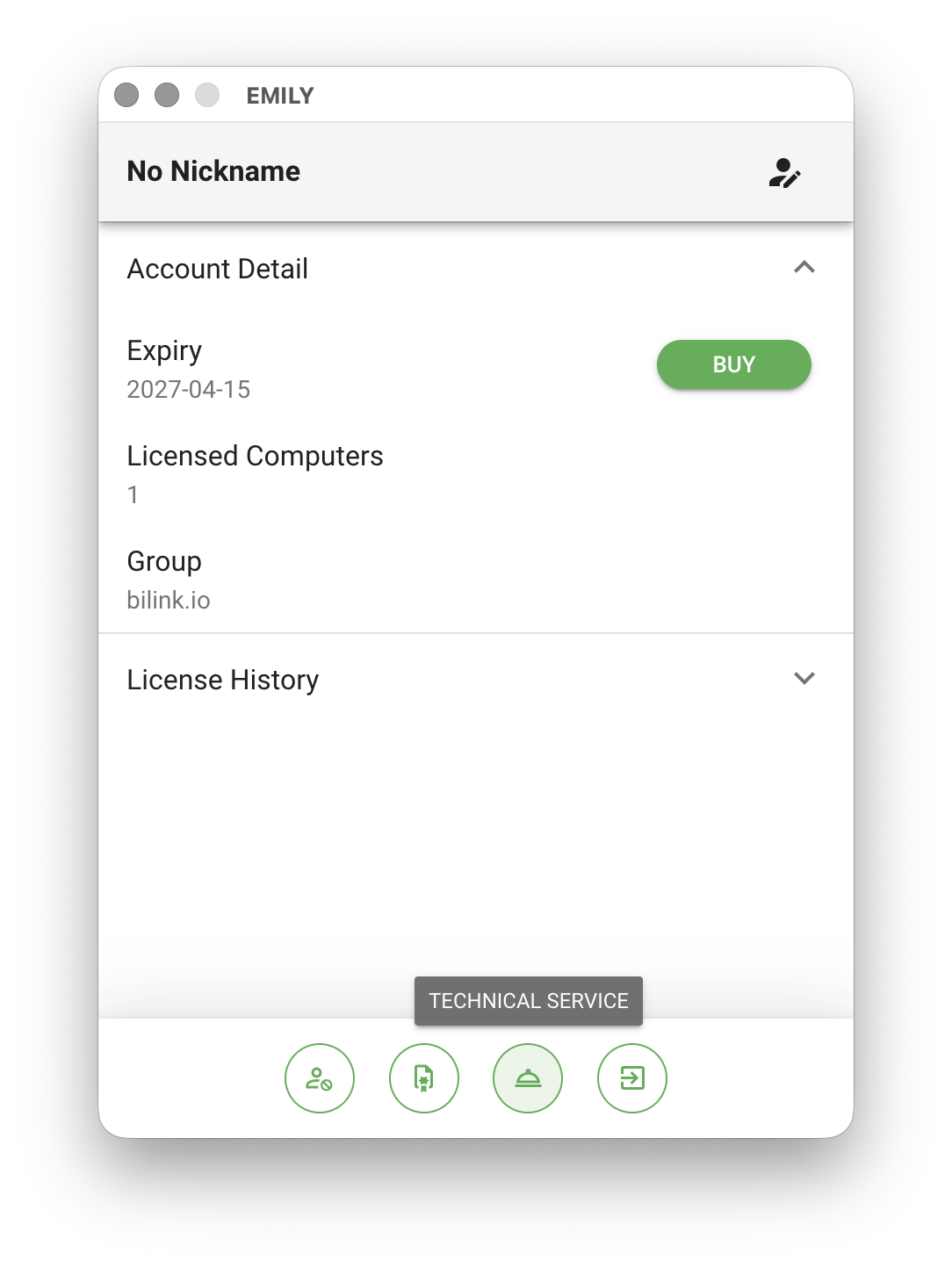
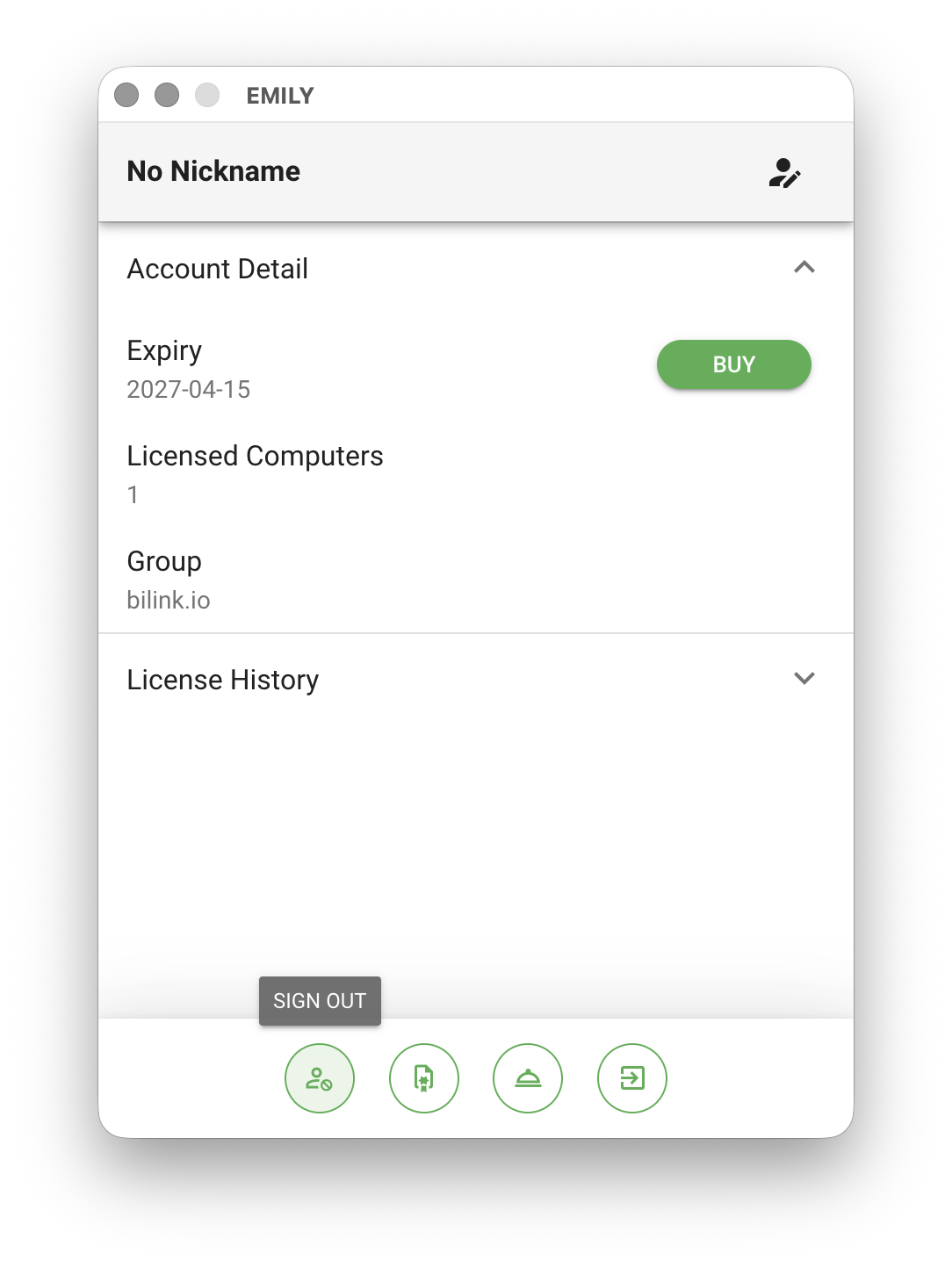
If the computer with EMILY.RPA installed no longer needs the current account, you can "Log Out" at the bottom. Please note that after logging out, if you register and log in again on this machine in the future, installed skills must be re-downloaded from the Skill Hub.
Trigger Options
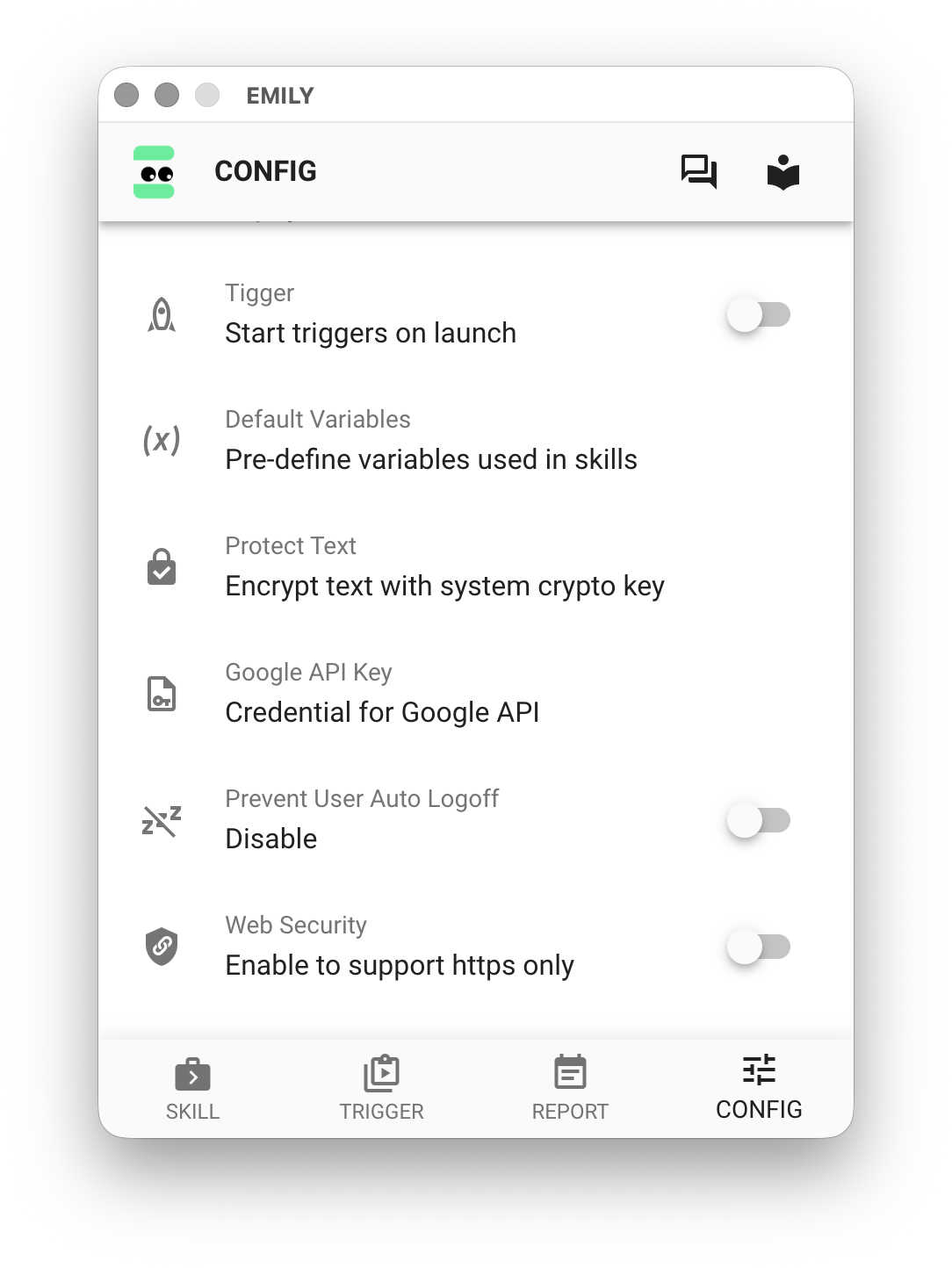
When the "Enter Fully Automated Mode on Startup" toggle is turned on, EMILY.RPA will enter fully automated mode directly the next time it launches. Combined with the operating system's "Auto Login on Boot" and "Launch Application on Startup" settings, this achieves the goal of having EMILY.RPA run fully automated as soon as the computer boots up.
Default Variables
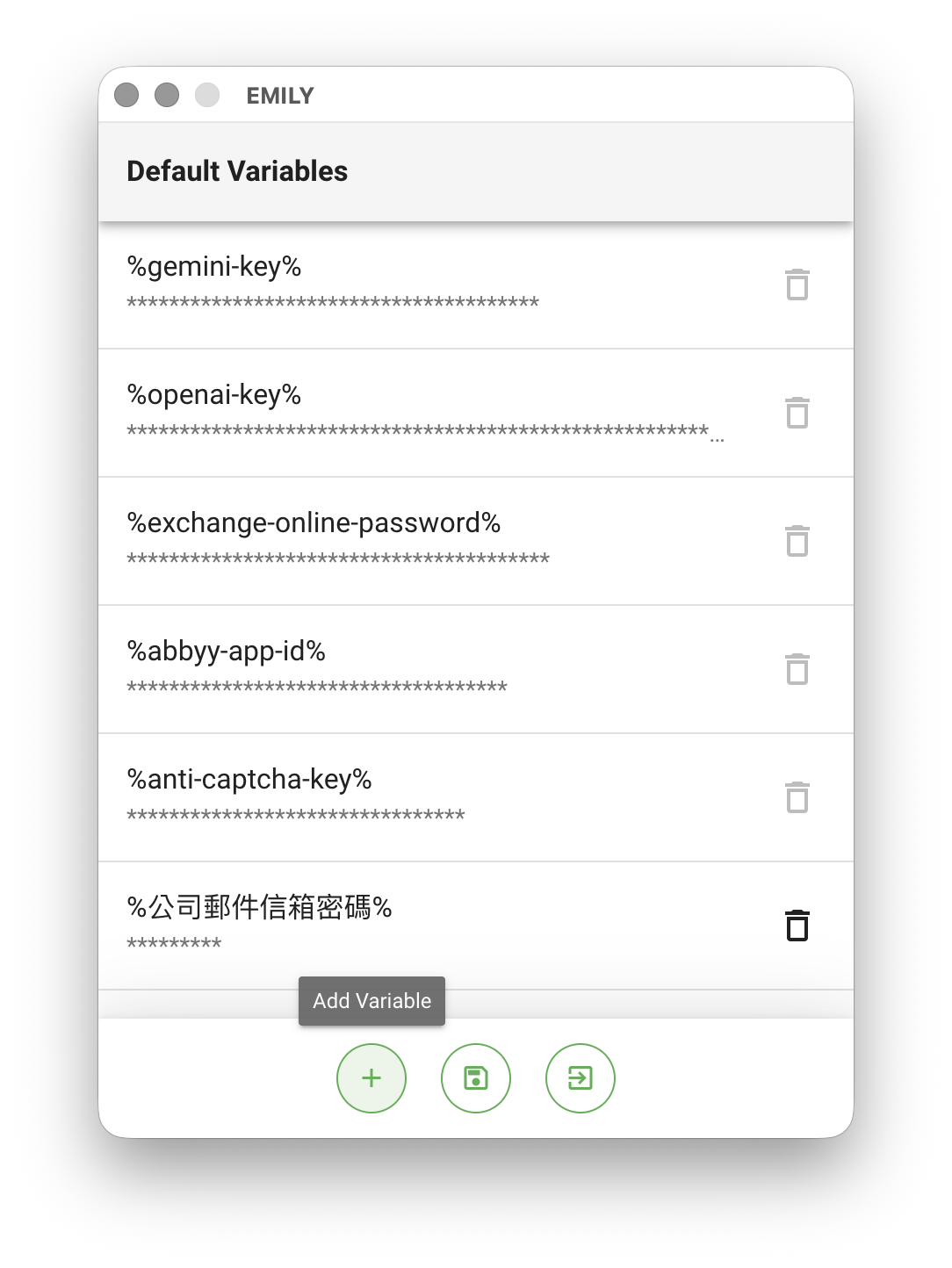
"Default Variables" allows you to save commonly used input information as variables, which can be used for accounts, passwords, or keys across various automated systems. The enterprise plan additionally provides group-shared variables that can be used by accounts within the group without exposing plaintext values.
Protect Text
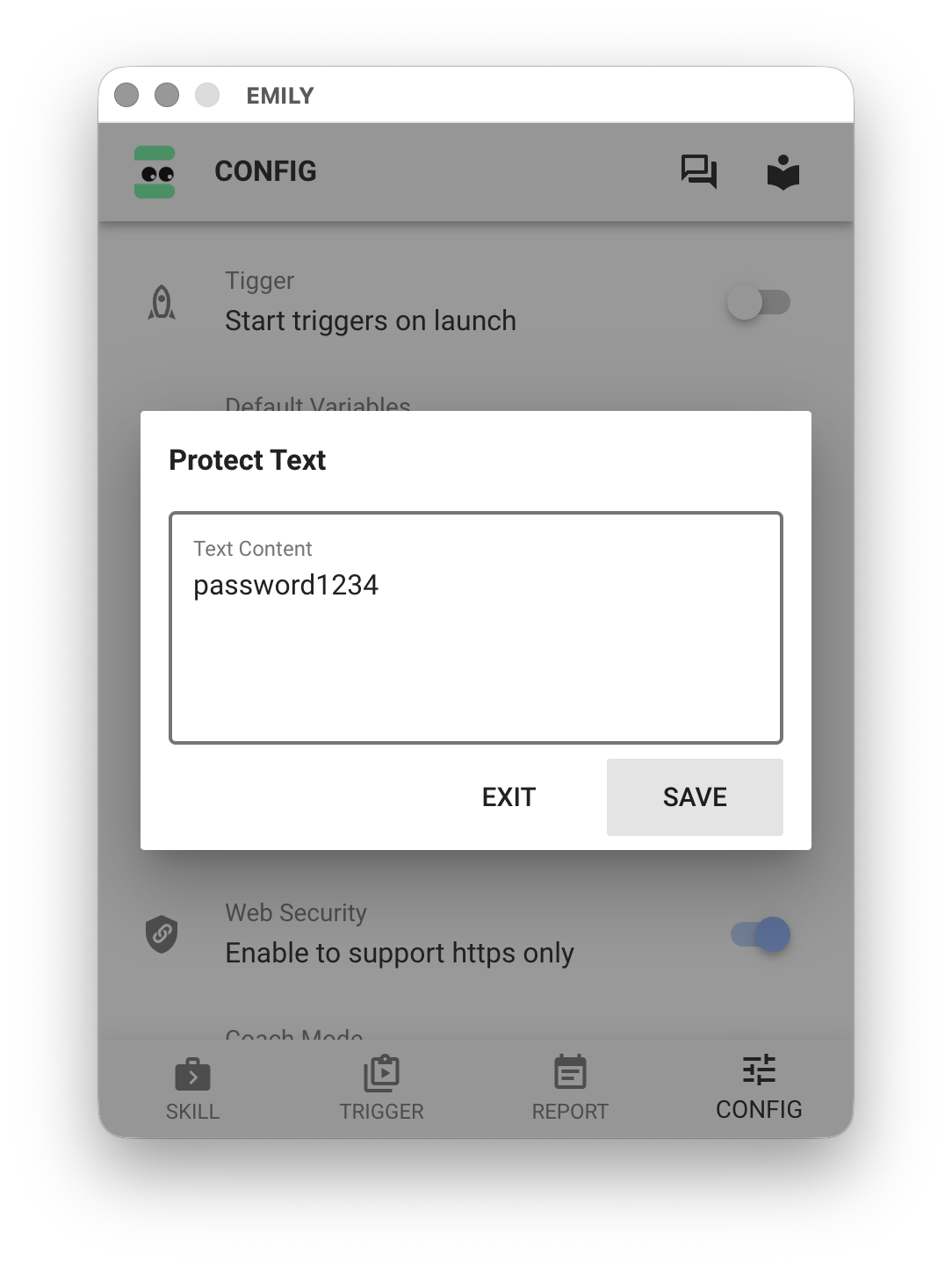
In the "Protect Text" dialog, you can enter sensitive text data such as passwords. EMILY.RPA encrypts it using an OS-protected key and saves it as ciphertext. This ciphertext file is only decrypted in real time when used within a skill — plaintext is never stored.
Google API Key
Several automation modules use Google services such as Google Drive and Google Sheets. These require a credential file obtained from Google Cloud Platform, and you must grant access permissions to the Google service account email address on the credential. Use "Specify GCP Credential File" below to set the JSON file you obtained, then click "Credential Email" to retrieve the email address from the credential. You can then grant read/write permissions to that email in Google Drive or Google Sheets so the relevant automation modules have the necessary access.