EXCEL Processor
Process EXCEL spreadsheet input and output as CSV or EXCEL format files. By specifying the sheet name, data starting cell, and header columns, the loaded data is normalized into a consistent data structure (input array) for Low-Code processing.
Parameters
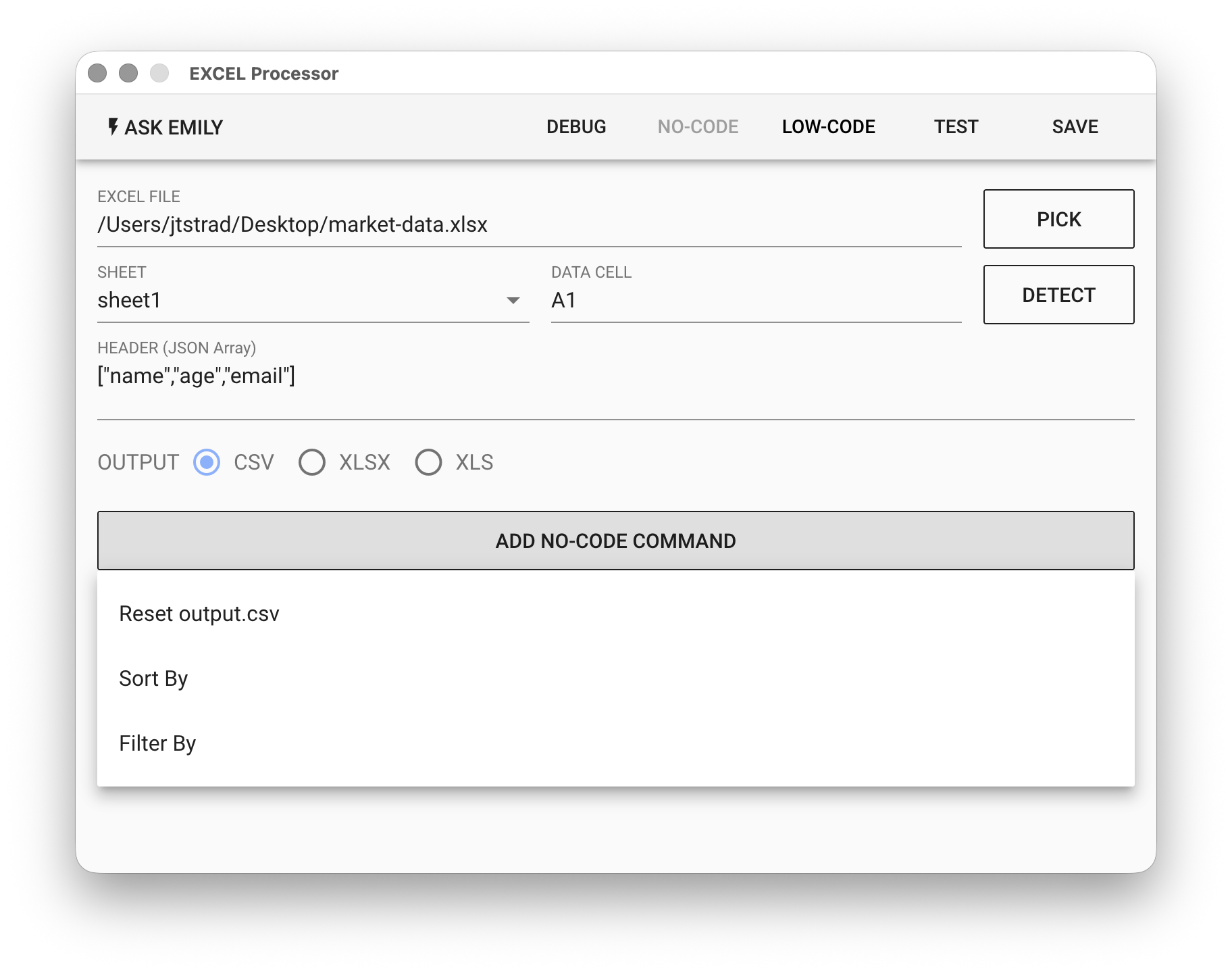
EXCEL - EXCEL input file. Click "PICK" to select a file, type the EXCEL filename from the working folder, or use the %FILENAME% variable.
SHEET - EXCEL input sheet name. Leave empty to use the first sheet in the file.
DATA CELL - The starting (upper-left) cell of the table data in A1 notation, not including the header.
HEADER - A naming array for the input table's header columns. There are two JSON array formats. The first is a simple one-to-one string array, where the first string in the array corresponds to the first header column of the table, the second string corresponds to the second header column, with no columns skipped in between, and so on:
["Column A header name", "Column B header name", ...]
The second is a more flexible object array, using the regular expression regexp, offset value, A1 notation, and other properties in the object to locate header columns, with the name property value used as the located header column name:
[
  {
    "regexp": "品名$",  // Find the cell above the data starting point whose value ends with "品名"
    "name": "product"  // Use the found cell as the header column, named "product"
  },
  {
    "regexp": "品名$",  // Find the cell above the data starting point whose value ends with "品名"
    "offset": 1, // Shift one column to the right
    "name": "price"  // Use the found cell as the header column, named "price"
  },
  {
    "A1": "C",  // Find column C (in A1 notation)
    "name": "stock"  // Use the found cell as the header column, named "stock"
  }
]
OUTPUT - The output file format, either CSV or XLSX.
No-Code Editor
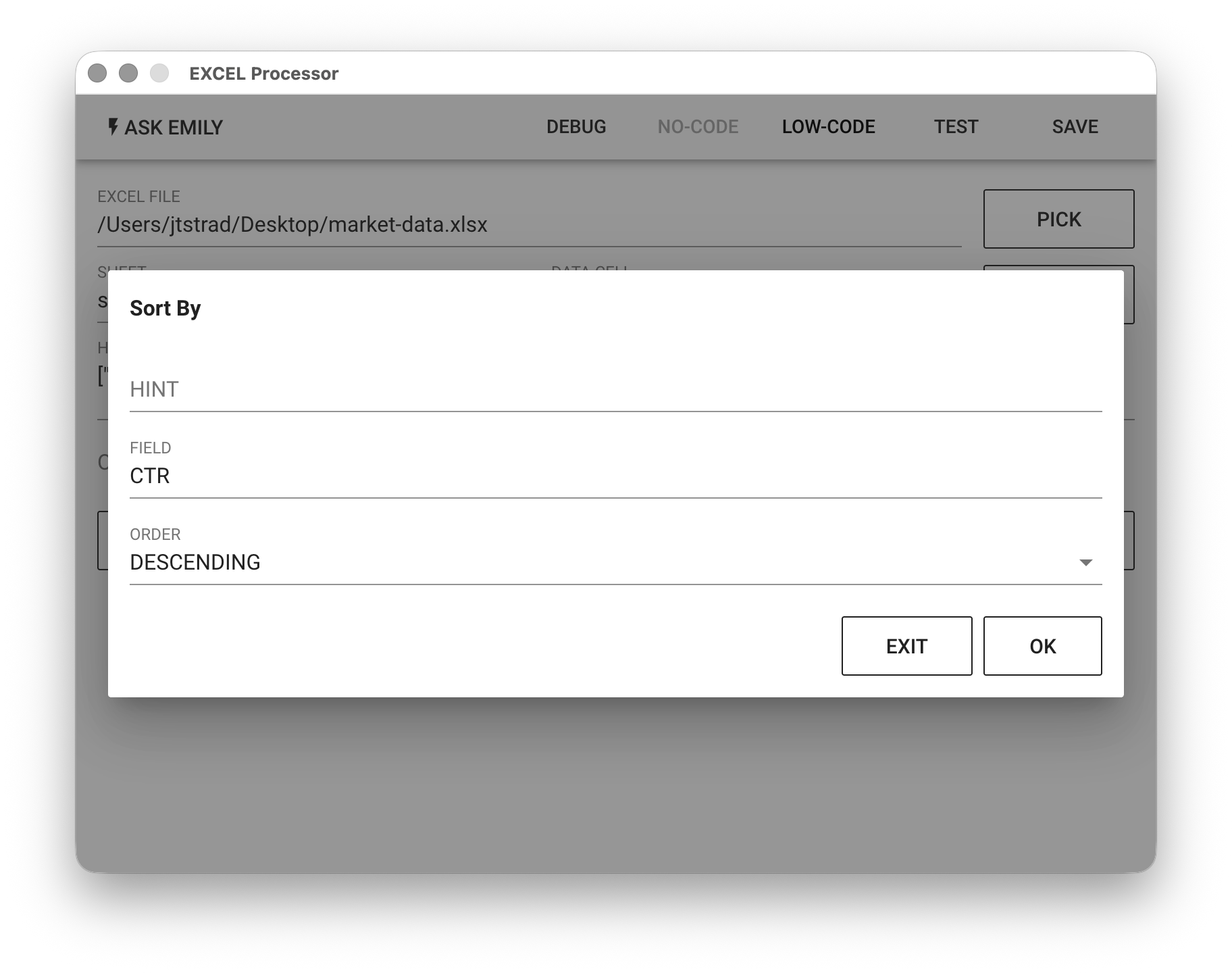
Provides No-Code commands such as: "Reset output.csv", "Sort", and "Filter". For example, sort the specified spreadsheet file by the reach rate column in DESCENDING order.
Low-Code Editor
input Array
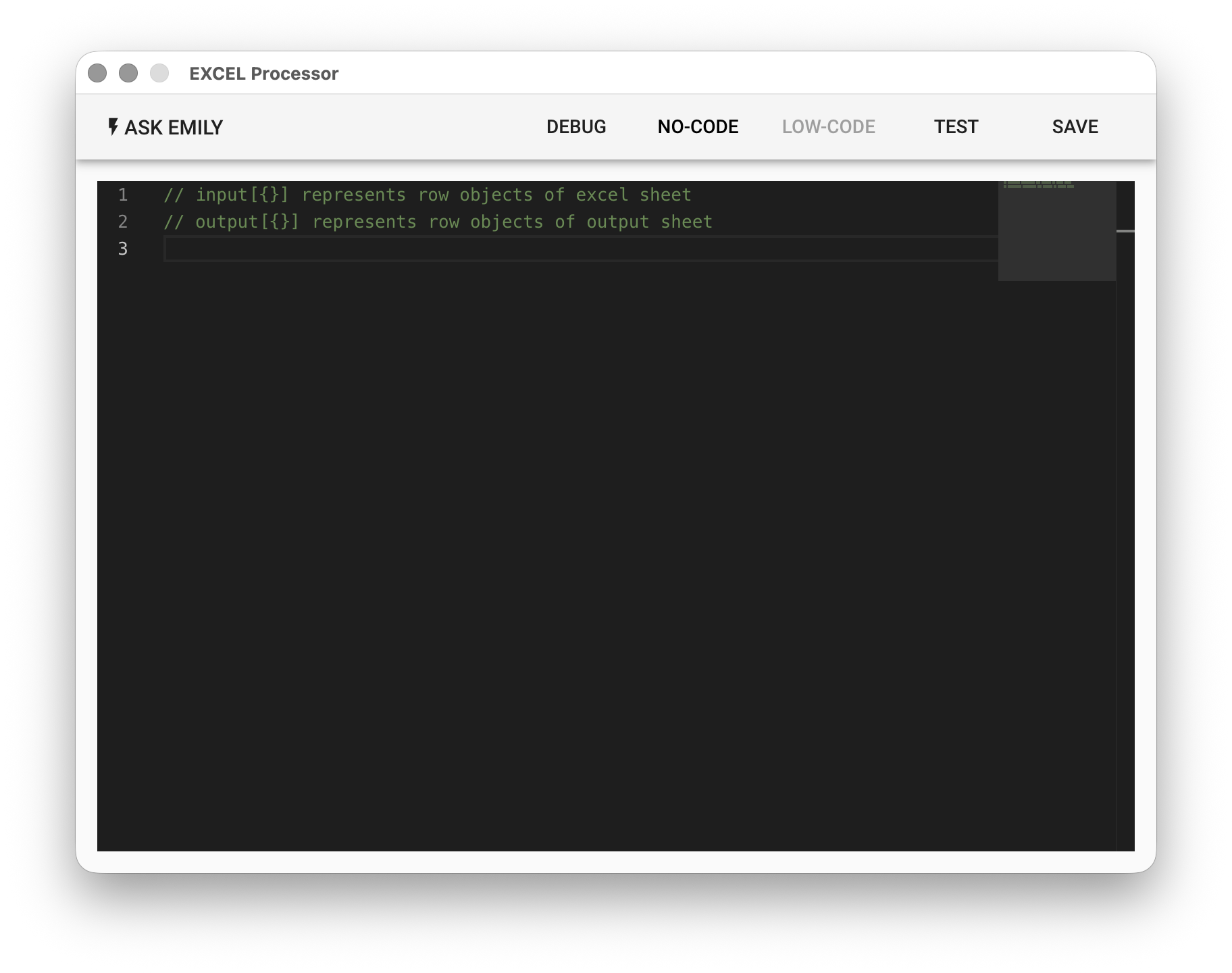
Each object element in the input array represents a row of data from the input table, where the key is the header column and the value is that column's value in this row.
// Print specified columns for each row of the input table
input.forEach((row, index) => {
  console.log(index + '. product:' + row.product + ', price:' + row.price)
})
output Array
Each object element added to the output array represents a row of data in the output table, where the key is the header column and the value is that column's value in this row. You can also use the output.header array to specify the output table's header columns:
// Output a table of items with price above 100, adding a 5% tax
input.forEach((row) => {
  if (row.price > 100) {
    output.push({
      name: row.product,
      price: row.price,
      tax: row.price * 0.05
    })
  }
})

// Specify header columns
output.header.push('name','price','tax')