Exchange Online Configuration
Tenant ID (TENANT ID)
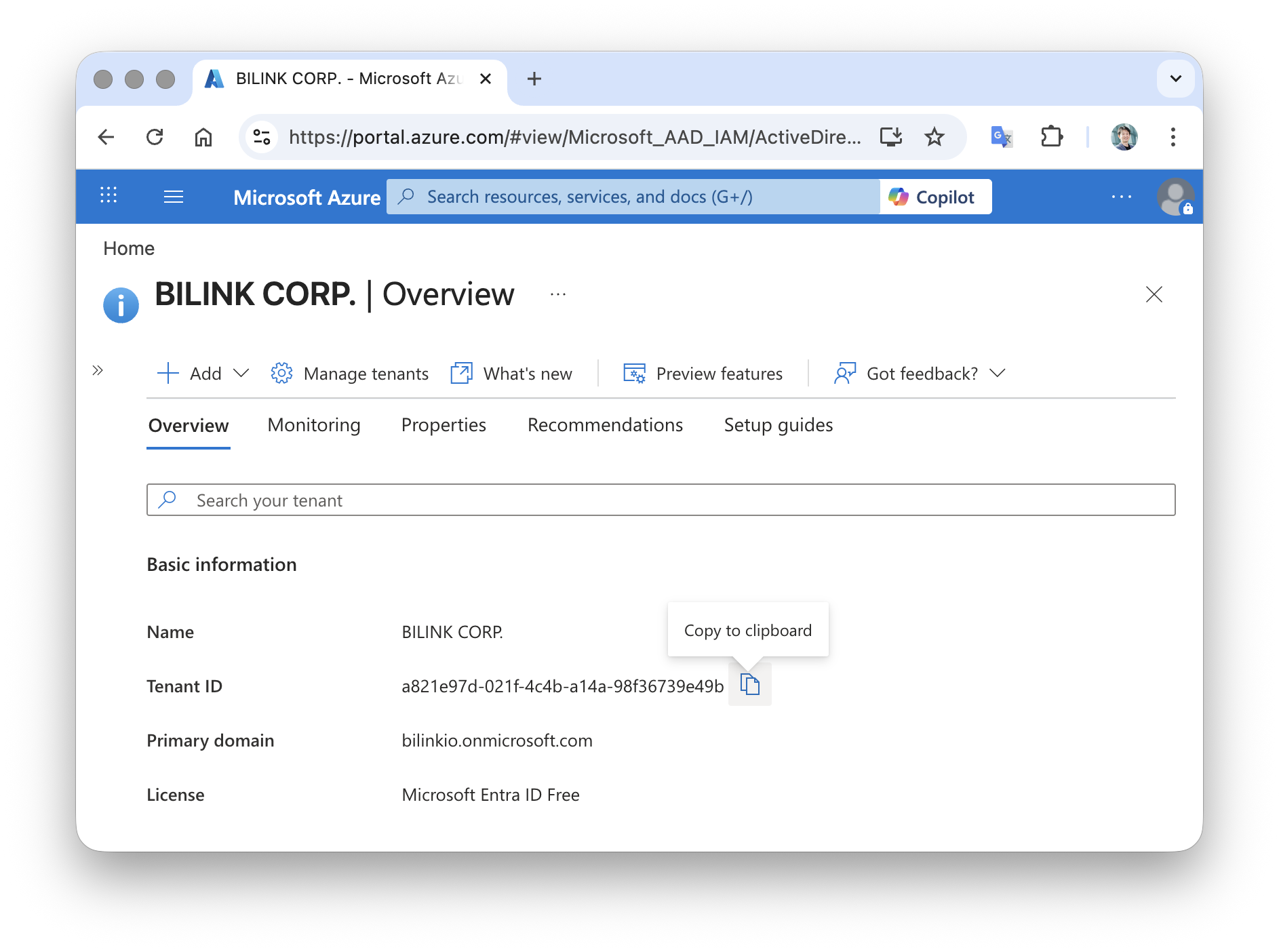
Sign in with your Microsoft account on the Azure Portal, search for and navigate to Azure Active Directory (now renamed to Microsoft Entra ID) overview, where you can find the Tenant ID.
Client ID (CLIENT ID)
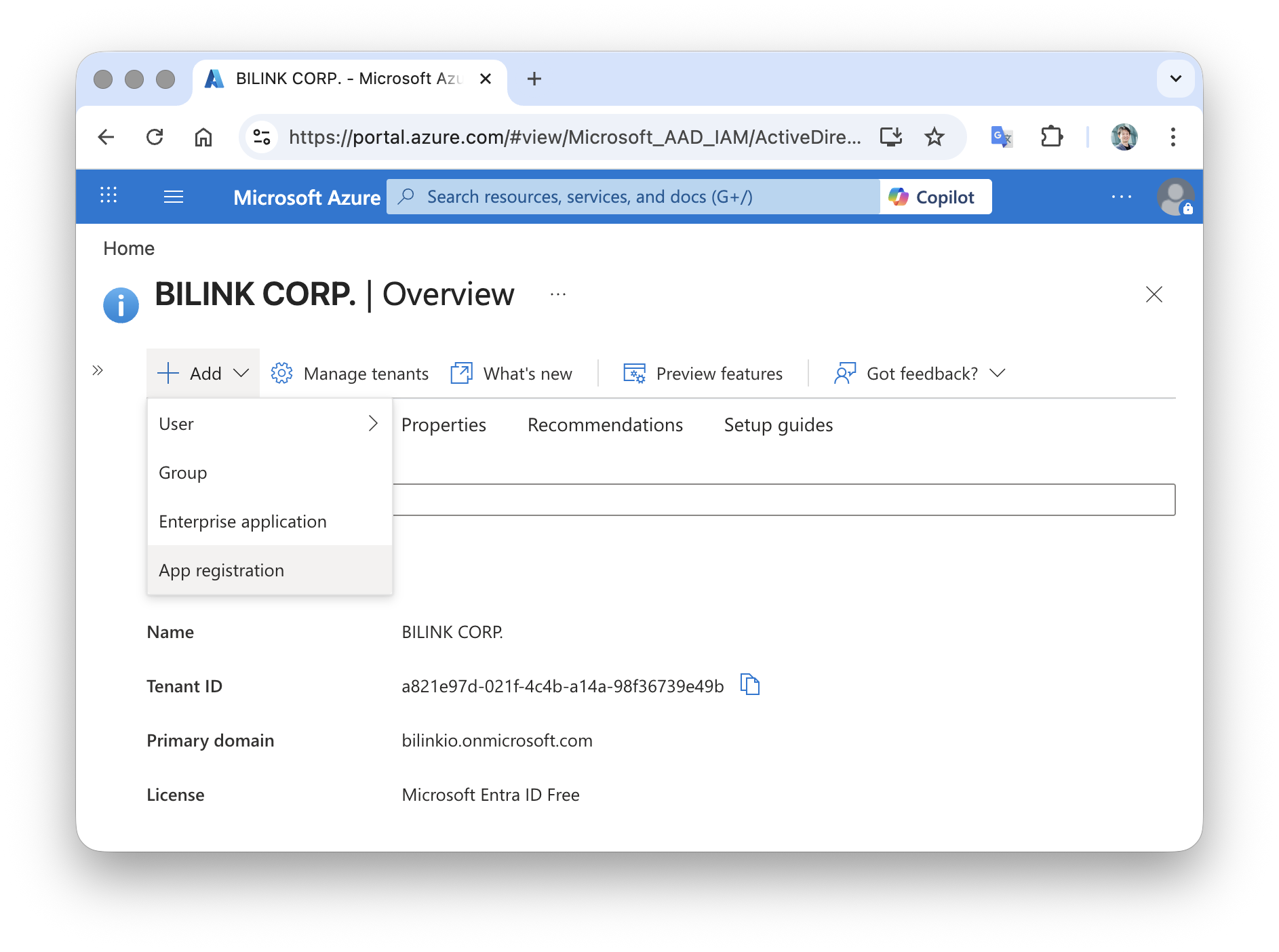
Before accessing Exchange Online, you need to create an "App Registration". The CLIENT ID is the Application (client) ID of the enterprise application registered under the tenant mentioned above. The registration steps are as follows:
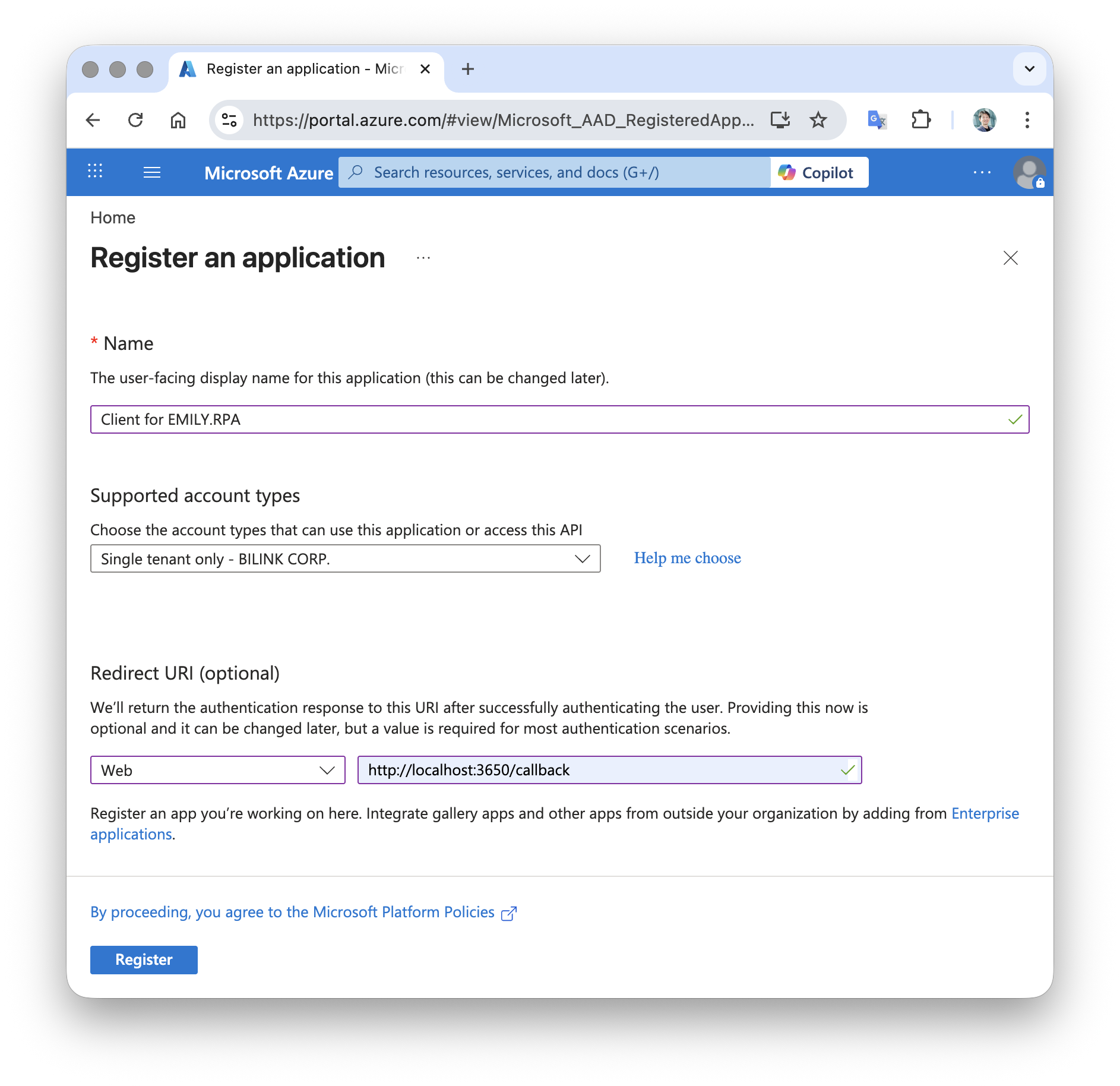
Choose a name that matches the purpose for easier identification. For supported account types, keep the default single tenant option Accounts in this organizational directory only, unless other tenants also need to use this client to access email. Set the platform to Web and the URI to http://localhost:3650/callback.
After clicking "Register", you can copy the Client ID.
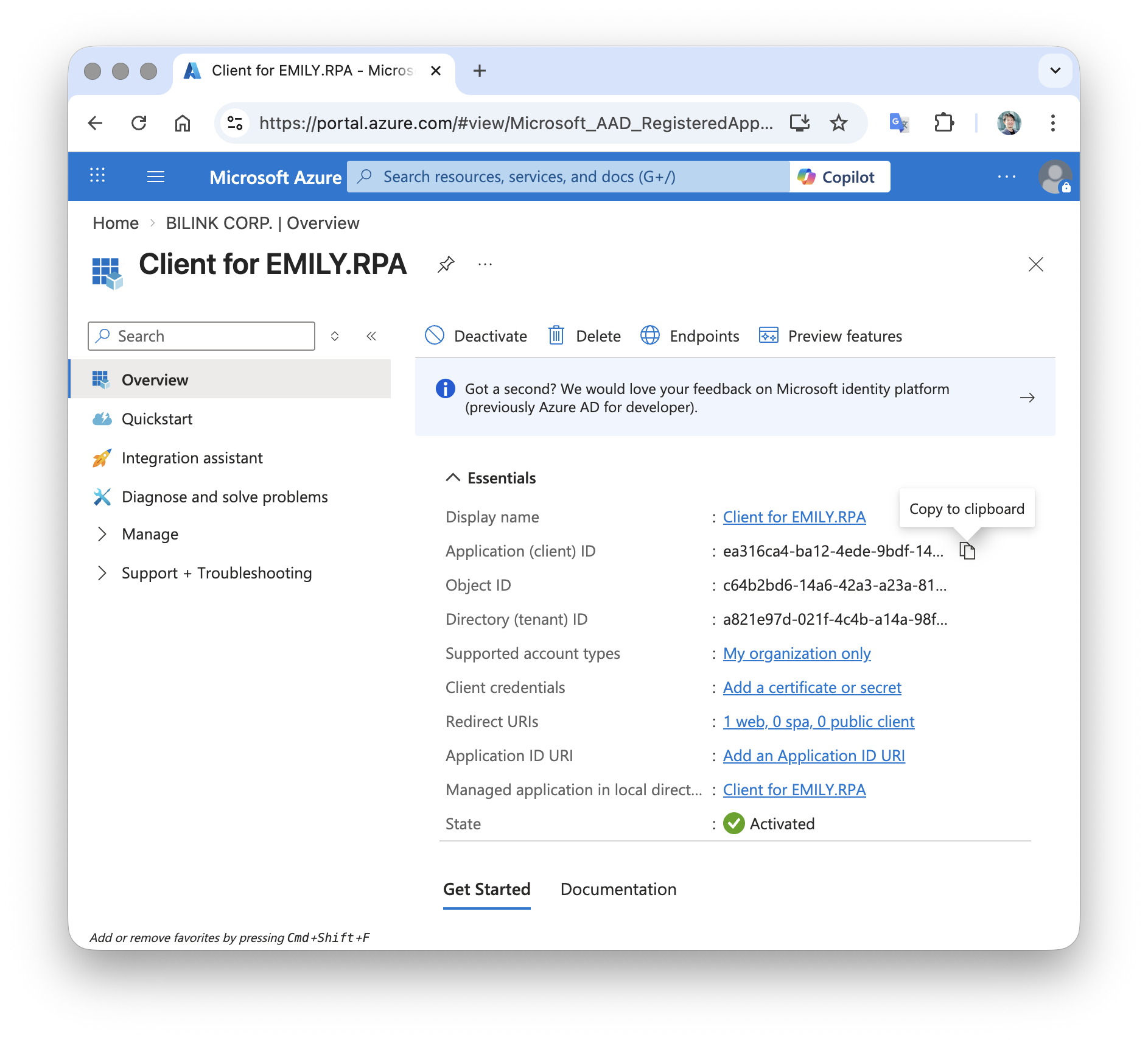
Client Secret (CLIENT SECRET)
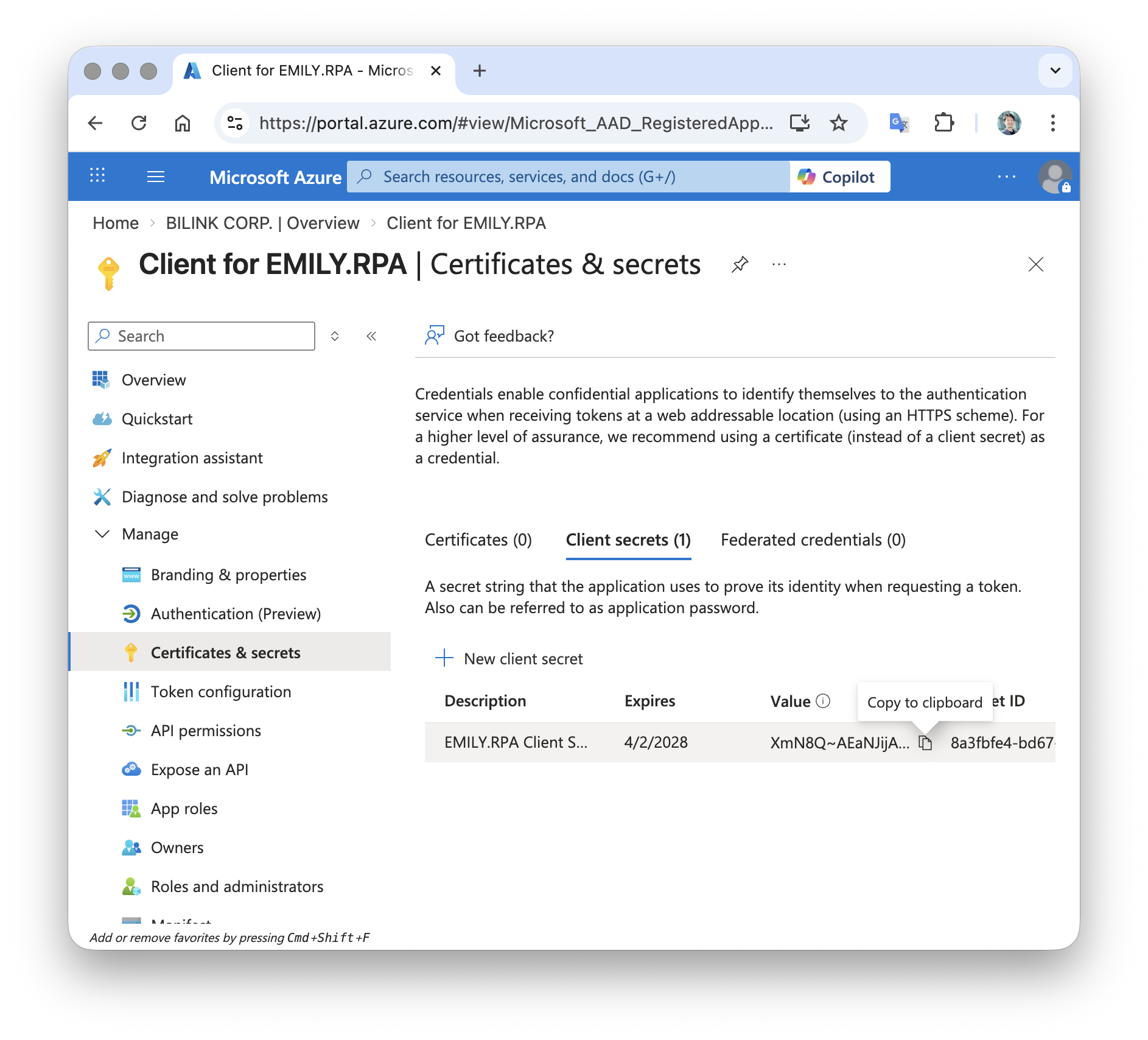
Next, click "Add a certificate or secret" shown in the image above. On the "Add a client secret" page, fill in the Description and select the Expires option. It is recommended to choose a longer expiration date to avoid having to create a new client secret after it expires.
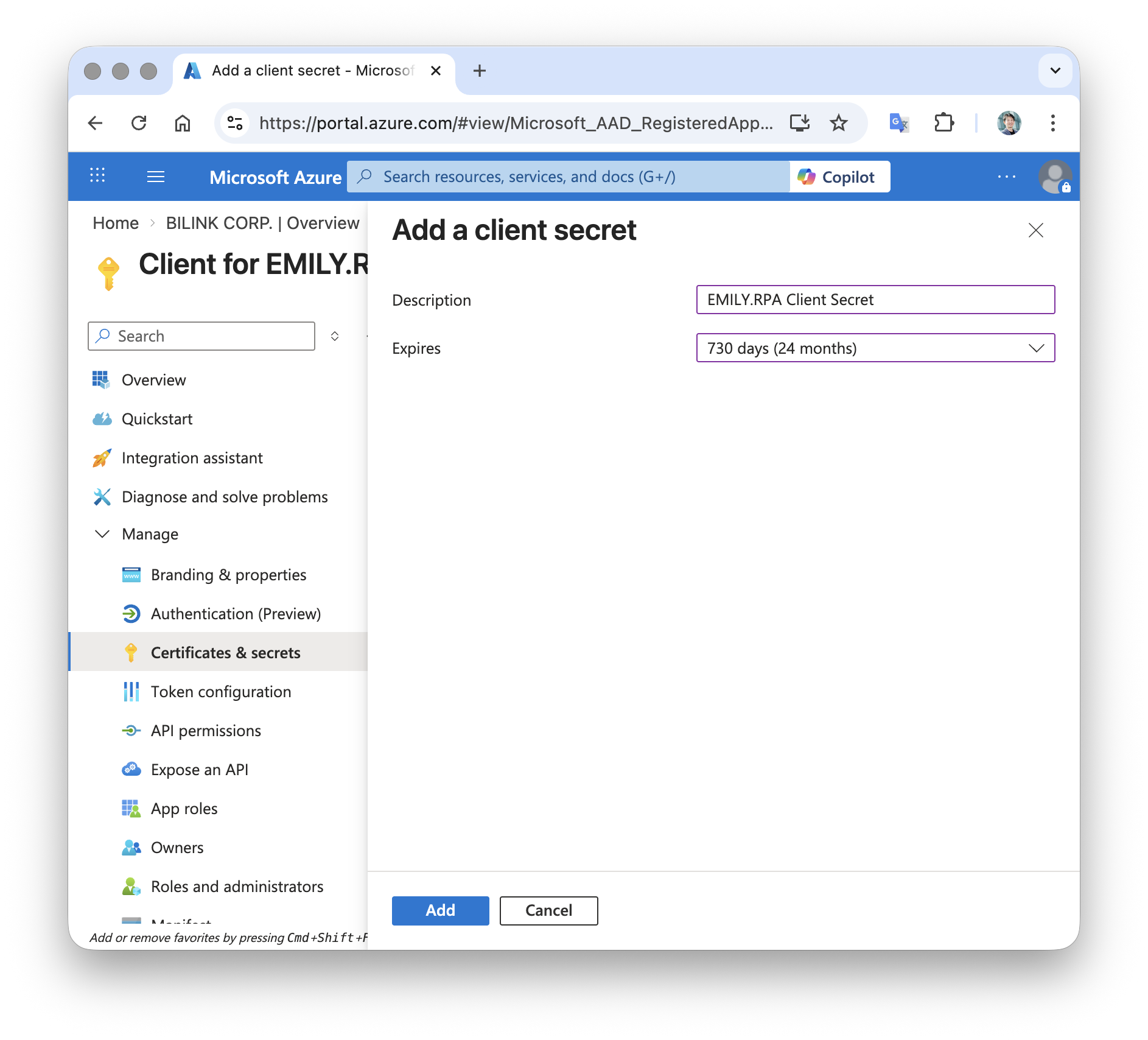
After clicking "Add", you can copy the "Client Secret" value.