How to Use Automation Modules?
EMILY.RPA provides various automation modules that users can select and add to workflows as needed when designing skills. In Training Mode, click the "Back to Design Home" button on the main interface.
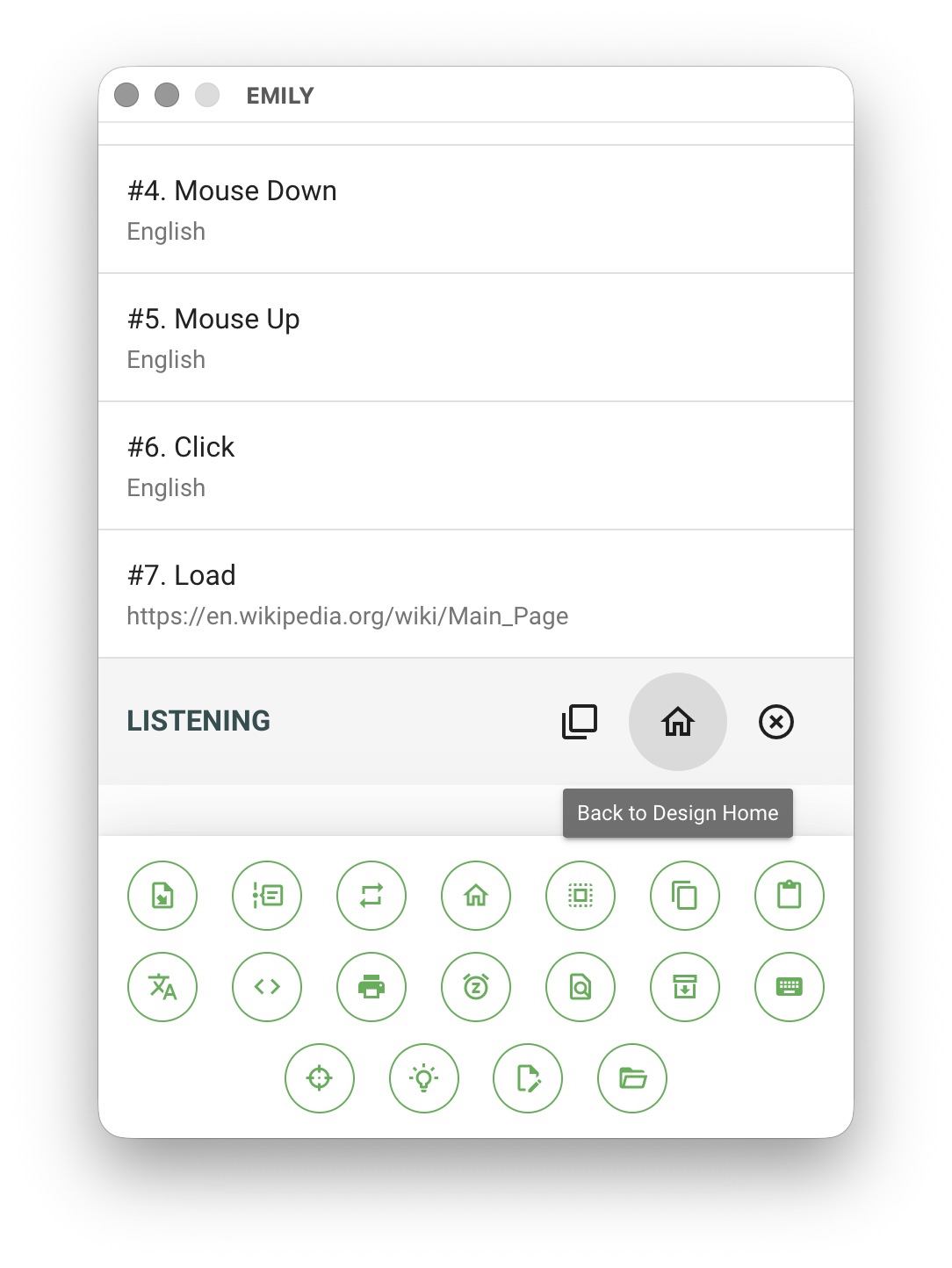
Design Home
The Design Home page can be scrolled up and down to browse all automation modules. Entering a search keyword in the address bar instantly filters all modules whose name or description contains the keyword — for example, entering email filters out email-related modules.
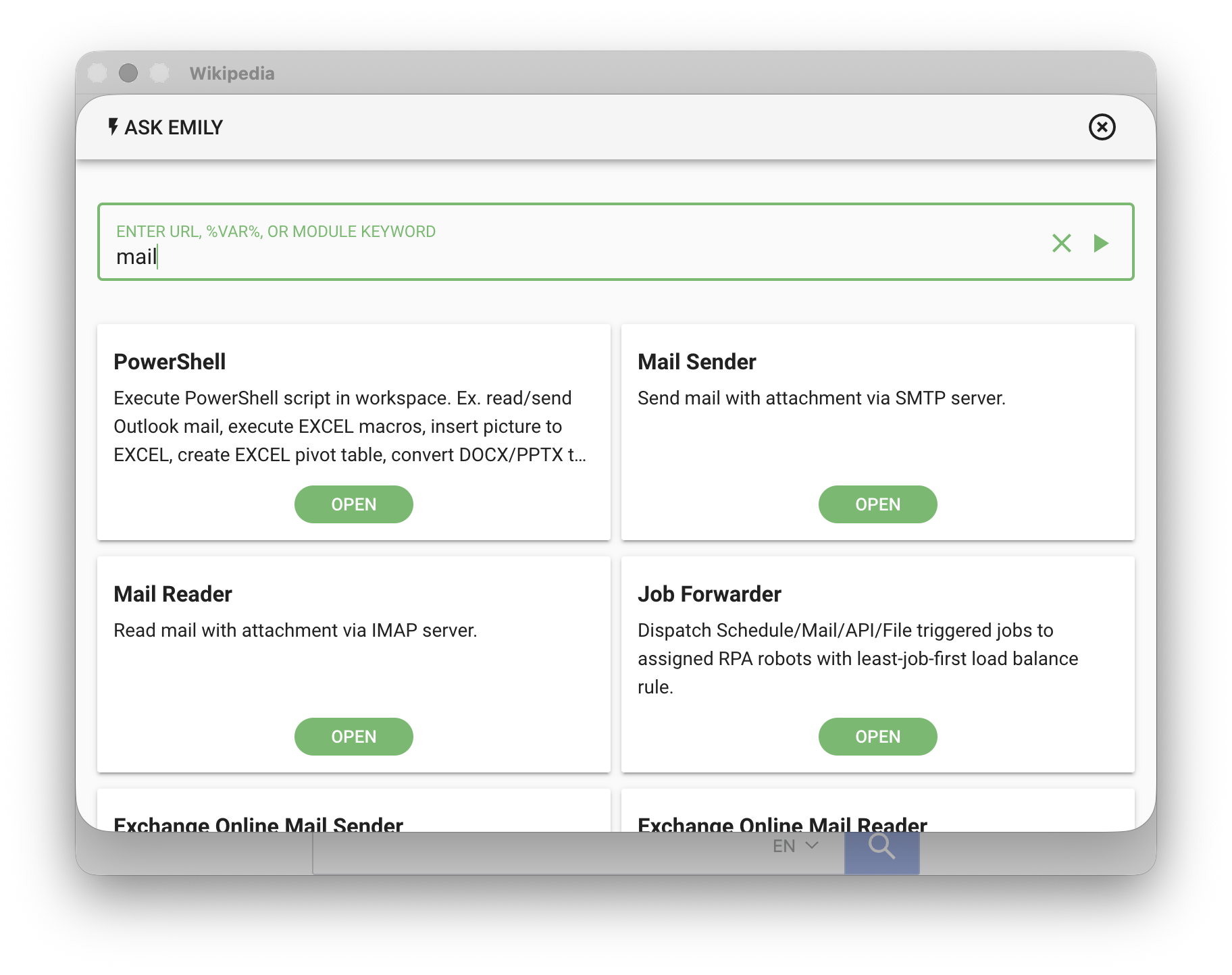
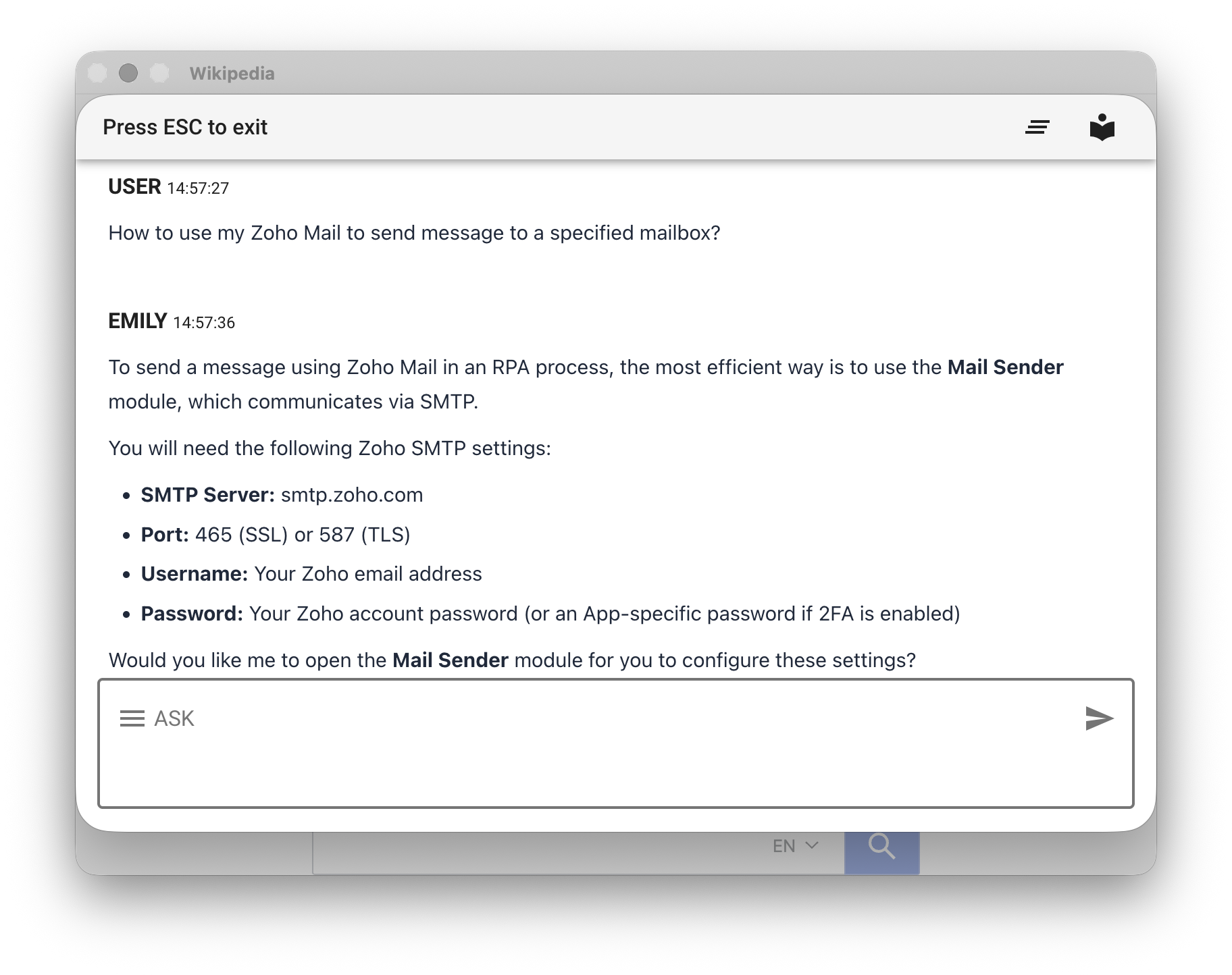
You can also click "ASK EMILY" in the upper left of the Design Home to ask the AI in natural language which modules might meet your needs, or even describe the general workflow process and let the AI suggest which modules to consider.
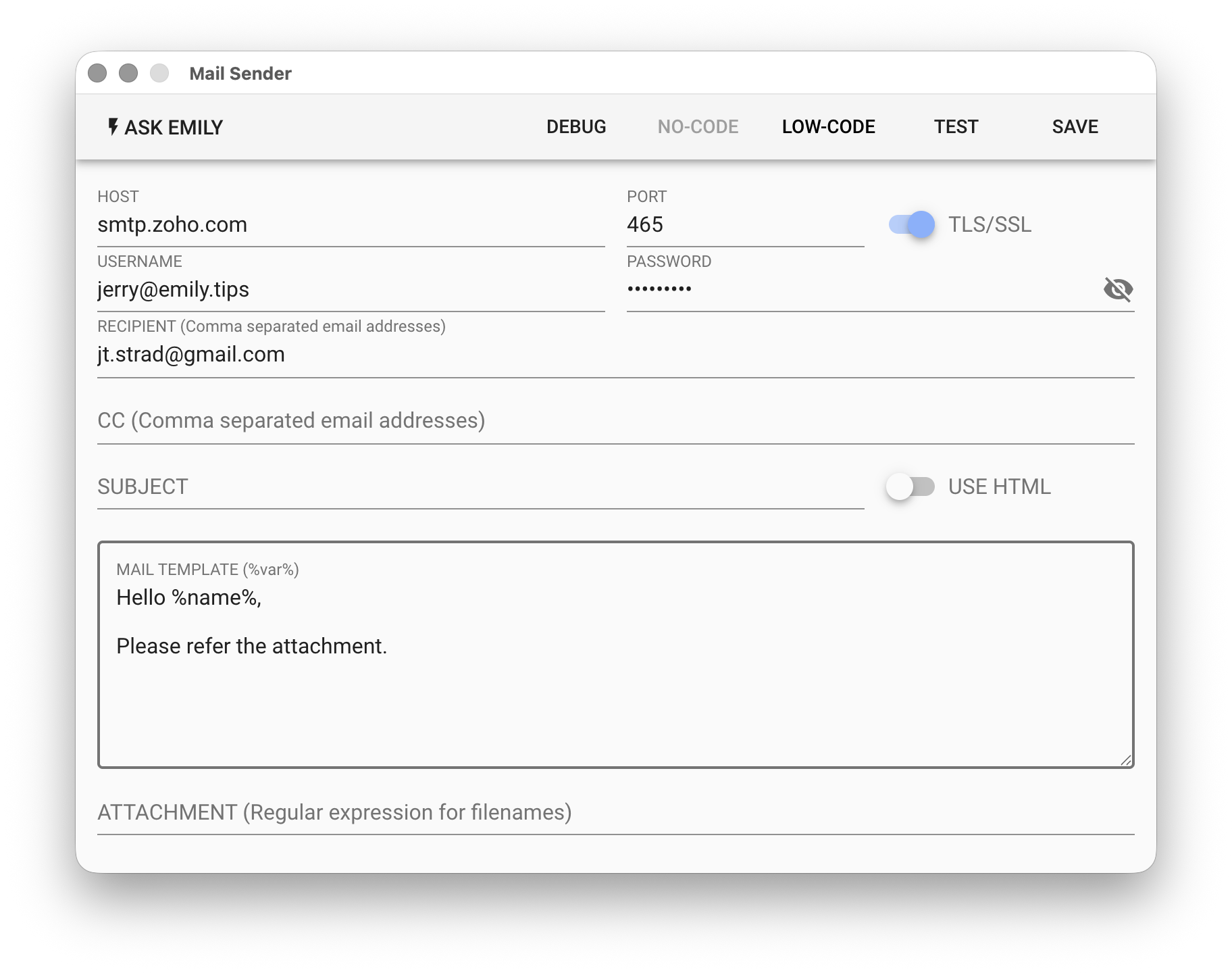
No-Code Editor
Most modules provide a No-Code editor for editing module parameters or commands. For example, with the "Send Email" module, if the rules don't vary much, users can directly configure email parameters in the No-Code editor. If a field hint shows %VAR% or %FILENAME%, it means the field accepts variables, where the variable name corresponds to the base filename of a document in the working folder. For example, the content of %name% will be replaced with the content of name.txt in the working folder.
Low-Code Editor
Modules requiring high flexibility or complex rules usually also provide a Low-Code editor. For example, if you want the email subject and attachment file of the "Send Email" module to be named with the current date, you can use Low-Code to write flexible rules in JavaScript. moment.js and lodash are built-in libraries that can be used directly. When a module executes, it first runs all No-Code commands in order, then executes the Low-Code script.
For Low-Code, it is recommended to use "ASK EMILY" to let the AI generate code based on your needs.
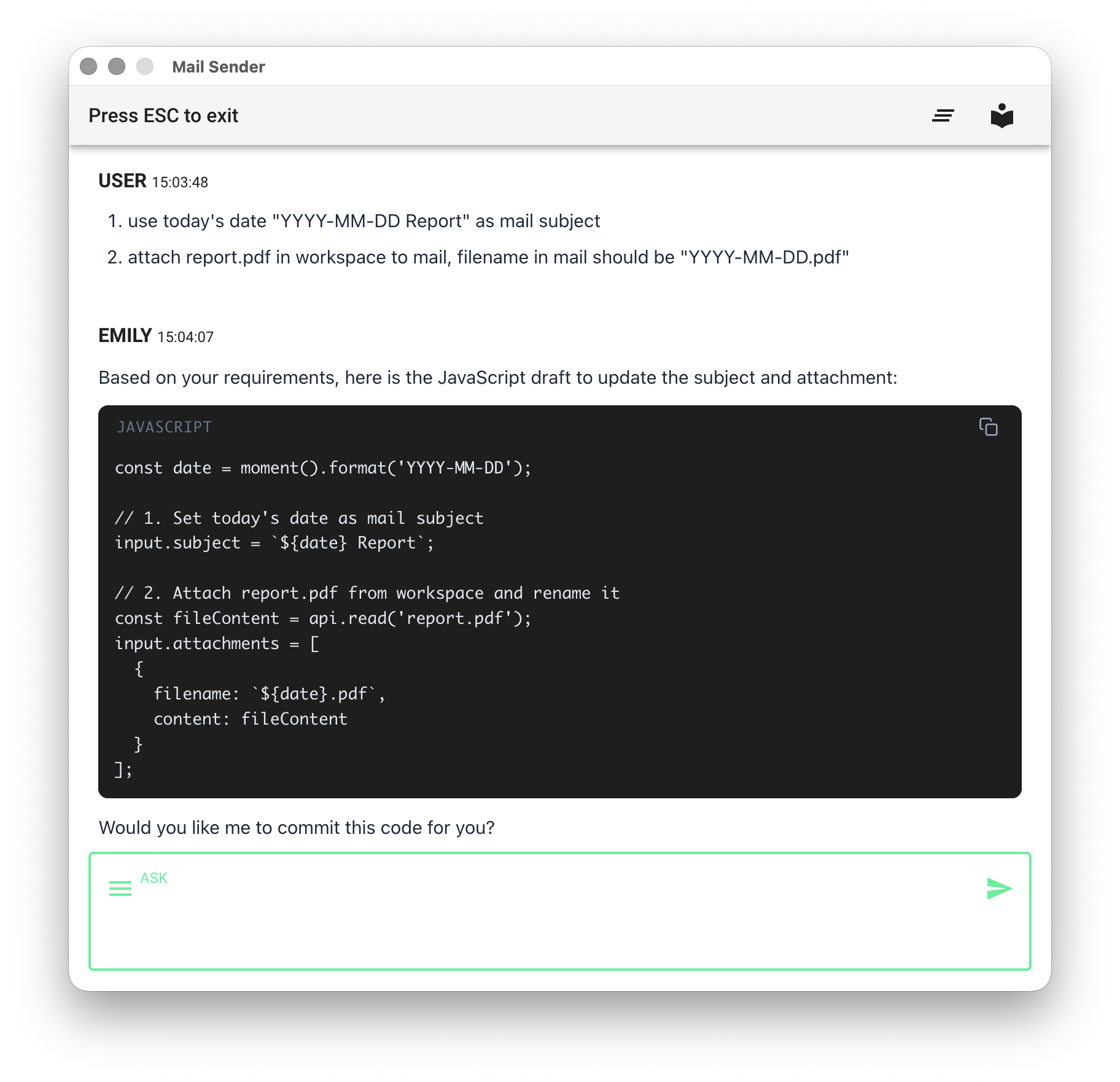
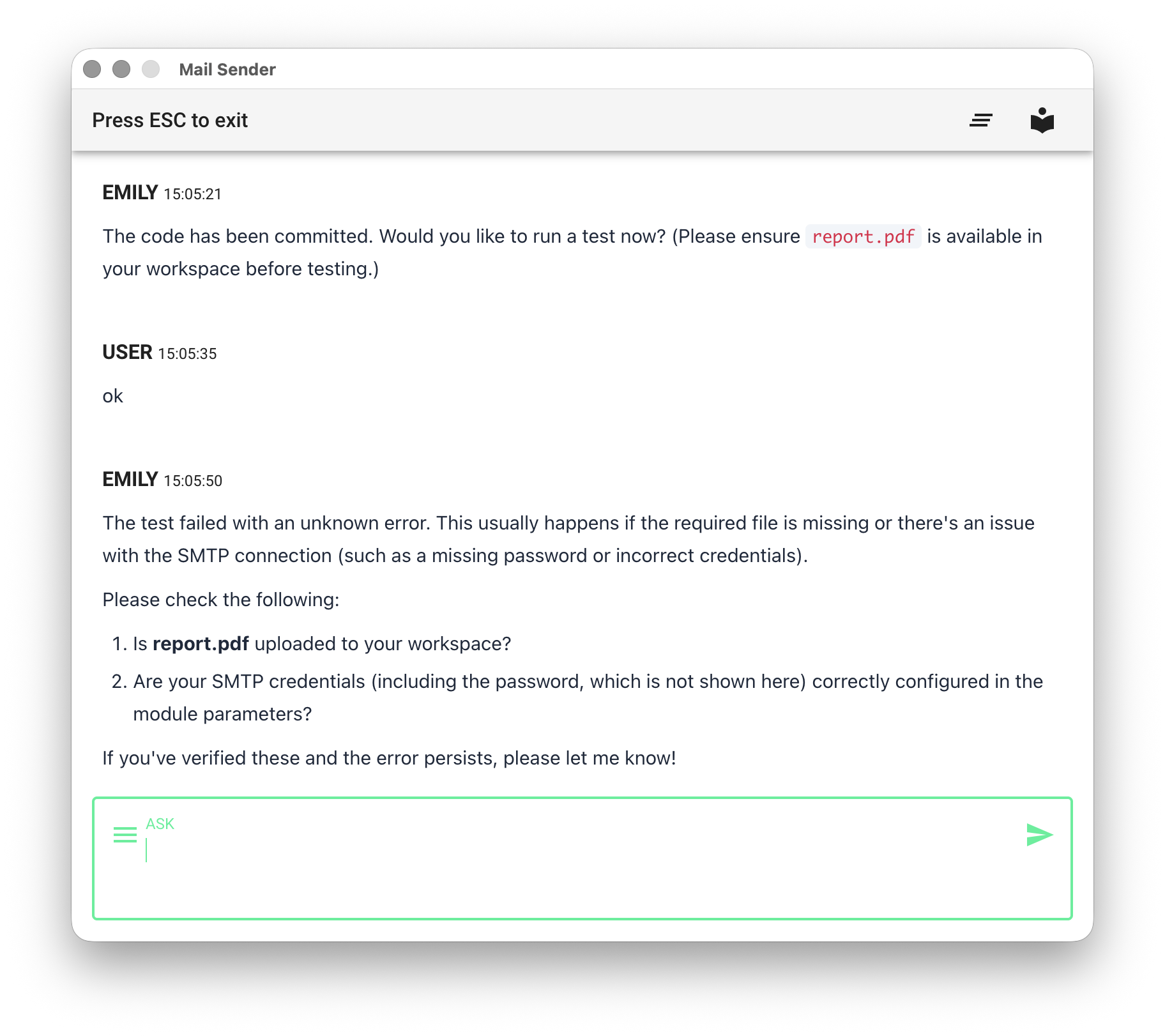
After generation, you can submit and test directly in the conversation. If the code has errors, the AI will also rewrite it, improving efficiency.
Low-Code Shared API
All automation modules with a Low-Code editor provide the following synchronous functions for accessing working folder files:
- api.files() - List all files in the working folder
- api.read(filename, encoding='utf8') - Read a specified file from the working folder
- api.write(filename, data) - Write to a specified file in the working folder
- api.rename(oldname, newname) - Rename a specified file in the working folder
- api.remove(filename) - Remove a specified file from the working folder
// List all files in the working folder one by one
api.files().forEach((file) => console.log(file))

// Use lodash.js _.filter() to filter files ending with 'jpg'
const files = api.files()
console.log(_.filter(files, (file) => file.endsWith('jpg')))

// Read the text file price.txt from the working folder
console.log(api.read('price.txt'))

// Use moment.js to generate a custom formatted date string and write a text file to the working folder
api.write('time.txt', moment().format('HH:mm:ss'))

// Rename a file in the working folder
api.rename('time.txt', 'currentTime.txt')

// Delete a file from the working folder
api.remove('price.txt')