Email Trigger
Email Trigger allows EMILY.RPA to check each incoming email against configured rules and trigger the specified skill when a rule is matched. EMILY.RPA communicates with the mail server via the IMAP protocol — confirm with the relevant administrator that the local machine can successfully connect to the mail server and bind to the mailbox. If the mail server is Exchange Online, you need to sign in with a Microsoft account via OAuth 2.0 for authorization.
Bind a Mailbox
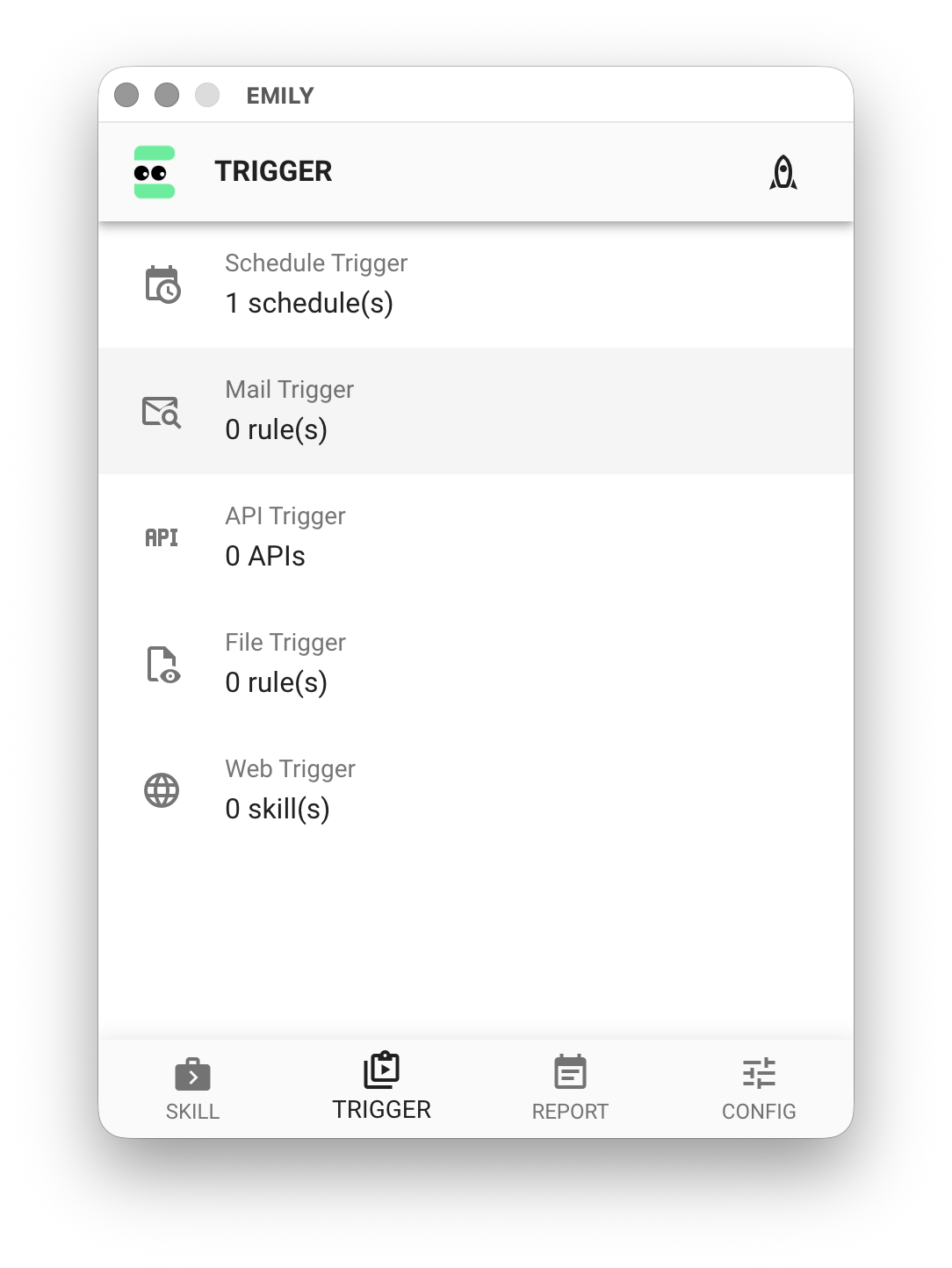
Click "Email Trigger" on the "Auto Triggers" page:
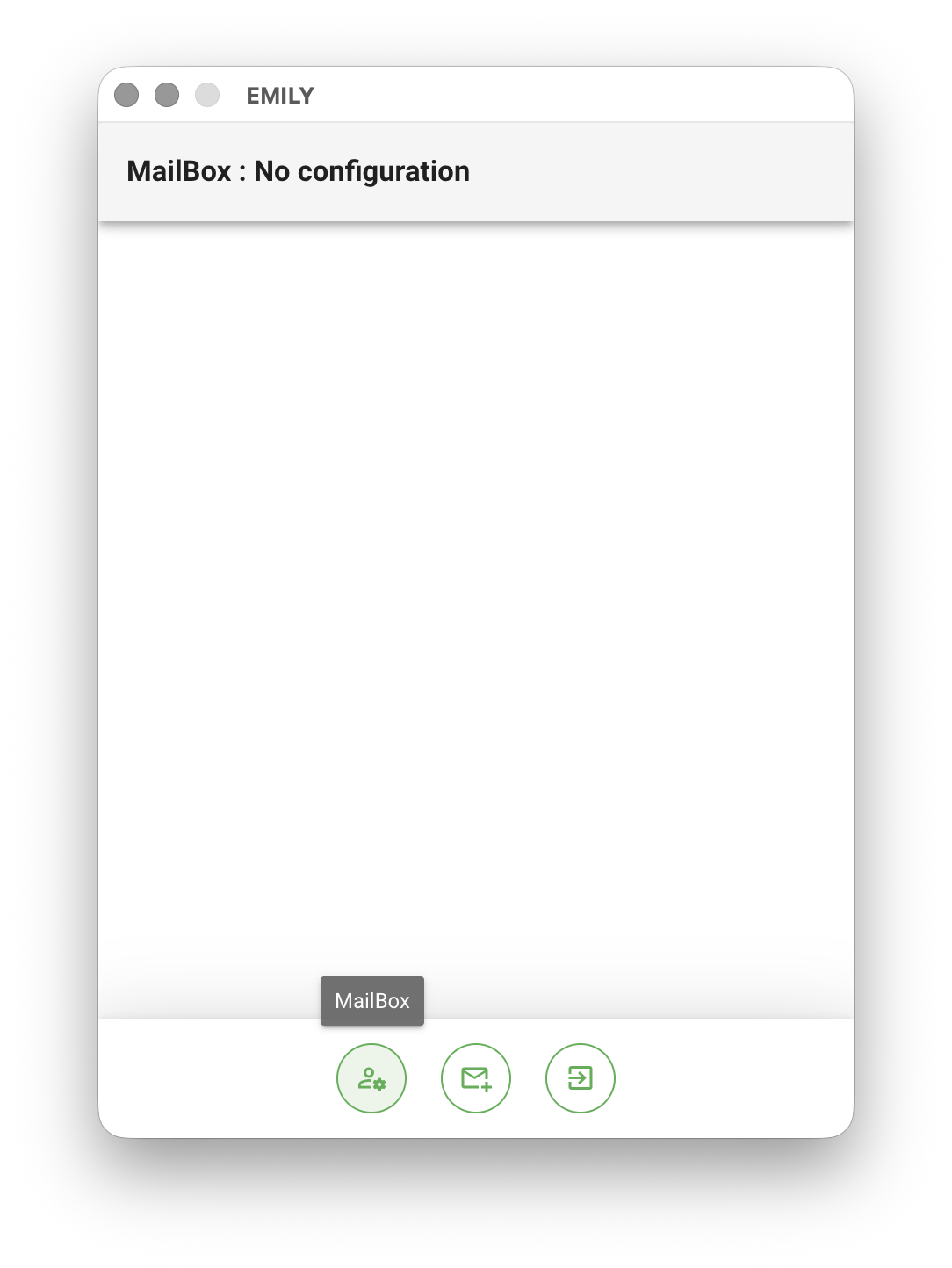
Click the "Bind Mailbox" icon at the bottom of the interface.
If you are not using Exchange Online mail service, select IMAP for TYPE and fill in the other fields:
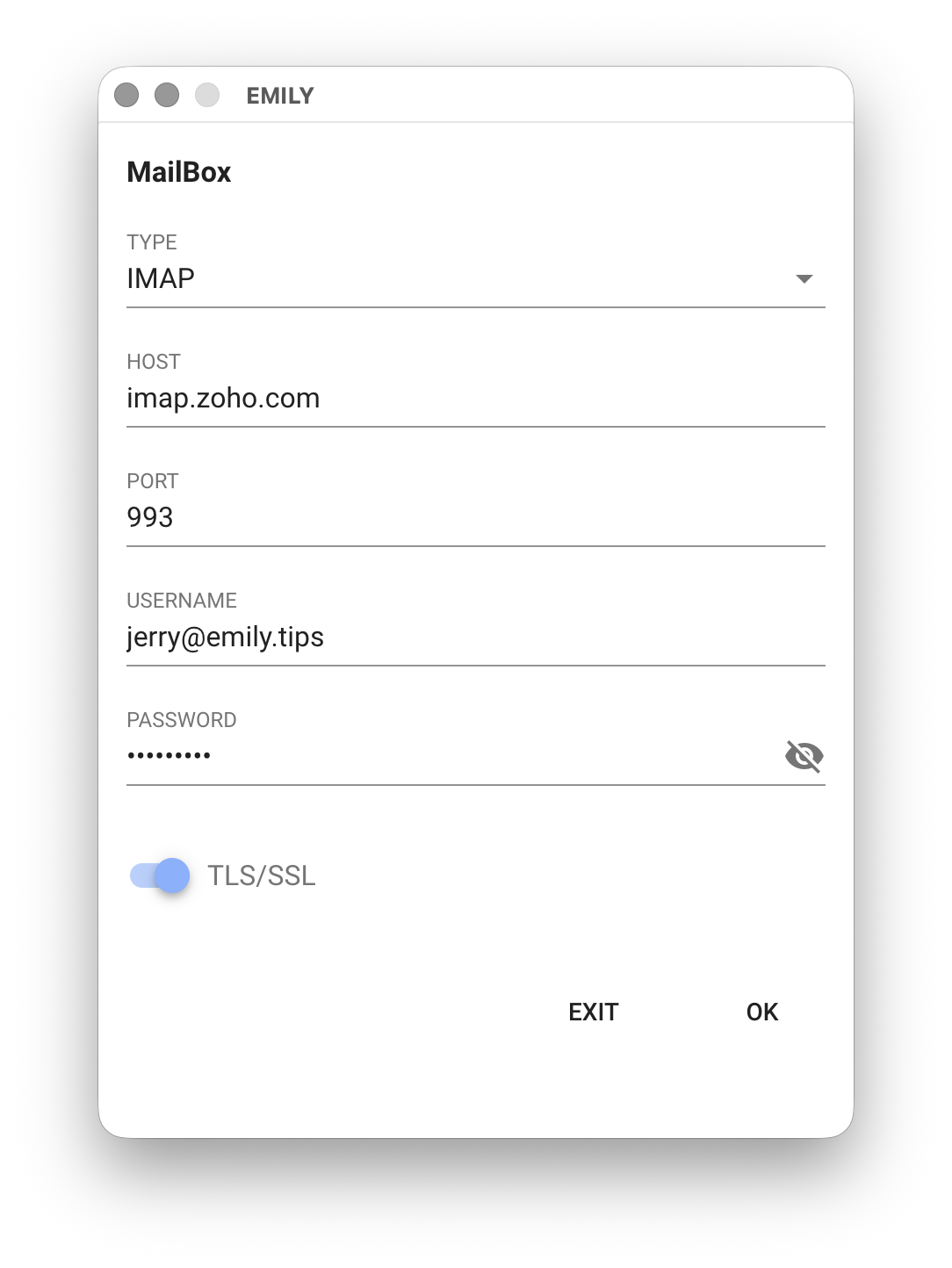
HOST and PORT are the IMAP mail server hostname and port number, for example imap.zoho.com / 993 — confirm with your mail server administrator. USERNAME and PASSWORD are the account name and password configured on the mail server; the username is usually the same as the email address. The TLS/SSL option indicates whether the connection to the mail server requires encryption.
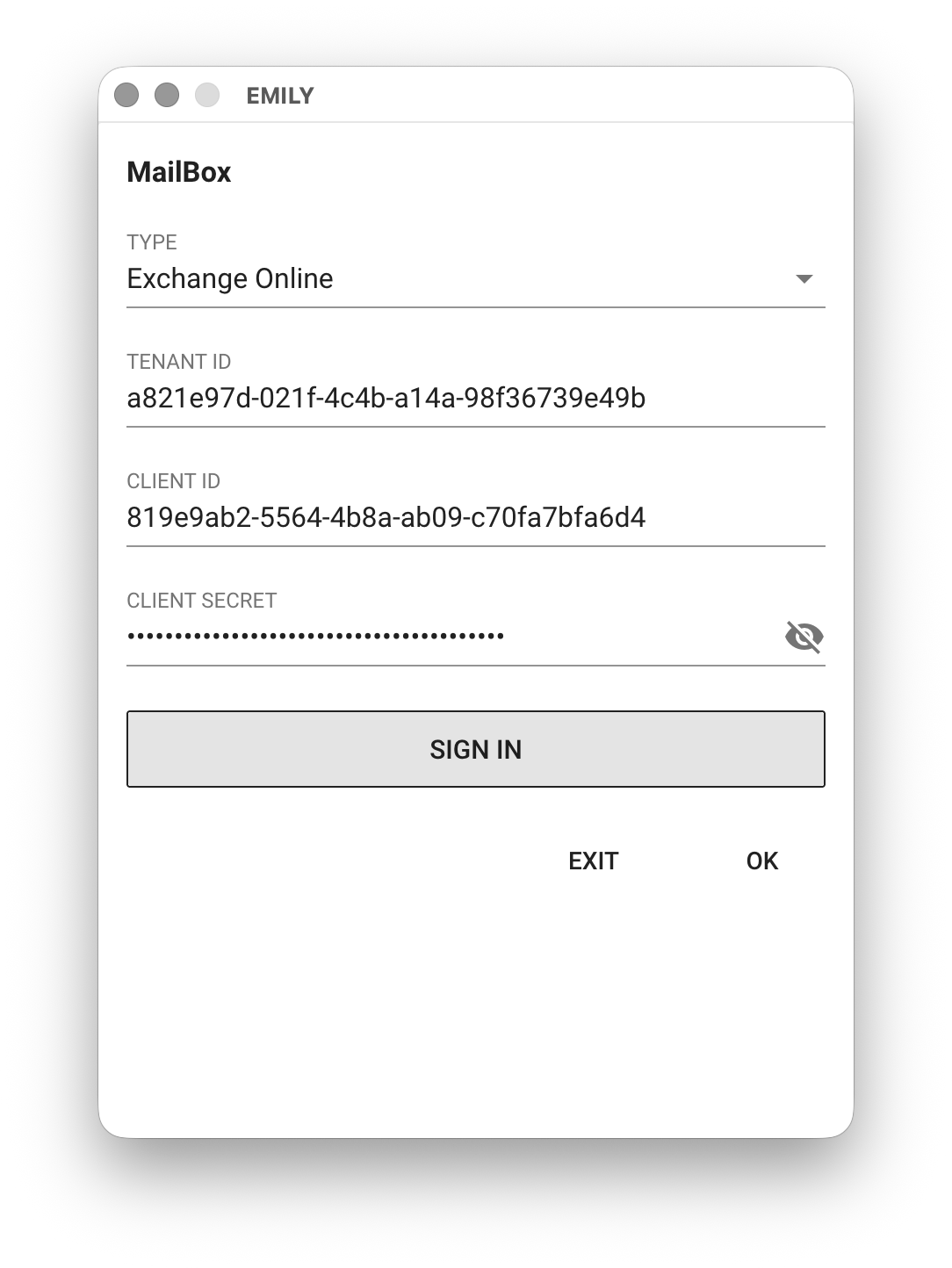
If using Exchange Online mail service, select Exchange Online for TYPE, fill in the other fields, and click "SIGN IN" to log in with the mailbox user's Microsoft account and authorize. After successful authorization, the SIGN IN button text will change to the account name. For the required information, refer to Exchange Online Access Configuration.
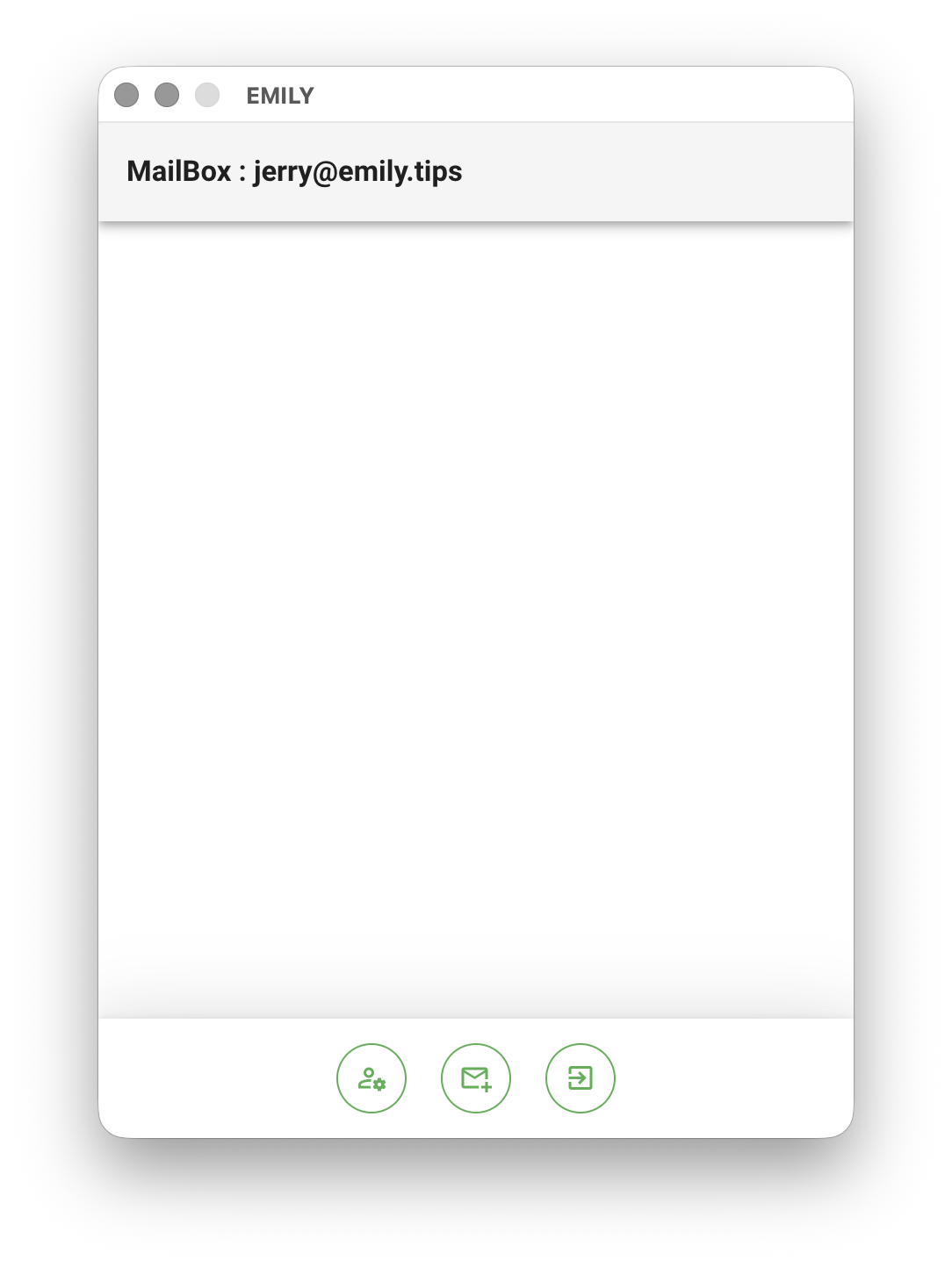
Finally, click "OK" at the bottom of the "Bind Mailbox" page. If successful, you will return to the "Email Trigger" page with the successfully bound mailbox name displayed at the top:
Add an Email Trigger Rule
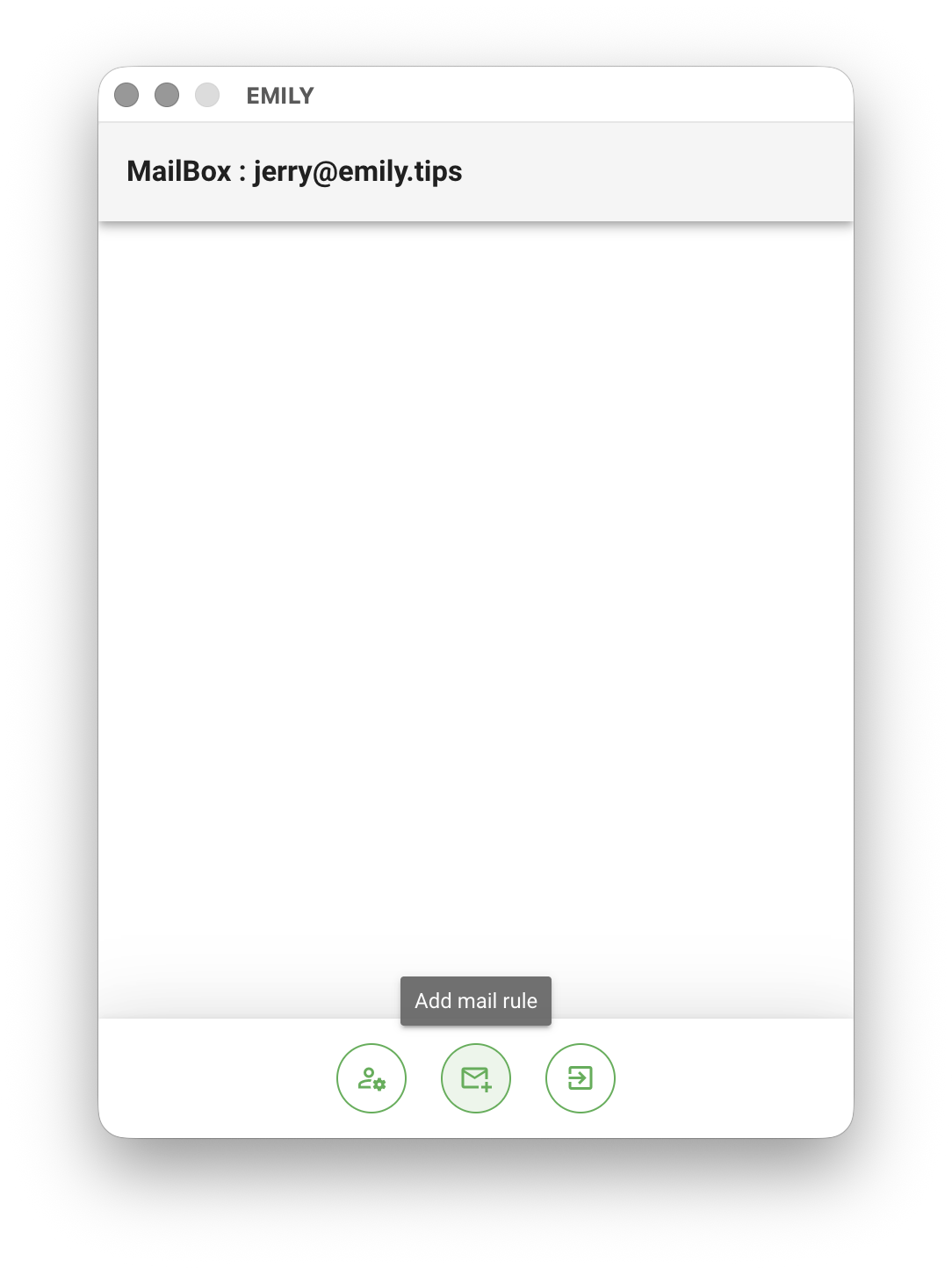
Click the "Add Email Trigger Rule" icon at the bottom of the "Email Trigger" page to create a new email trigger rule:
The email trigger rule page requires the following fields: FROM is the sender trigger keyword — it can be a full email address or a partial string, e.g., @company.com. SUBJECT is the email subject trigger keyword — it can be a partial string within the subject line. For example, if the full subject is Please provide a product quote, the trigger keyword can be set to quote. Select Skill lets you choose which installed automation skill to execute when the rule is triggered.
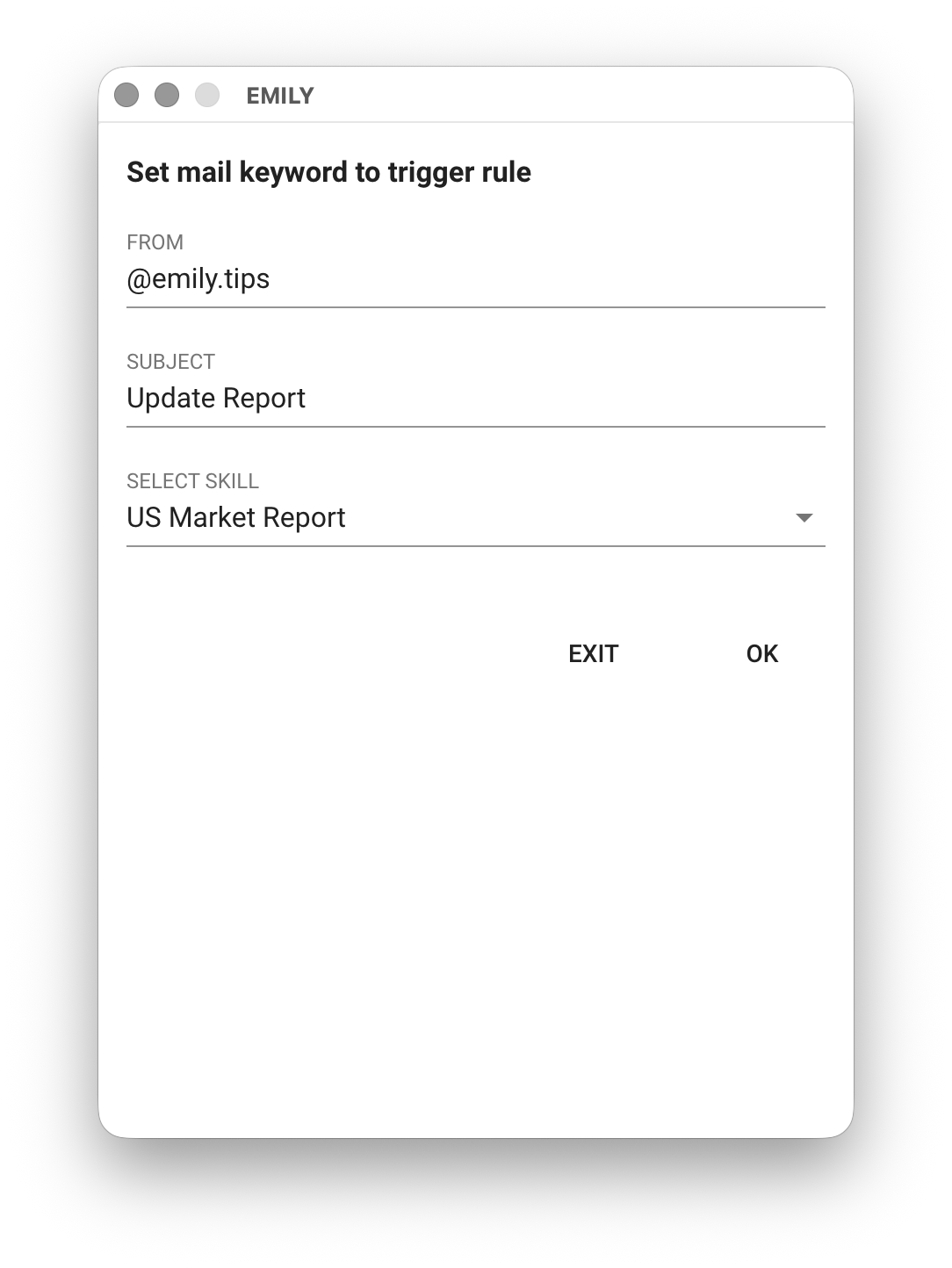
An email trigger rule consists of two field conditions: FROM and SUBJECT — both must be satisfied simultaneously to trigger skill execution. If you want to ignore a field condition, simply leave that field empty. For example, if you want any email from info@emily.tips to trigger the skill, just enter info@emily.tips in the FROM field and leave the SUBJECT field empty.
Input Data for Triggered Skills
Whenever an email rule is triggered, EMILY.RPA writes the sender, recipient, subject, and body of the incoming email into the working folder with the following file names: mail-from.txt, mail-to.txt, mail-subject.txt, mail-text.txt. Any attachments from the incoming email are also saved to the working folder with their original file names, serving as input data for the triggered skill.