API Trigger
API Trigger turns EMILY.RPA into a server that provides endpoint URLs for other systems to trigger specified skills via HTTP API. This requires a static IP address or hostname, and you must ensure that the requesting device can reach the local machine through the firewall.
Configure the API Server
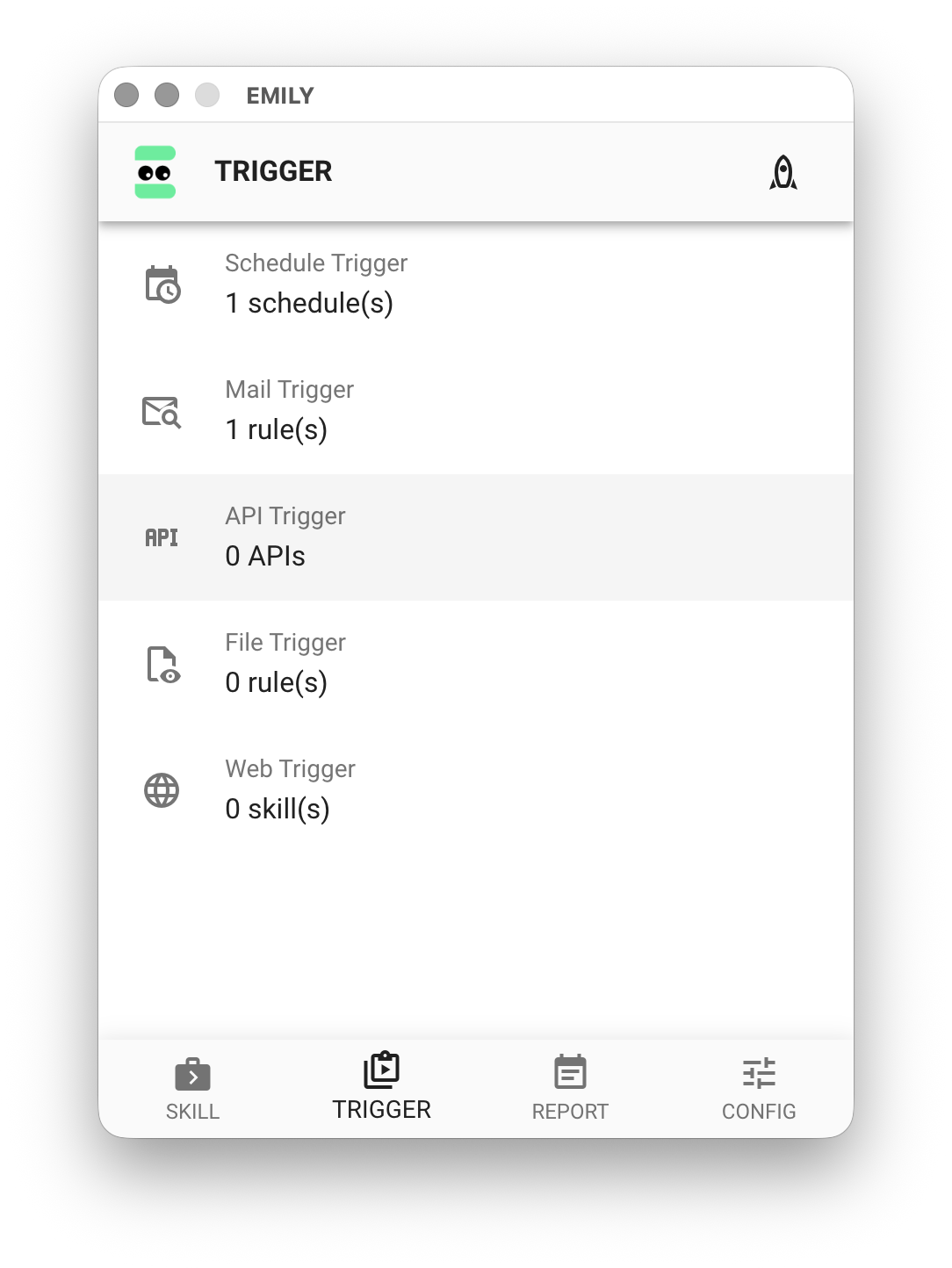
Click "API Trigger" on the "Auto Triggers" page.
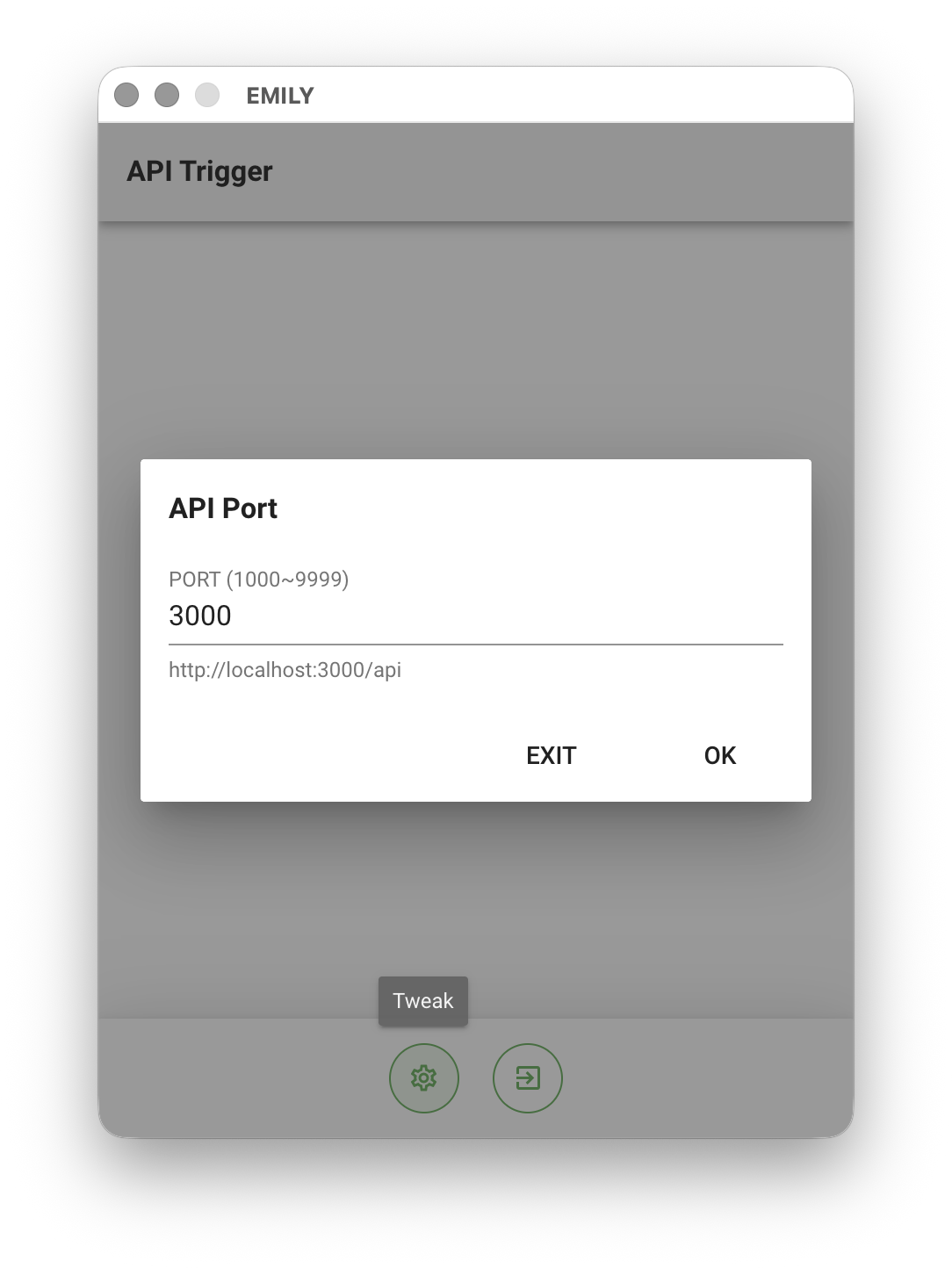
Click the "Adjust Parameters" icon at the bottom of the interface to open the "API Port" dialog. The API server defaults to port 3000. If it conflicts with another server, you can change it — for example, to 3002 — then click "OK".
Add a Skill to the API
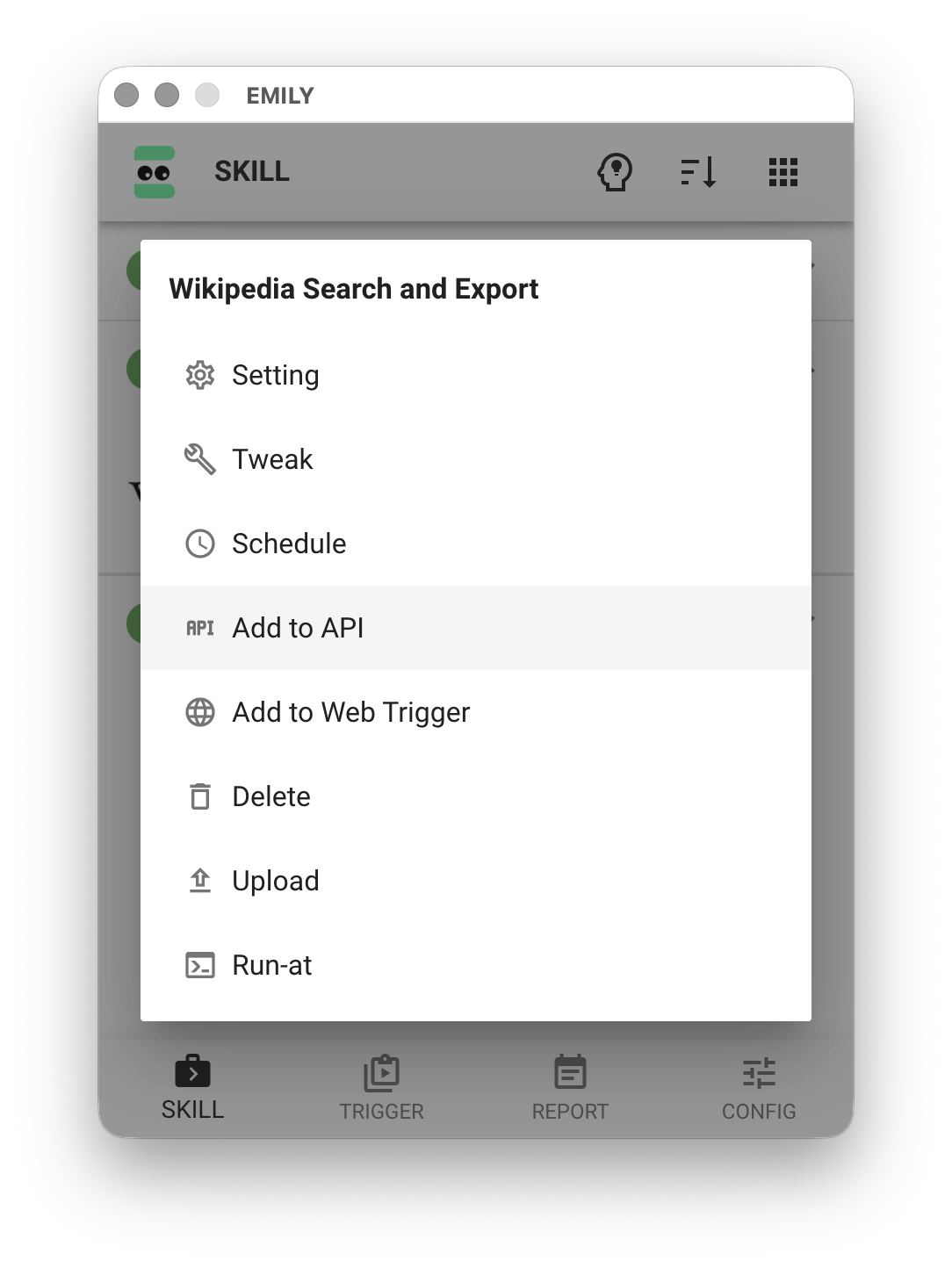
On the "My Skills" page, click the skill you want to trigger to open the menu, then select the "Add to API" option to add the skill to the API service.
Test the API
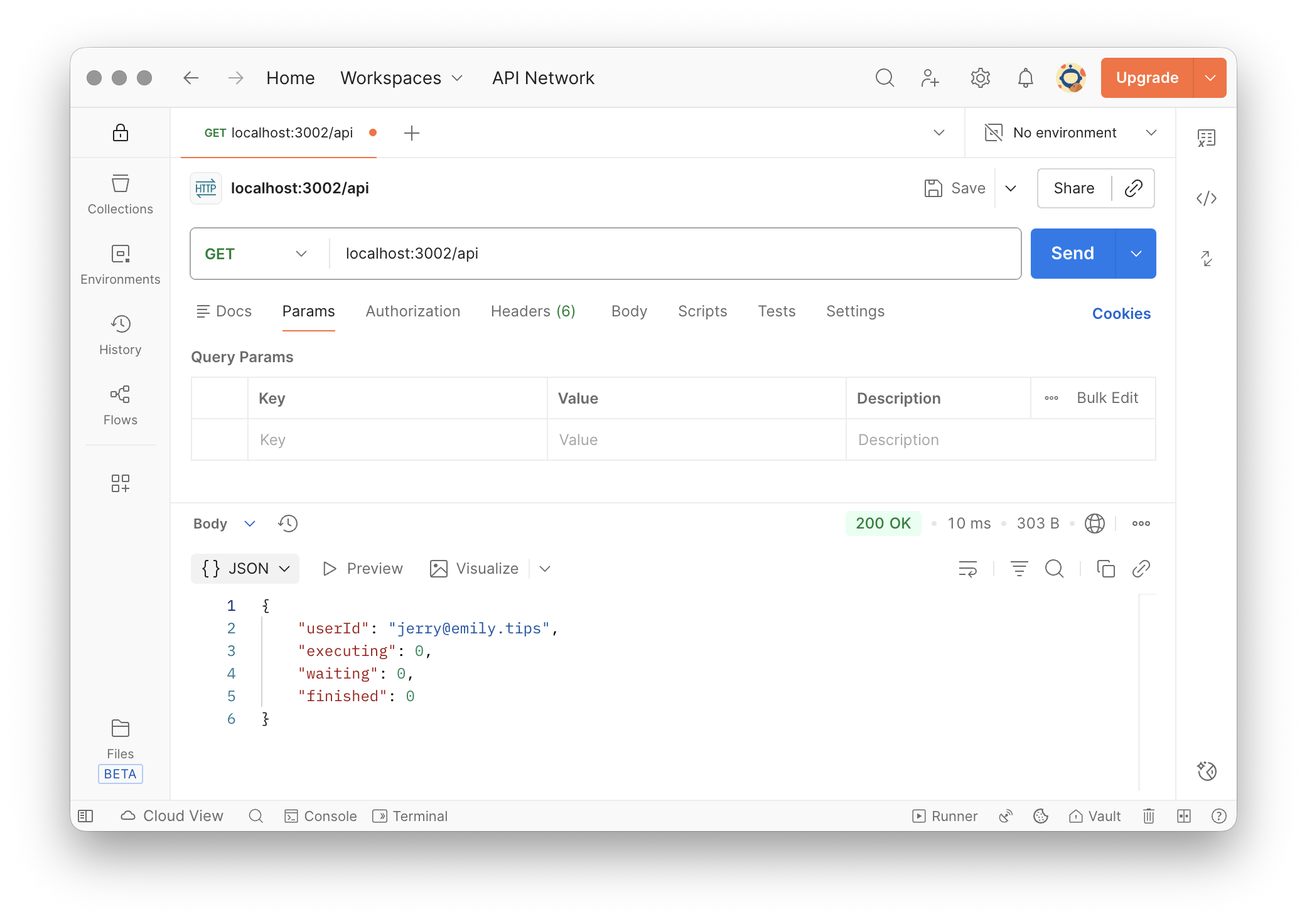
After configuration, you need to start fully automated mode for the API server to begin running. The port number you configured combined with the IP address of the computer running EMILY.RPA forms the endpoint URL. You can use an API testing tool like Postman to test the API trigger. First, send a GET http://localhost:3002/api request using the port you configured to verify the API server is running properly. If successful, you should see a response similar to the image below, including the user account userId, whether a triggered job is currently executing executing, how many jobs are waiting waiting, and how many jobs are finished finished.
Trigger a Skill
To trigger a skill that has been added to the API, you need the skill identifier uuid, which can be found on the "API Trigger" page before entering fully automated mode.
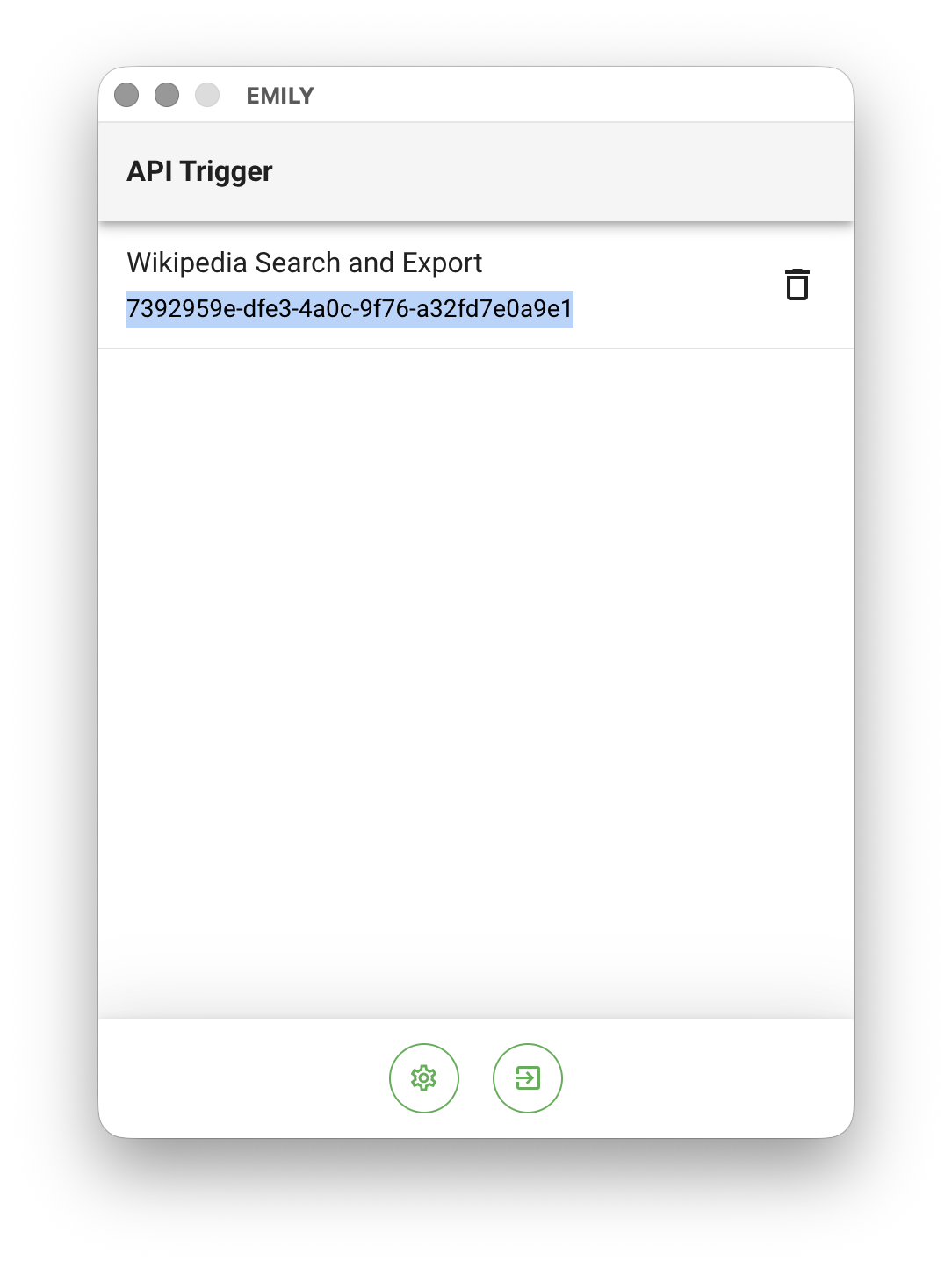
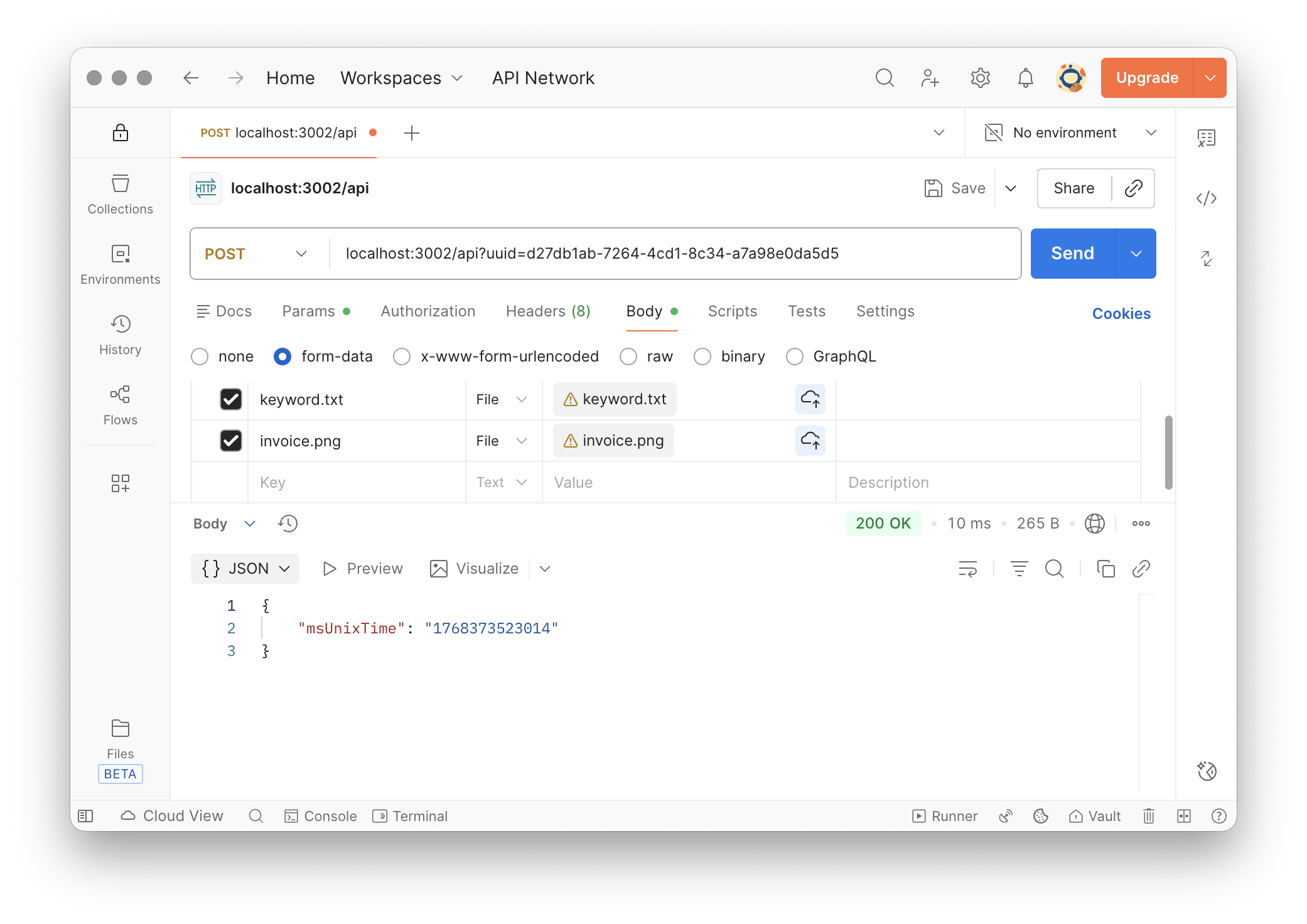
The uuid parameter in the endpoint URL is the identifier of the automation skill to execute. For example: GET http://ip-address:port/api?uuid=1a2b requests EMILY.RPA to execute the automation skill with identifier 1a2b. If you want to upload files as input for the automation skill, use POST http://ip-address:port/api?uuid=1a2b and upload the input files as multipart/form-data. The image below shows an example using Postman, sending a request to execute the skill "Search Wikipedia and Export File" while uploading keyword.txt and invoice.png to the skill's working folder. The server responds with a job queue number msUnixTime that can be used as a parameter for subsequent status queries.
Query Job Status
In addition to using GET http://ip-address:port/api to query the overall job queue status, you can also use the msUnixTime job queue number returned by the server to query the status of a specific triggered skill. Send a request GET http://ip-address:port/api/job?uuid=1a2b&msUnixTime=1234 to get the current status of that job. Possible statuses include inqueue / executing / finished:
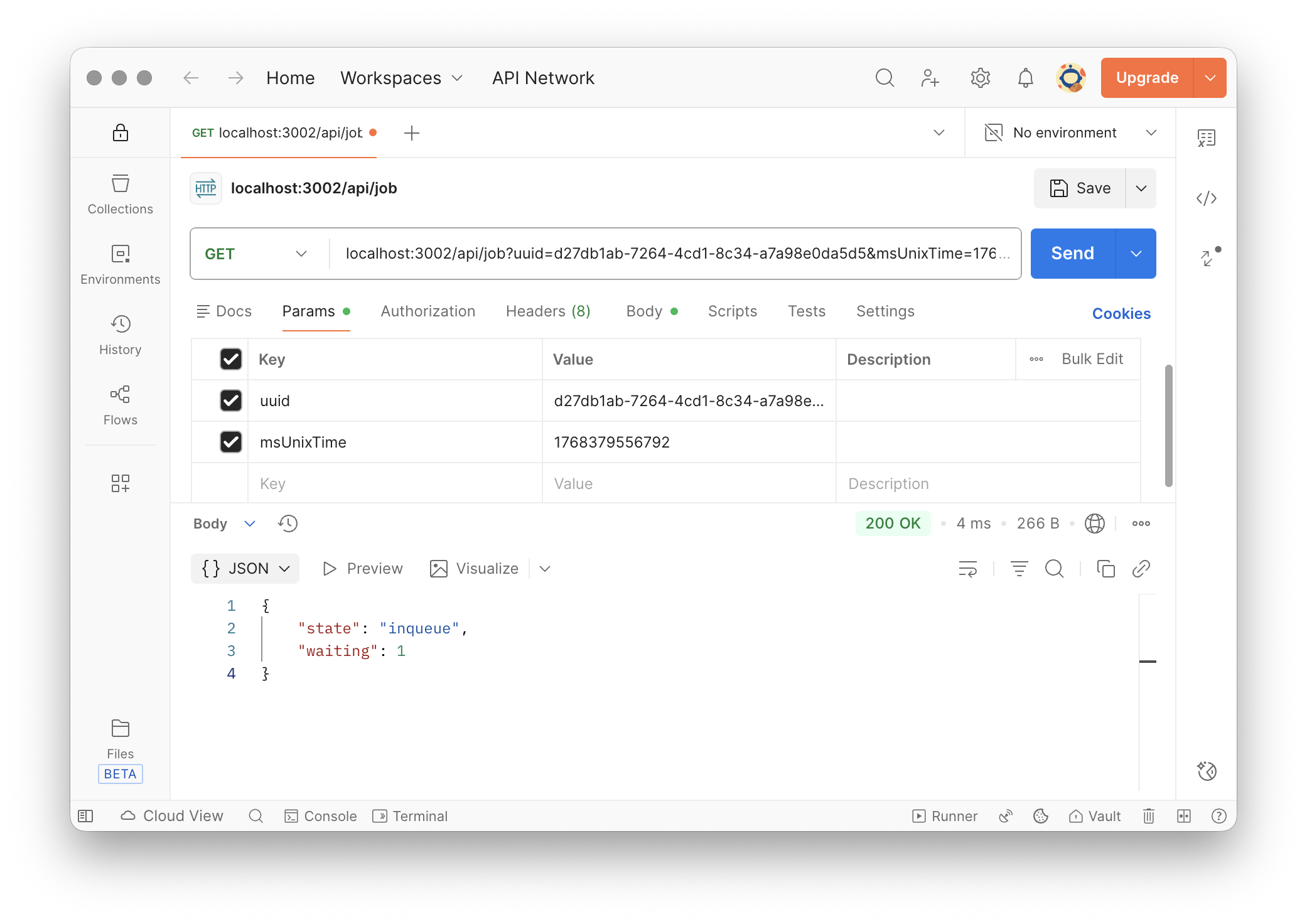
Job waiting in queue
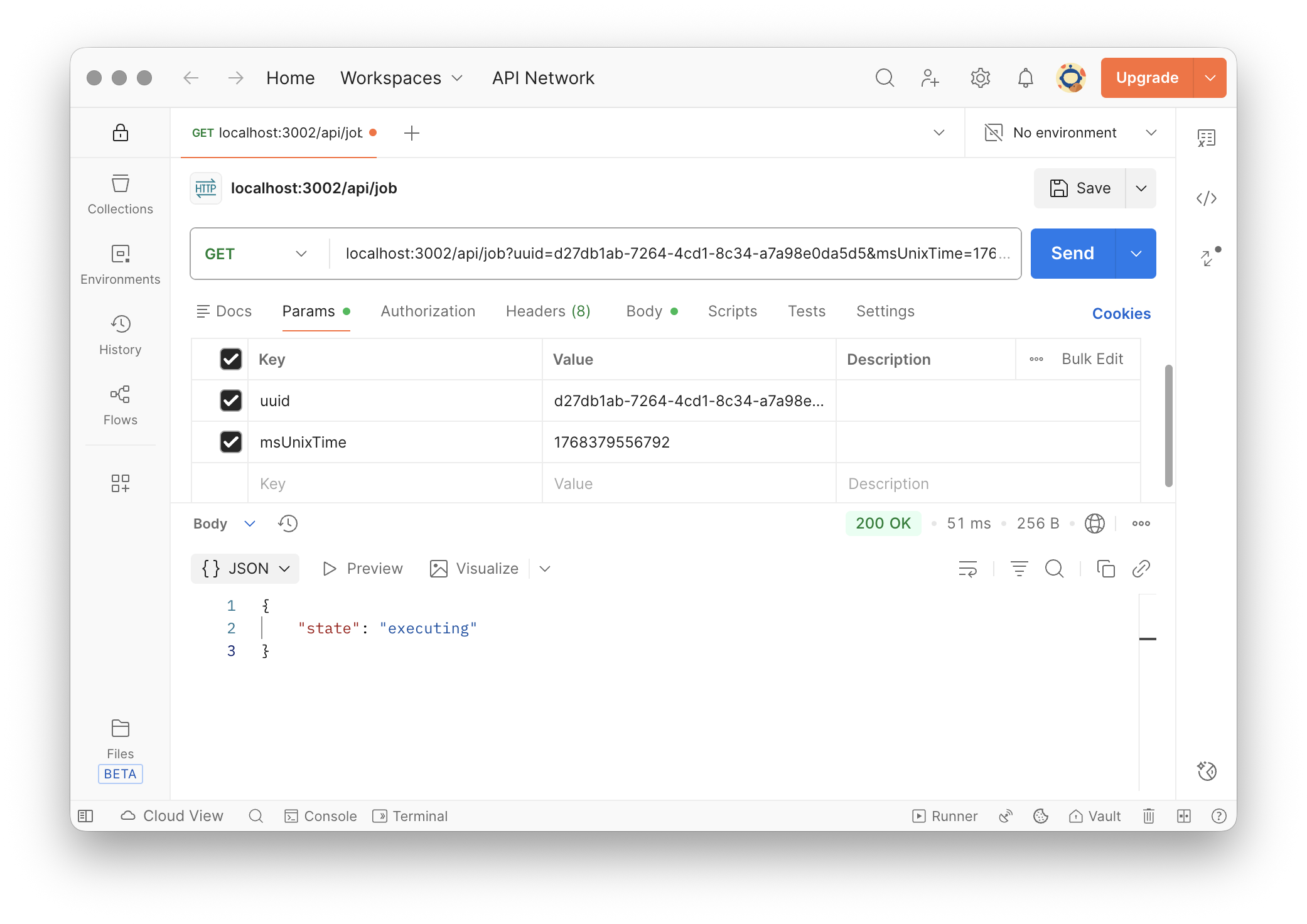
Job currently executing