Table Read Agent
Table Read Agent uses a large language model (LLM) to extract information from spreadsheets and outputs the results to files in the working folder. If you're unfamiliar with how to prompt the language model to achieve task goals, use "Ask EMILY" to let the AI generate model-friendly goal prompts.
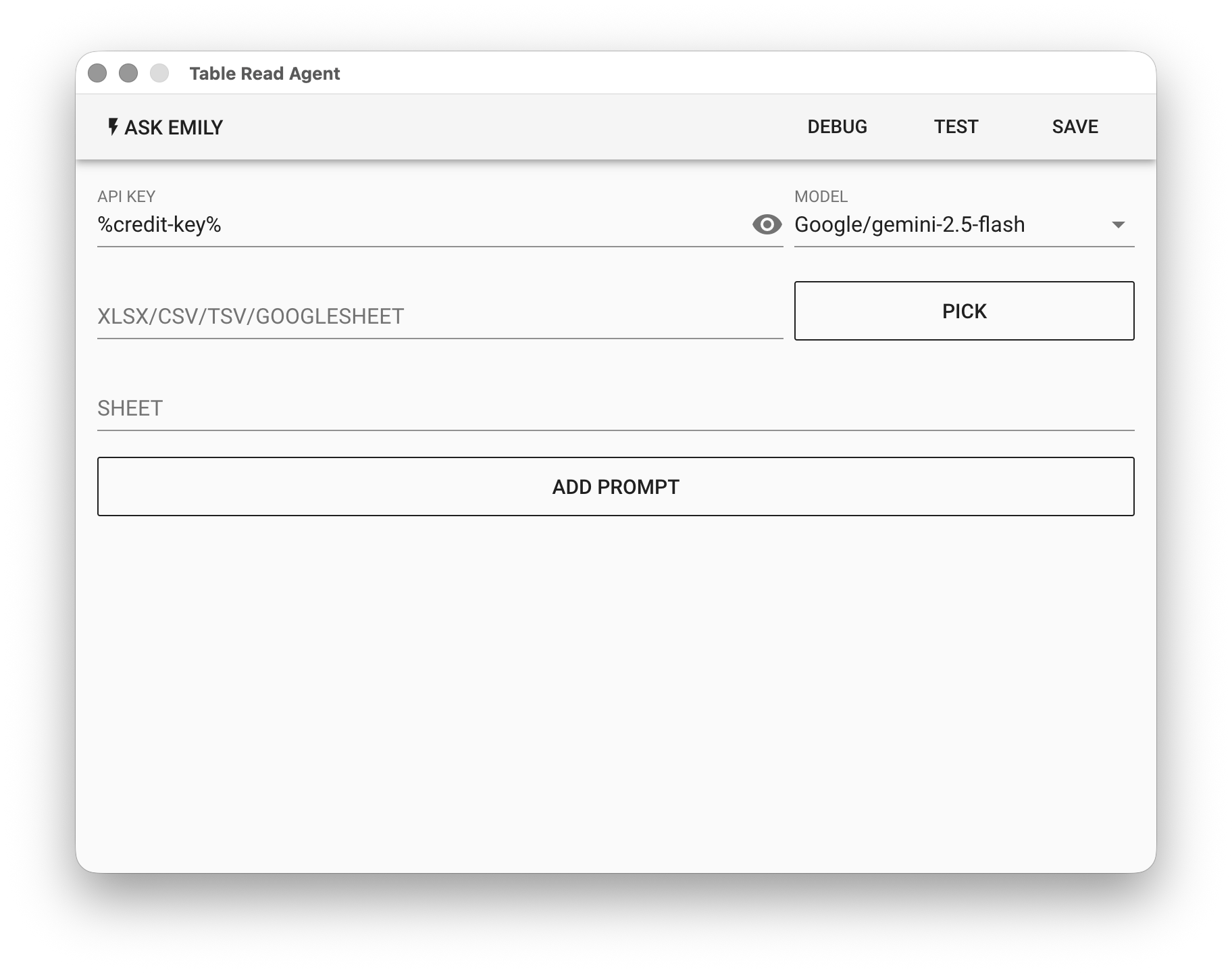
Parameters
API KEY - OpenAI or Google API key. Supports the %FILENAME% variable, or use the prepaid dedicated key %credit-key%.
- For OpenAI API Key, refer to Apply for OpenAI Key
- For Google API Key, refer to Apply for Gemini Key
MODEL - Currently supported models:
| Platform | Models | Pricing |
|---|---|---|
| OpenAI | gtp-5, gpt-5-mini, gpt-4.1, gpt-4.1-mini | OpenAI Website |
| gemini-3-pro, gemini-3-flash, gemini-2.5-pro, gemini-2.5-flash | Gemini Website | |
| Anthropic | claude-opus-4-6, claude-sonnet-4-6, claude-haiku-4-5 | Anthropic Website |
XLSX/CSV/TSV/GOOGLESHEET - Input file. Click "PICK" to select a file, or use the %FILENAME% variable. In addition to the listed file formats, Google Sheets ID is also supported.
SHEET - Enter the worksheet name. Leave empty to use the first worksheet in the file.
ADD PROMPT
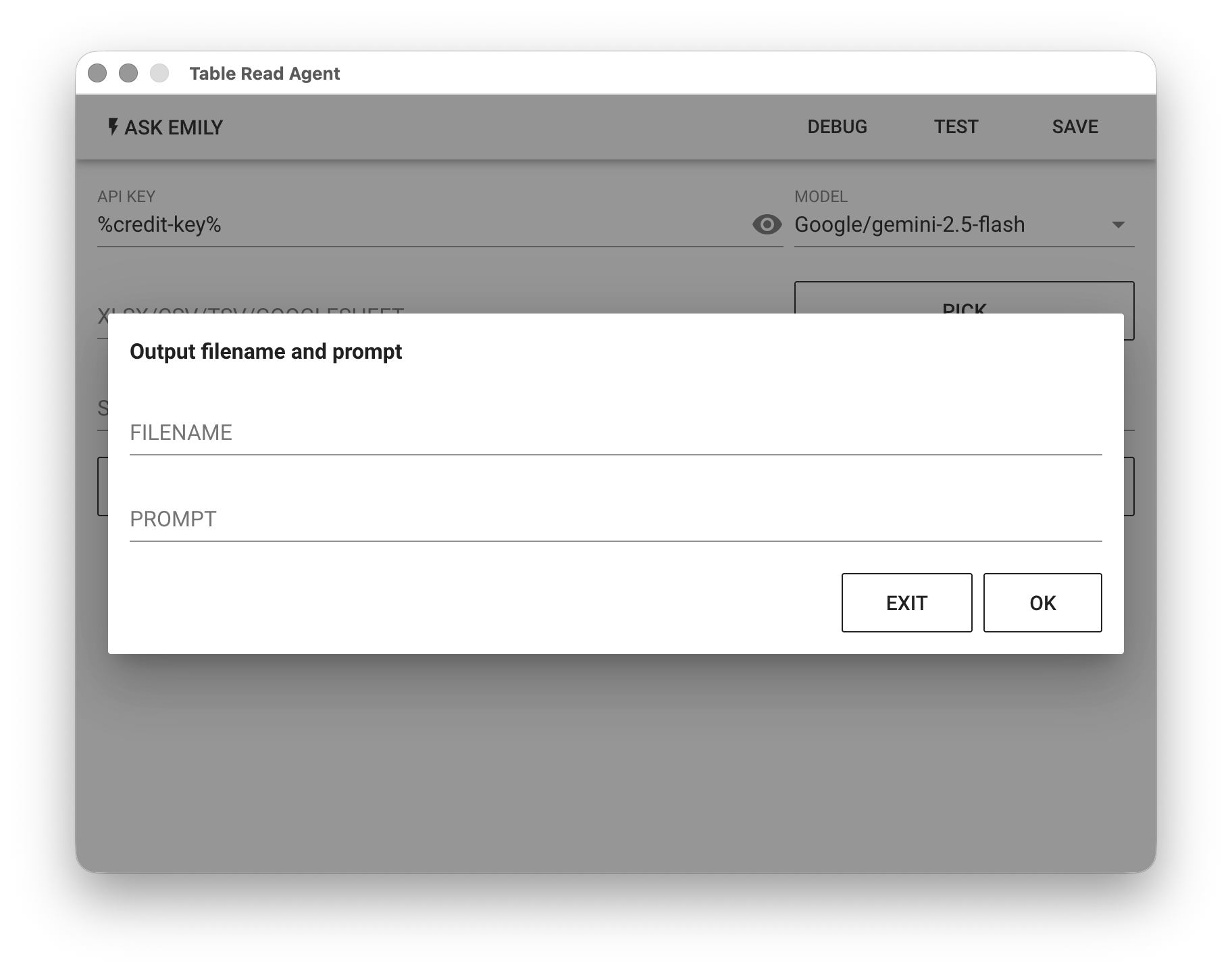
Add a natural language prompt to tell the model what information to extract from the spreadsheet. FILENAME specifies the file to write to in the working folder. PROMPT tells the model what information to extract from the spreadsheet.
Example
Using the following sales records table as an example, the goal is to find transactions with a total amount greater than 50,000.
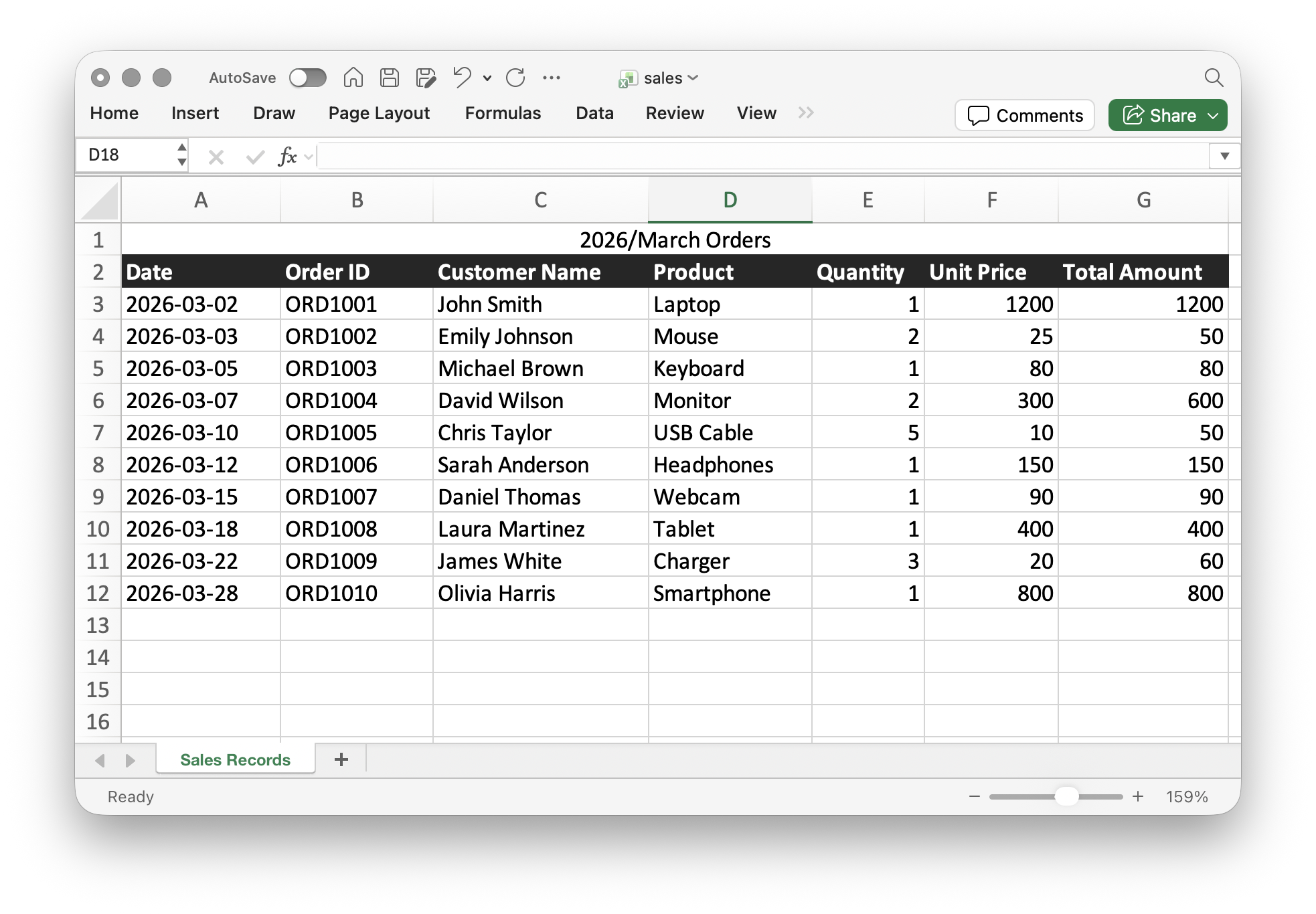
For the Table Read Agent, select the model Google/gemini-2.5-flash and add a prompt with filename high_value_sales.txt and prompt: Find all records where the total amount is greater than 500...
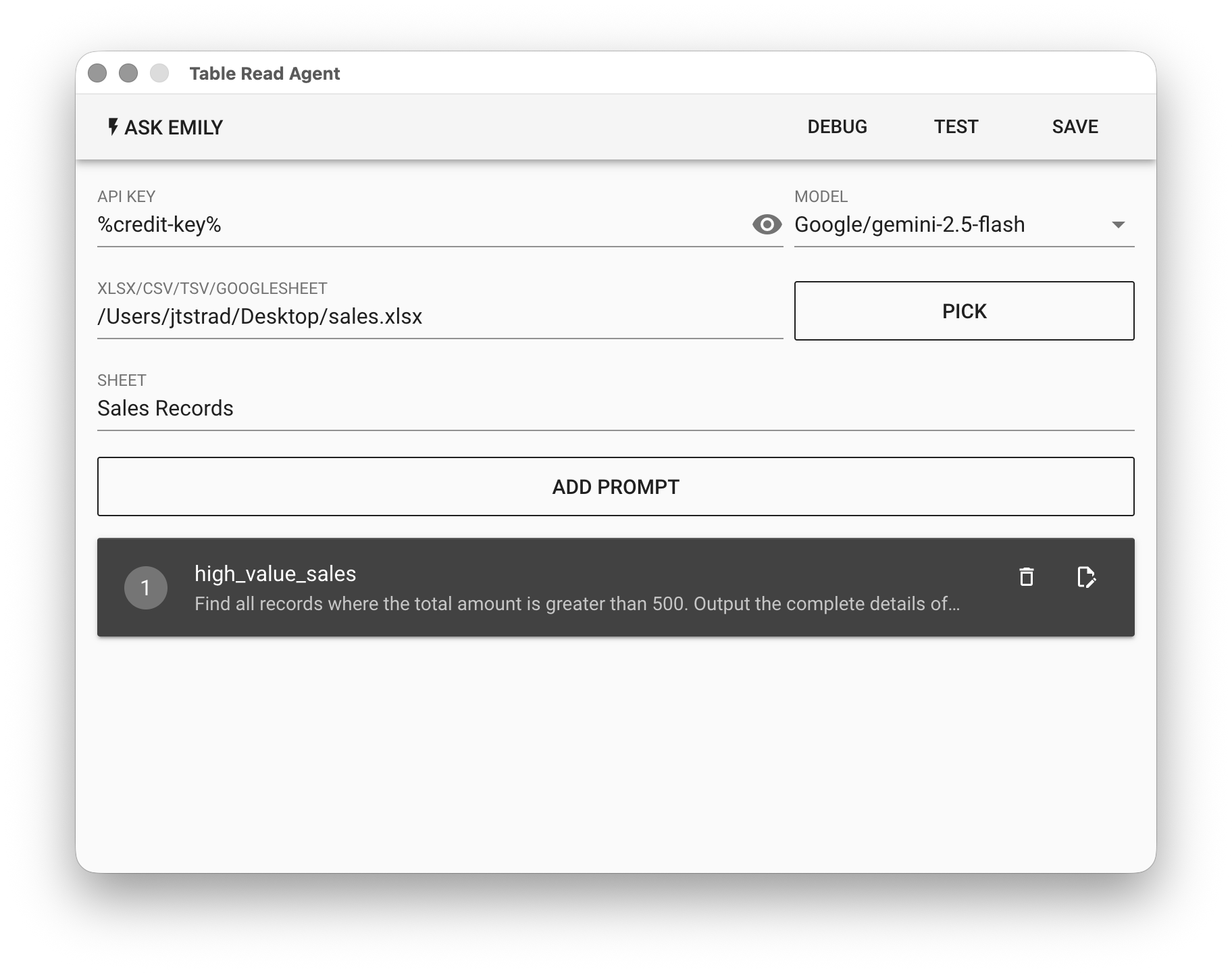
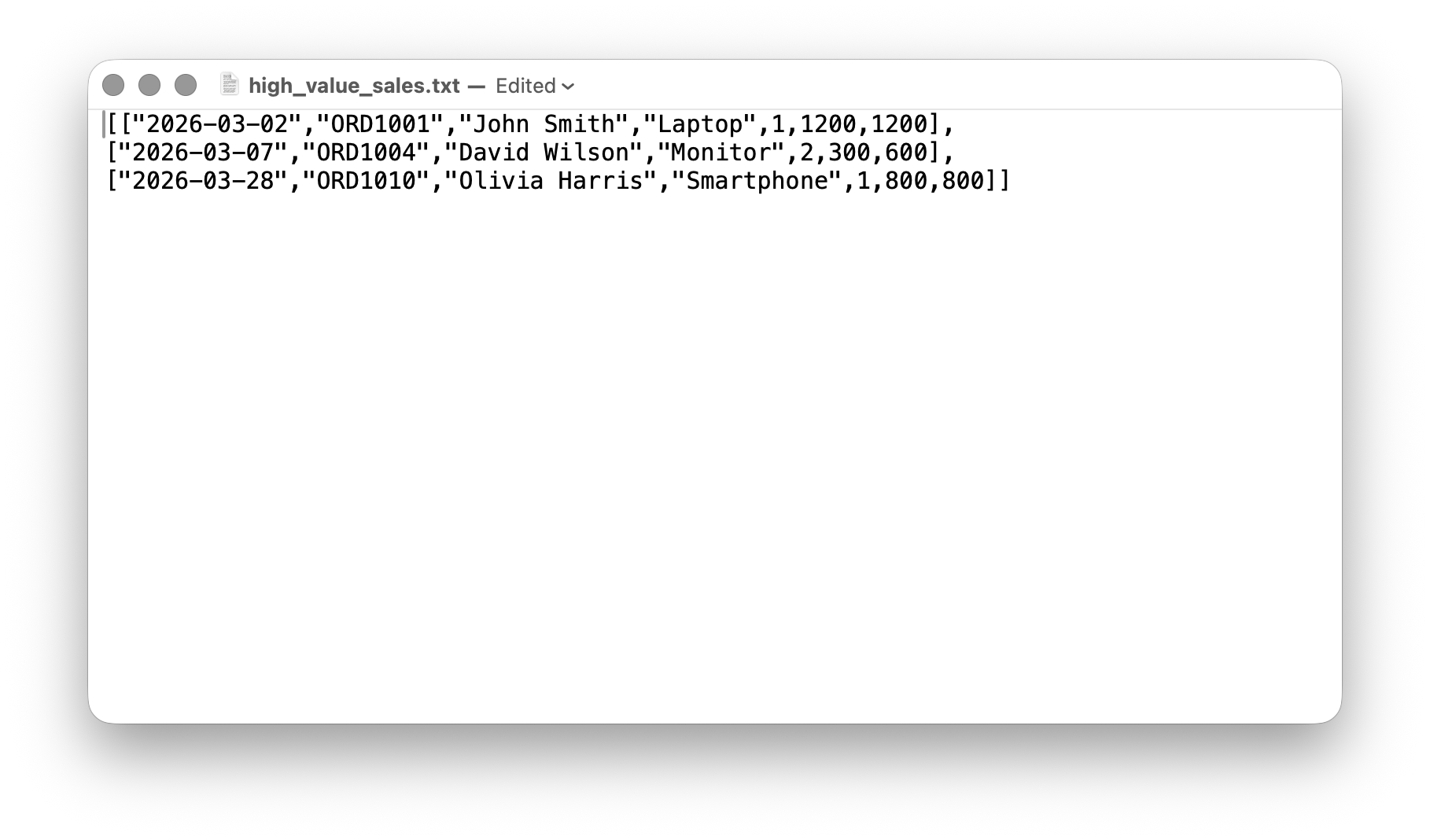
Finally, click "TEST" to try it out, then check whether the content of high_value_sales.txt in the working folder is correct.