Group
A Group can manage one or more EMILY.RPA accounts, along with their associated skills and licenses, while providing chronologically sorted usage records.
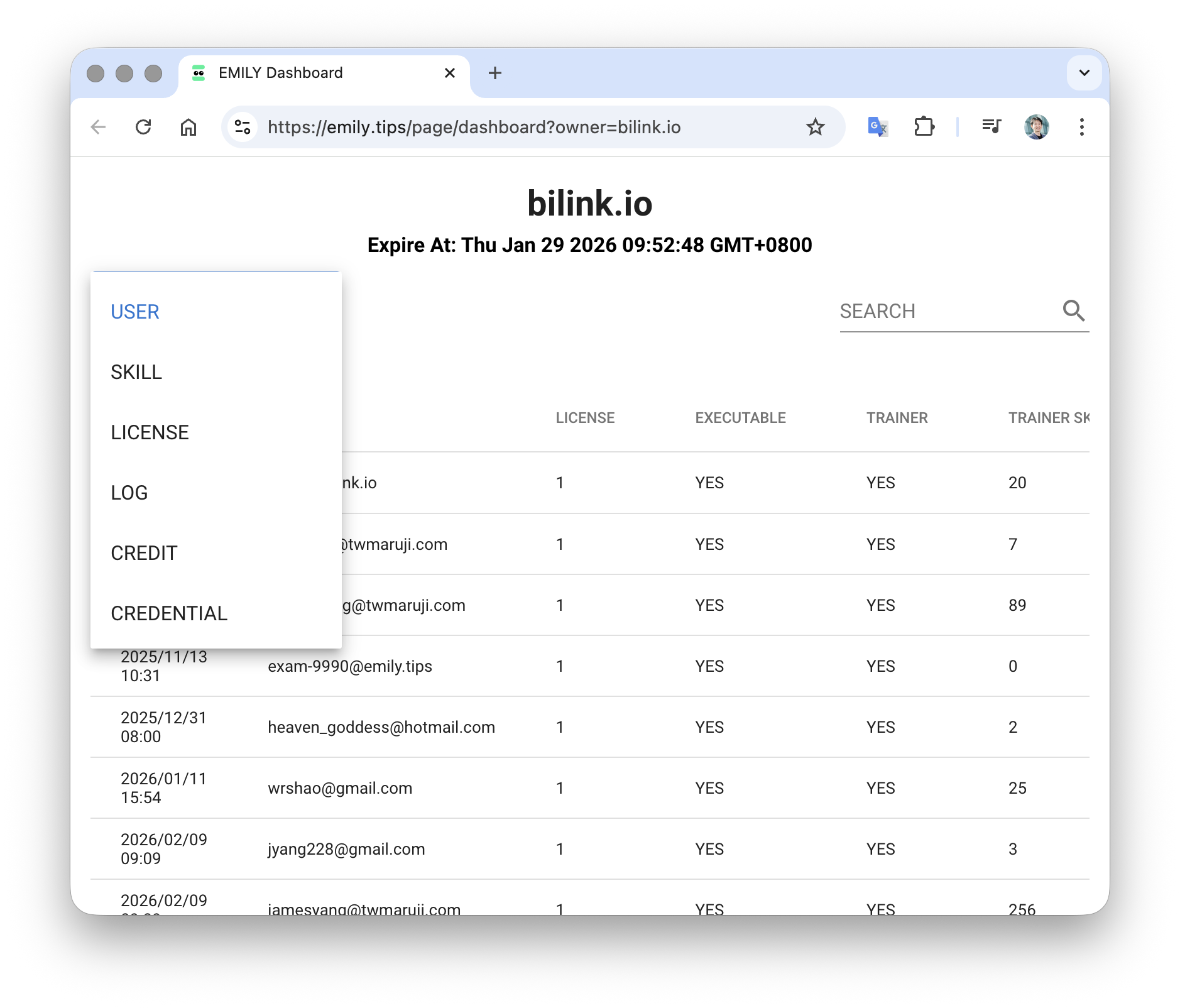
Login
The Group management dashboard can be accessed from the Group Portal. When setting up a Group, you need a group name GROUP and administrator email addresses. The name is typically distinguished by domain name, and multiple administrator email addresses can be configured.
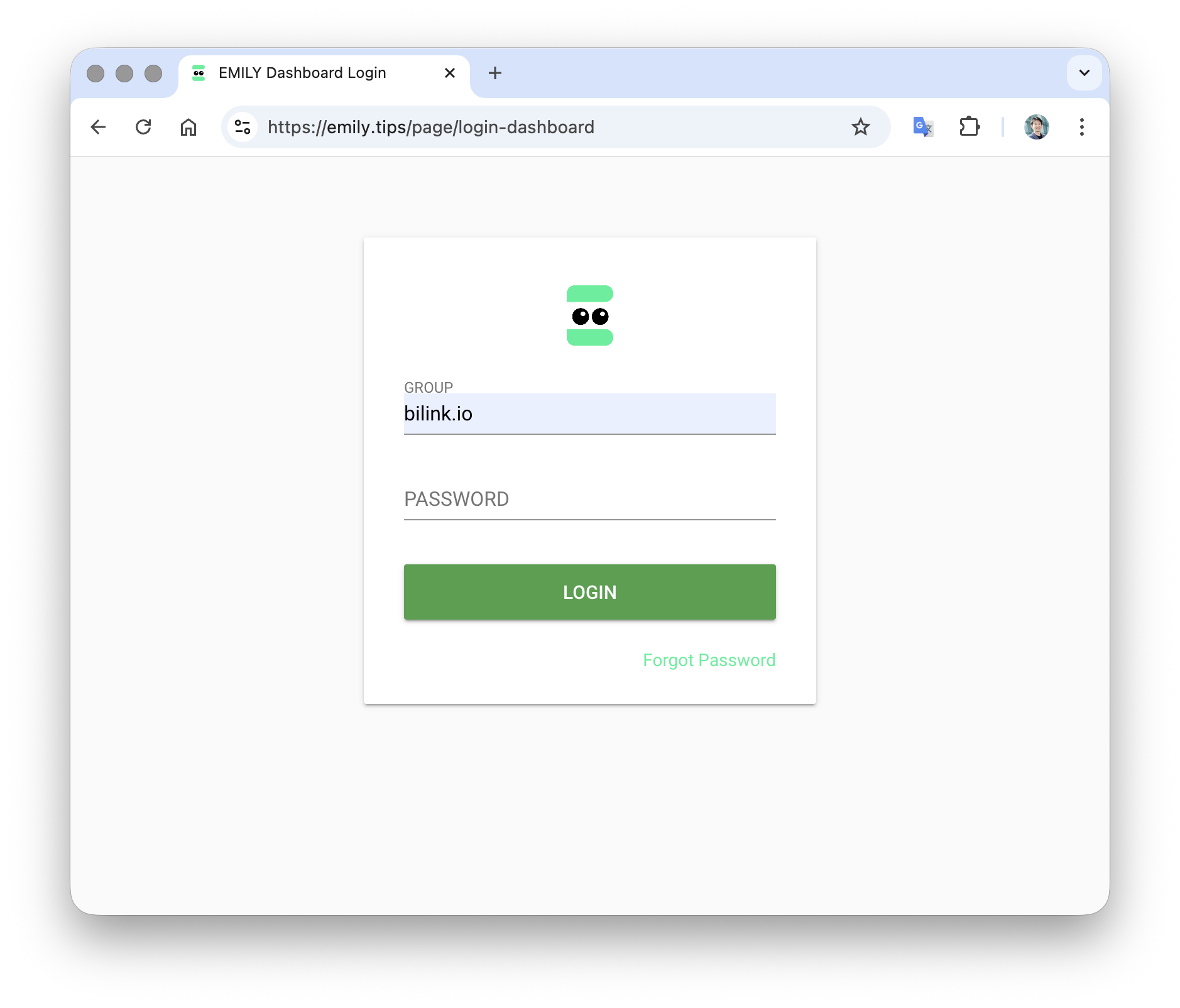
After the EMILY.RPA service team completes the setup, when you first visit the Group Portal, enter the group name and click "Forgot Password". A password reset email will be sent to the configured administrator email address.
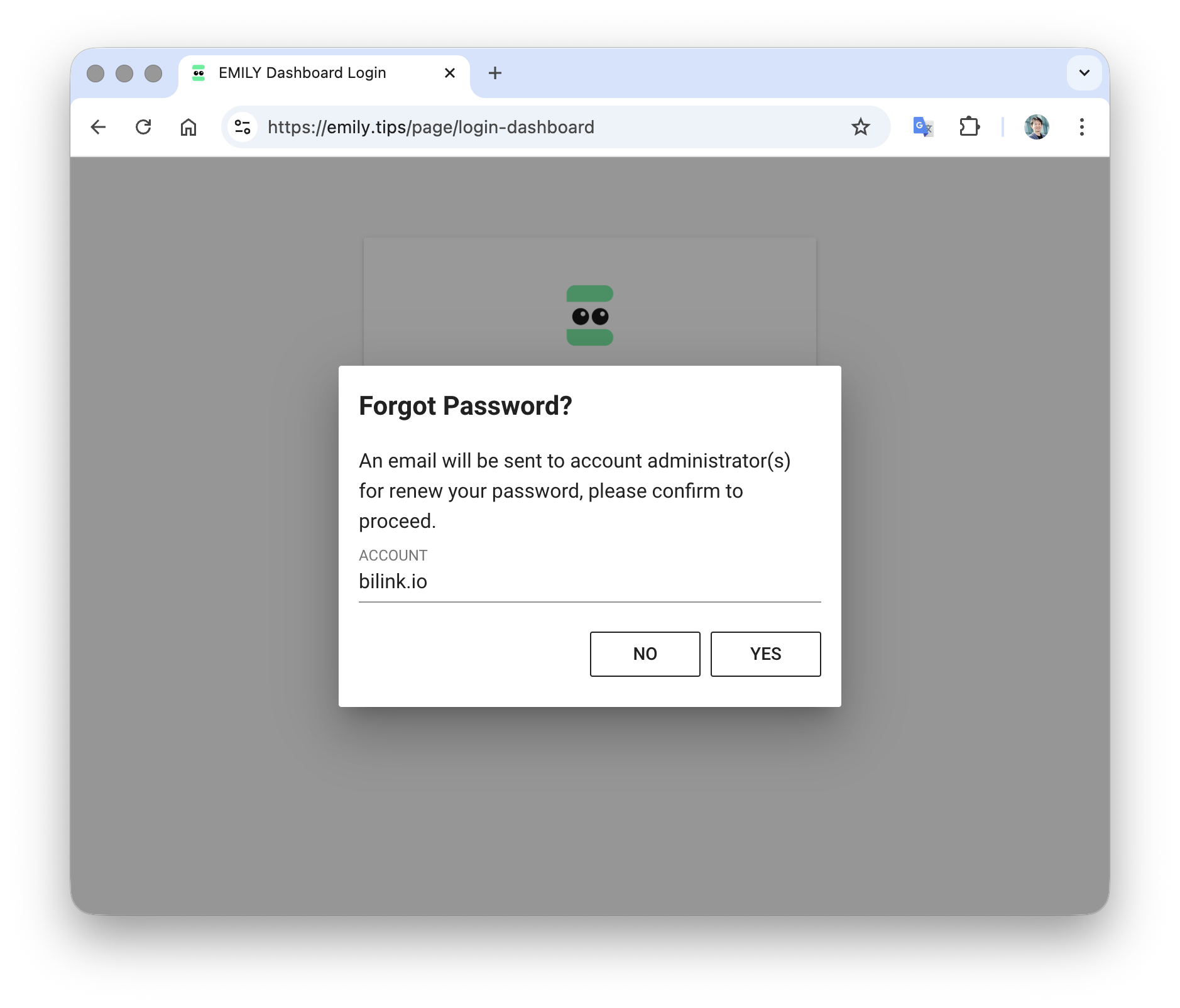
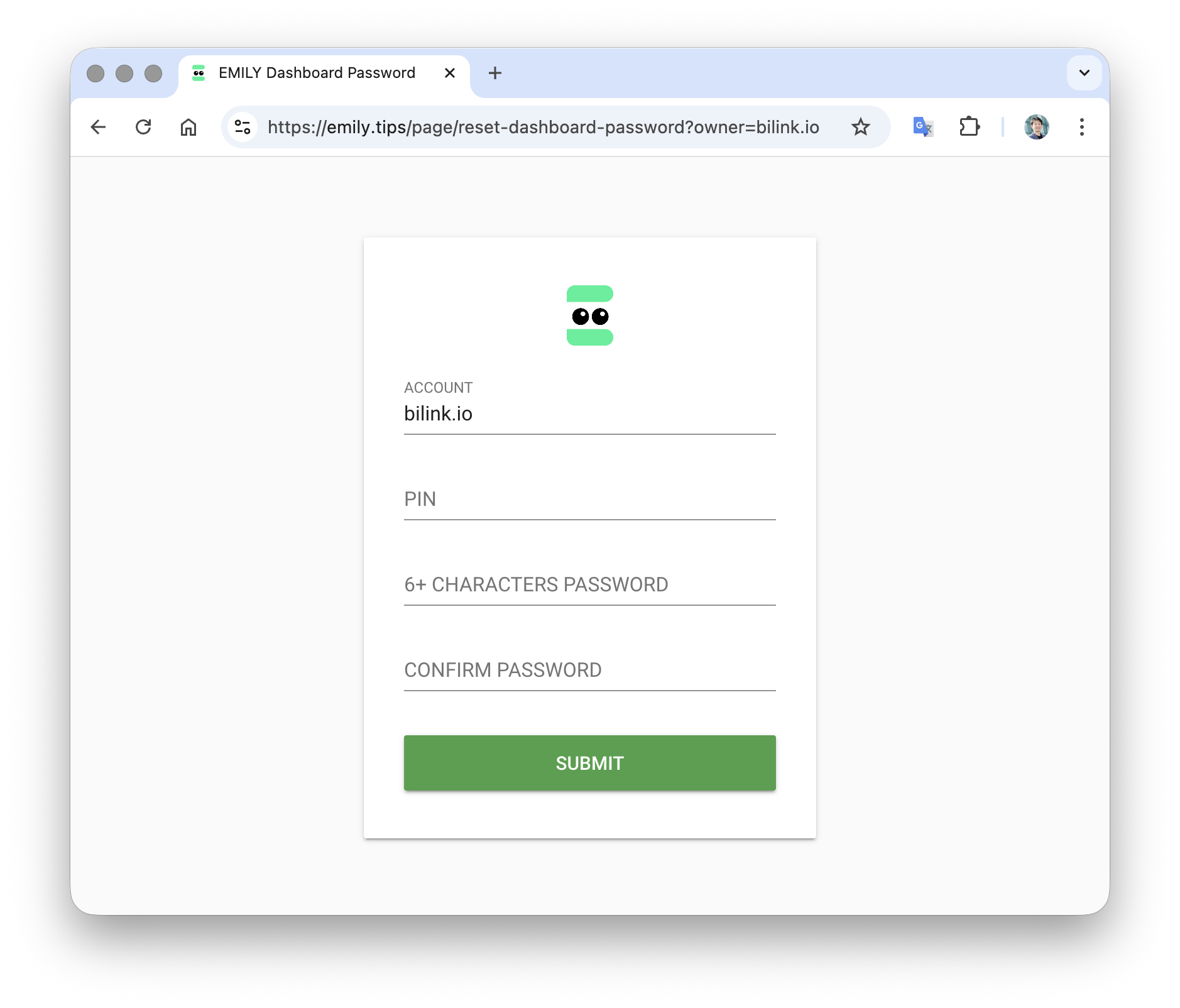
After receiving the password reset email, click the link in the email to reset your password — you will also need the PIN from the email. Going forward, you only need to log in from the Group Portal with the new password.
User Account Management
Switch the "VIEW" in the upper left to USER, then use the SEARCH quick search in the upper right to enter a partial string of the user account — for example, entering "jerry" will find the account jerry@emily.tips.
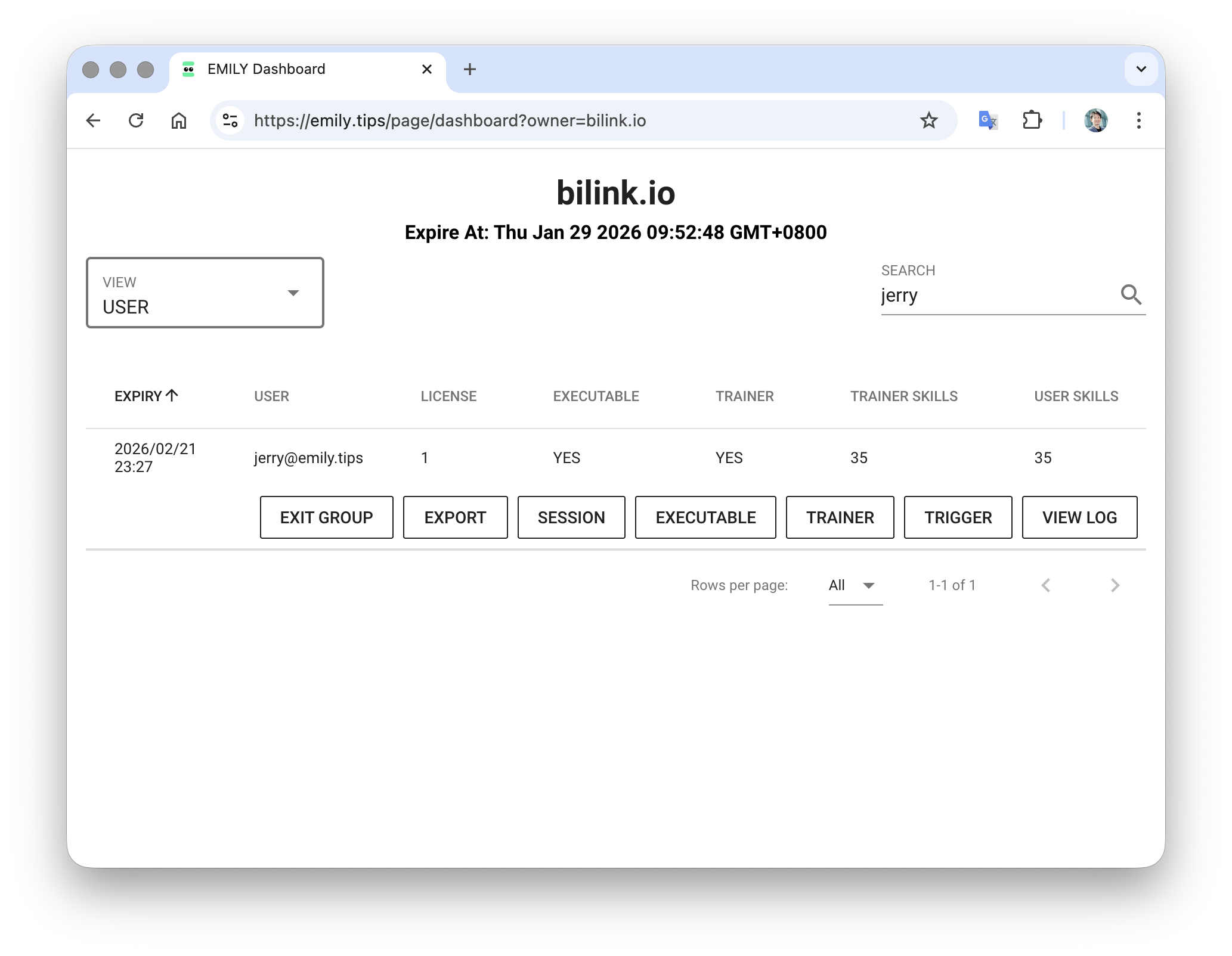
The following describes the management functions available for user accounts.
EXIT GROUP
Remove the specified account from the group.
EXPORT
Export the license of the specified account. It will be stored on the license management page under "VIEW" as LICENSE.
SESSION
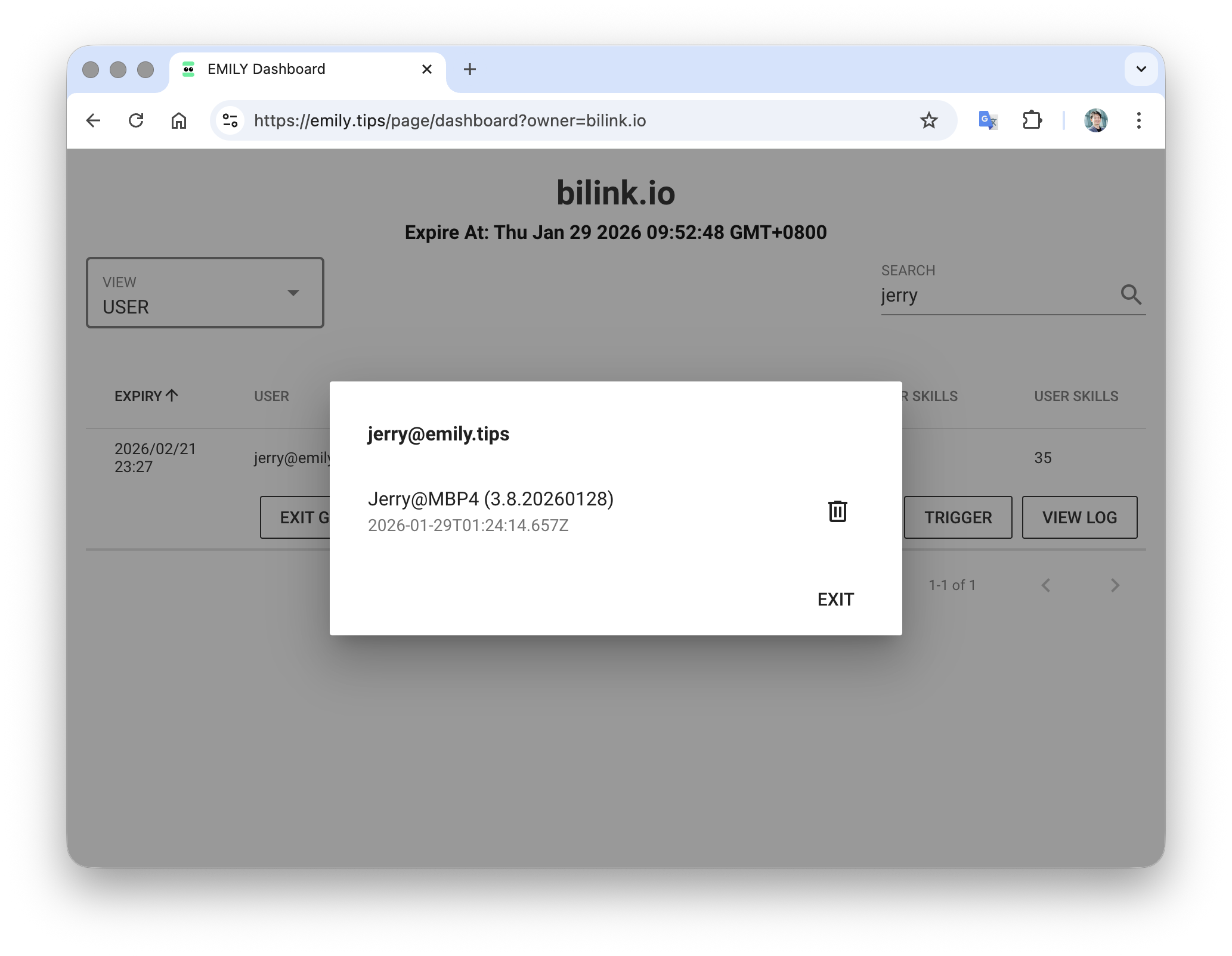
Delete a specific login session for the specified account. This is typically needed when a user opens EMILY.RPA on a first computer without closing it, then opens it on a second computer and gets prompted with "Exceeded licensed computer count". You can delete the first computer's login session (e.g., "Jerry@MBP4(3.8.20260128)") here, allowing the second computer to log in.
EXECUTABLE
Set whether the specified account can execute skills.
TRAINER
Set whether the specified account can design skills.
TRIGGER
Set whether the specified account can use various auto triggers.
VIEW LOG
View usage records for the specified account, with data available for up to one month in the past.
Skill Management
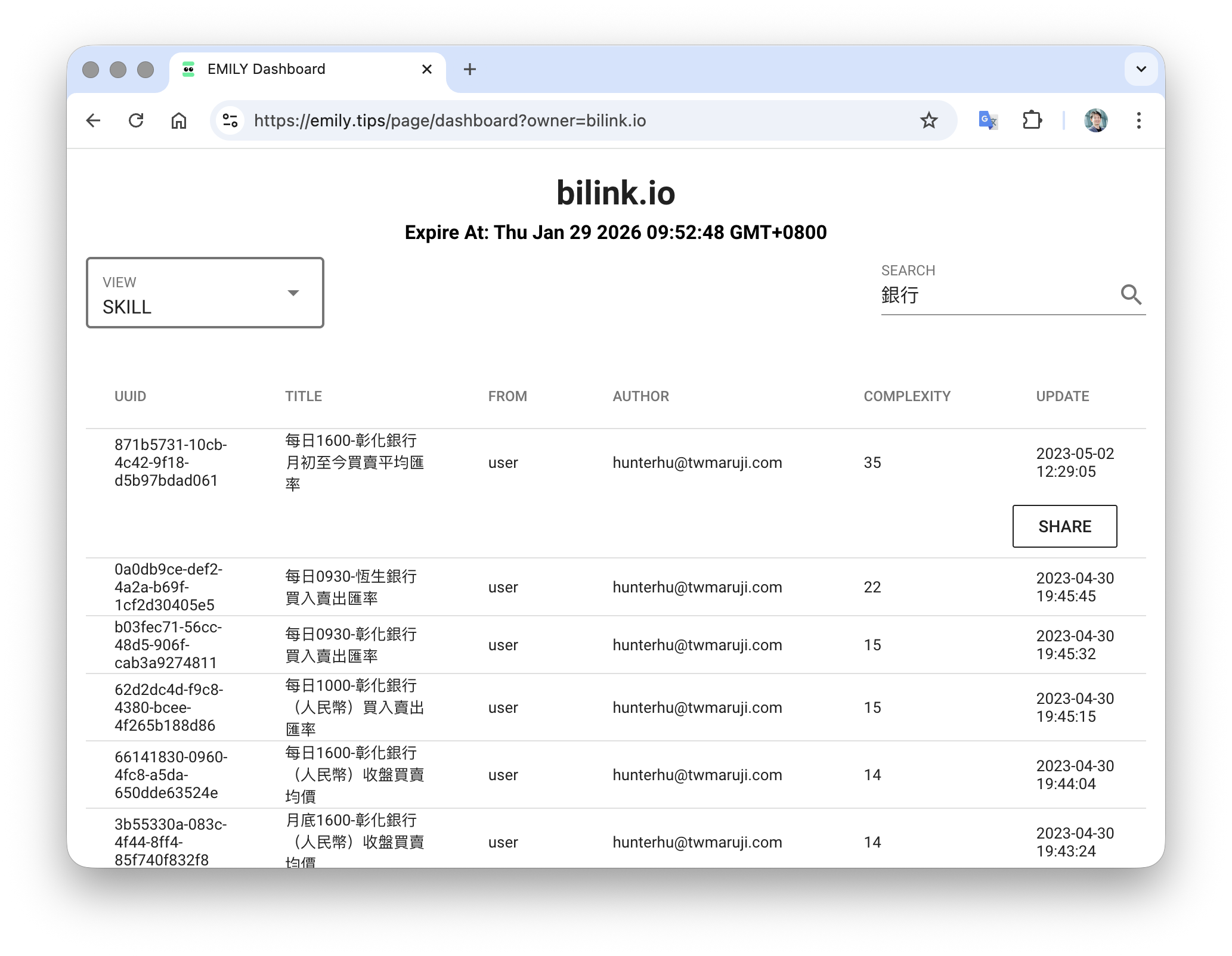
Administrators can configure which users can see which skills through skill management.
License Management
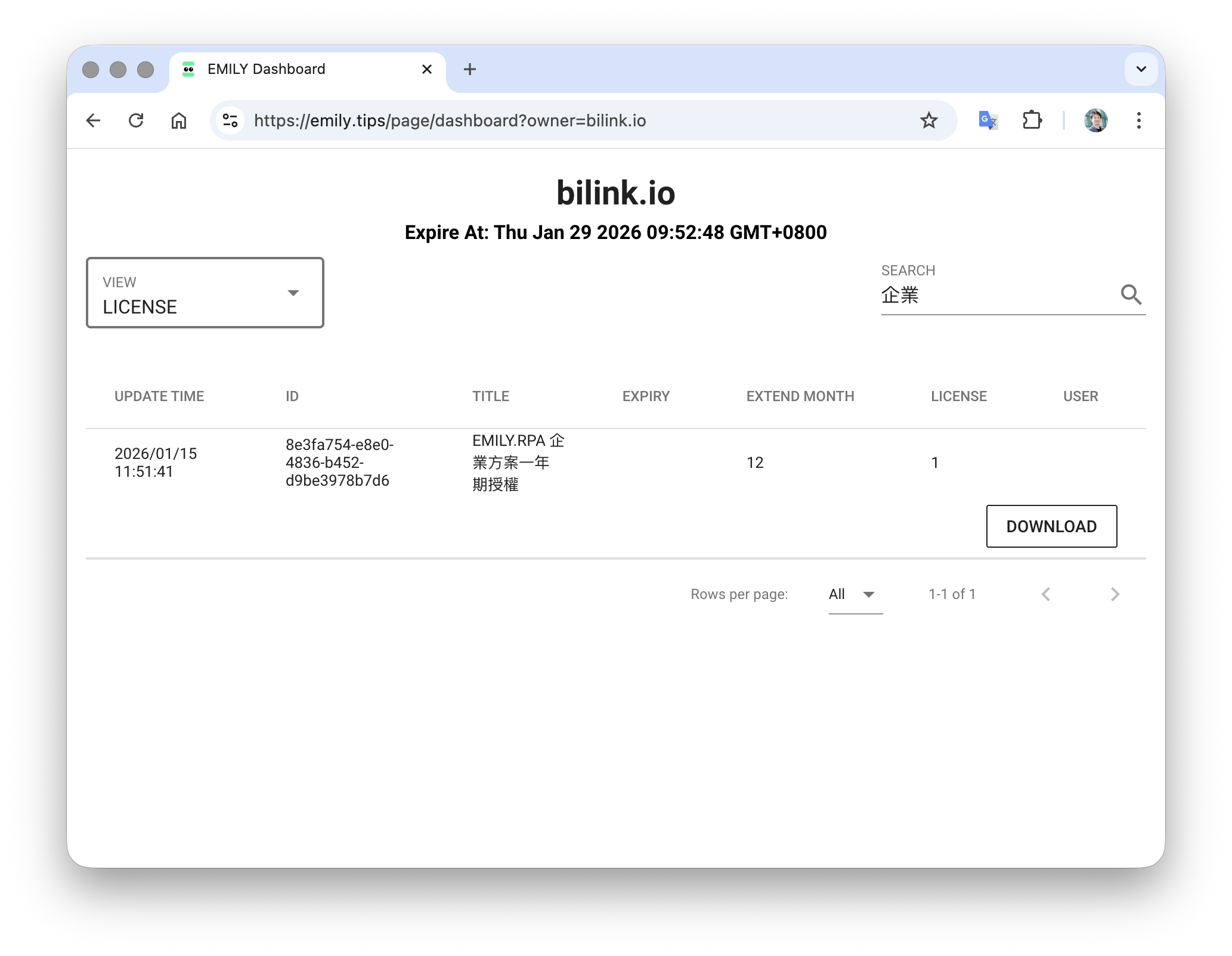
Administrators can browse all licenses issued to this group. Licenses that have not been activated (user field is empty) can be downloaded and provided to users for activation.
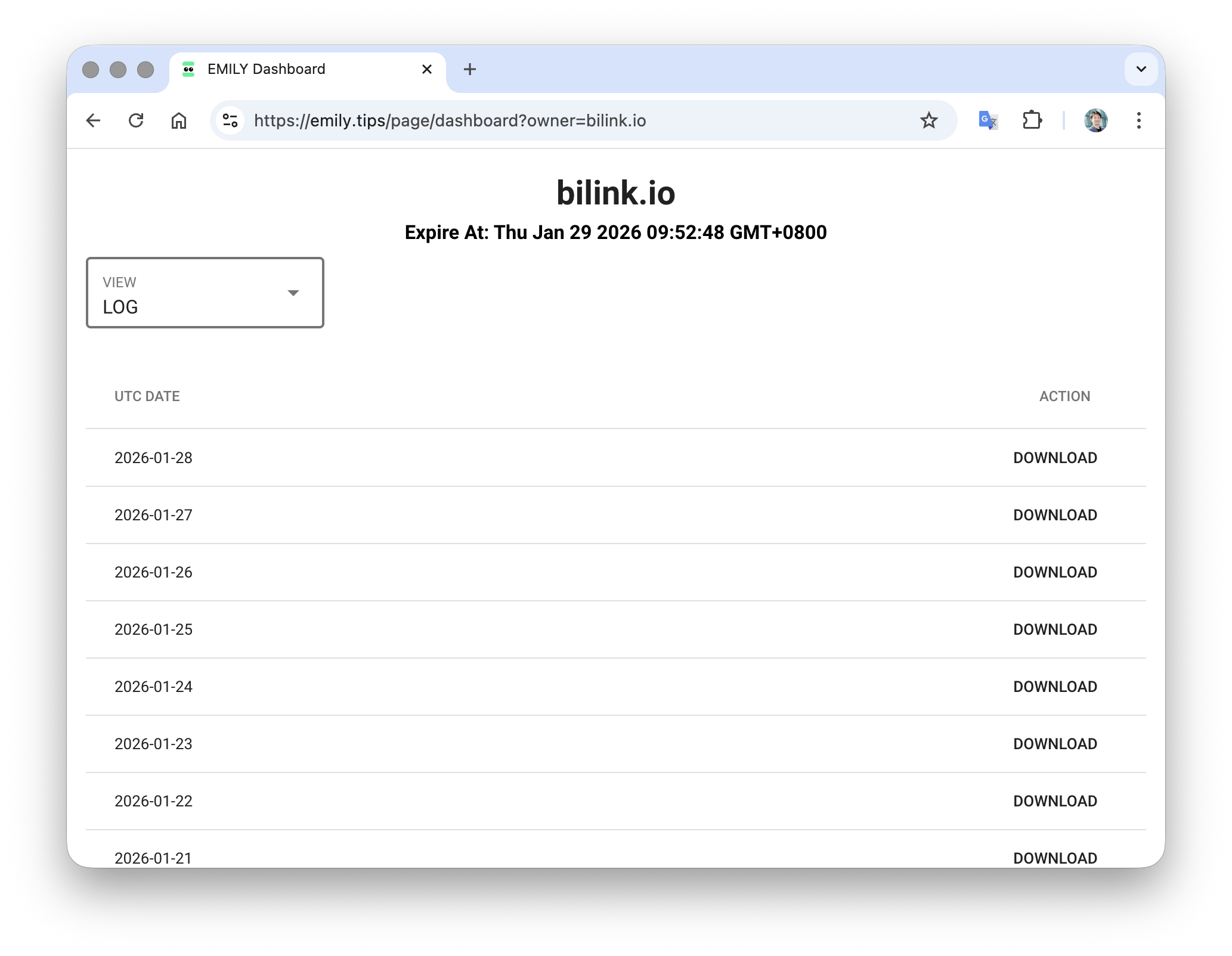
Usage Records
Administrators can download the group's daily usage records in CSV format.
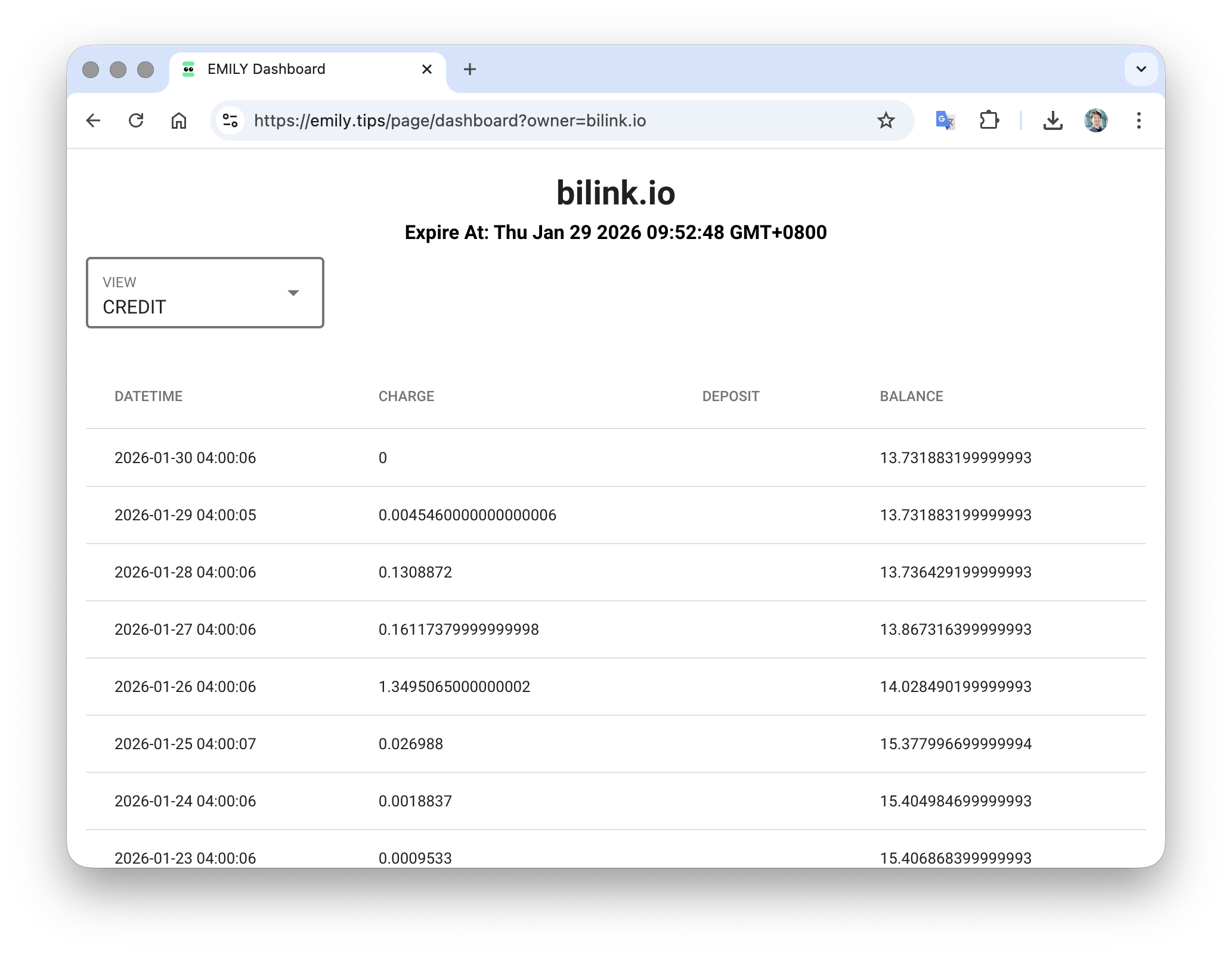
Credit Balance
Groups can add credits to offset AI Agent usage costs, priced in USD.
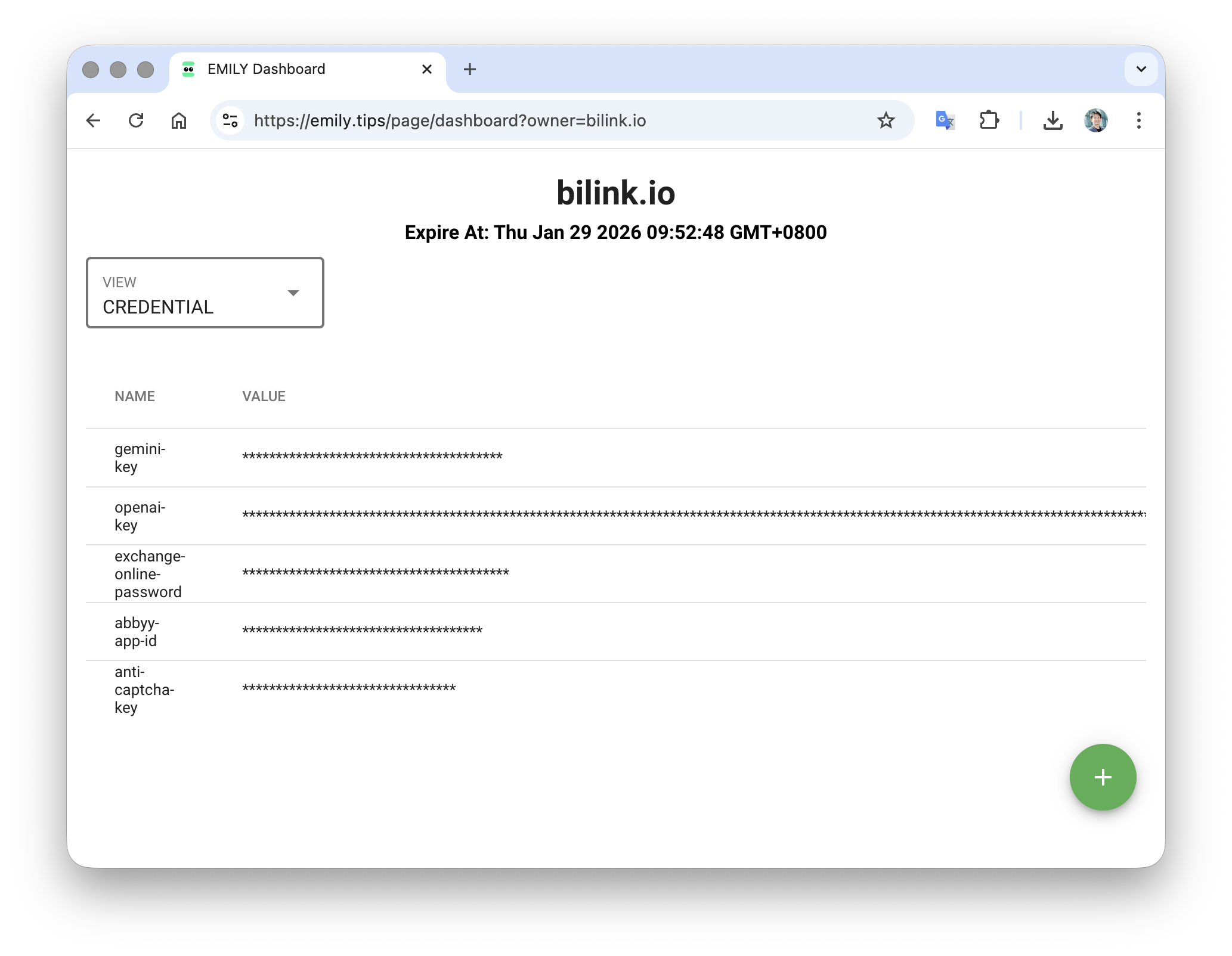
Credential Management
Administrators can set up multiple credential variables, such as customer service email passwords or API keys. Users reference them using the %VAR% format but cannot see the variable content, preventing credential leaks. For example, in the image below, a gemini-key variable is created so users can enter %gemini-key% in the EMILY.RPA AI Agent's API key field.
Other Settings
Administrators can customize the subject and body of system notification emails.