Welcome to EMILY.RPA
EMILY.RPA is a cross-platform Robotic Process Automation (RPA) application designed to automate repetitive tasks with well-defined rules. It is especially suited for time-consuming, error-prone, or around-the-clock operations. A key feature of EMILY.RPA is its ability to interact with user interfaces such as web pages and desktop applications, enabling automation even for systems that lack APIs or SDKs.
It supports Windows 10 and above, macOS 11.6 and above, and major Linux desktop distributions including Ubuntu 20.04, Fedora 24, and Debian 8 and above. The minimum hardware requirements are a dual-core CPU (e.g., Intel Core i5 or equivalent), at least 8 GB of RAM, and at least 20 GB of storage. For memory-intensive features such as desktop automation or PowerShell, 16 GB or more of RAM is recommended. Please also ensure that at least 2 GB of free memory is available when launching EMILY.RPA to avoid unexpected crashes due to insufficient memory.
EMILY.RPA offers a 14-day free trial. After the trial period, automation execution features will be disabled, but design and testing features remain available. Before downloading, please confirm that the computer can reach https://emily.tips (the license server) and https://cdn.emily-rpa.com (the update server). If these sites are inaccessible, contact your network administrator — they are typically blocked by a firewall and need to be added to the allowlist.
Now let's walk through the EMILY.RPA installation process step by step.
Register an Account
After installing the downloaded software, the first screen you see will look like the image below. The ENDPOINT field is pre-filled with https://emily.tips as the license server endpoint and does not need to be changed. If your organization uses an on-premises deployment, the endpoint should be the same website from which you downloaded the installer and must be entered manually.
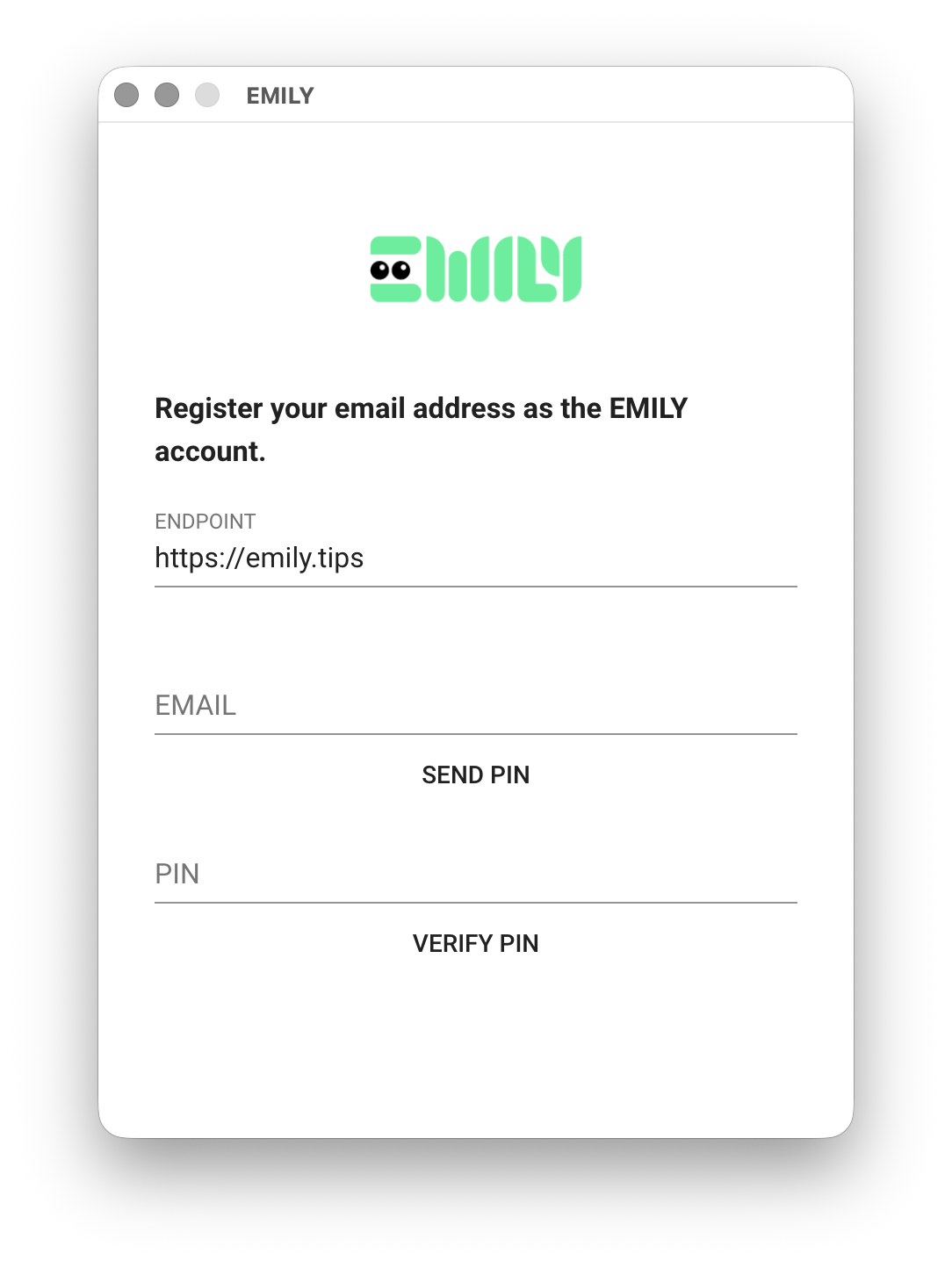
Enter your email address in the EMAIL field — it will serve as your EMILY.RPA account identifier. After clicking "Send PIN Code", wait approximately 1–3 minutes. You will receive an email containing a six-digit PIN code. Enter the PIN in the PIN field and click "Verify PIN Code" to complete the registration.
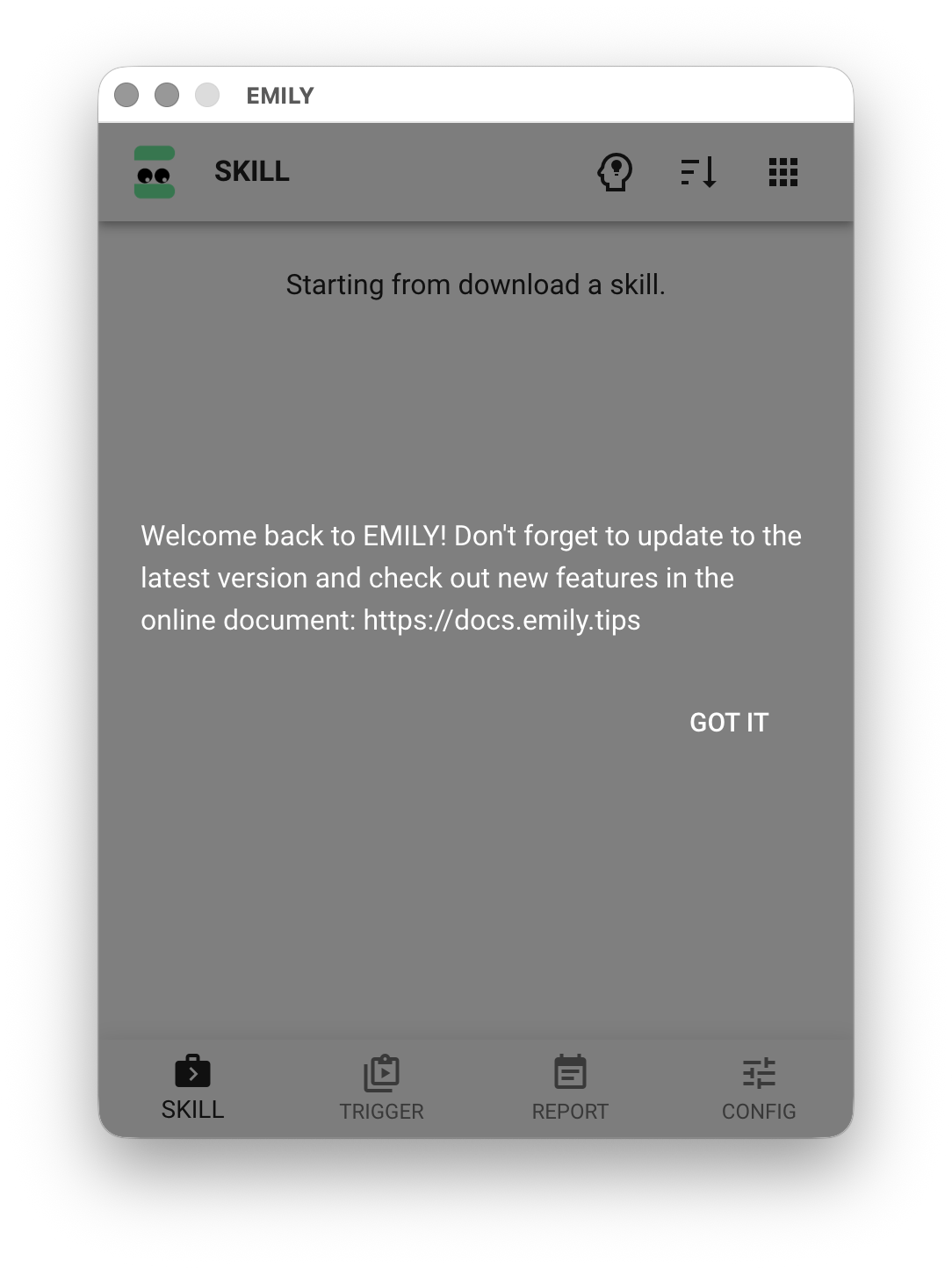
If you do not receive the PIN code email, first check your spam or junk mail folder. If it is not there, contact your organization's email server administrator to check whether the message was blocked by a filtering rule on the server side.
Check Your Account
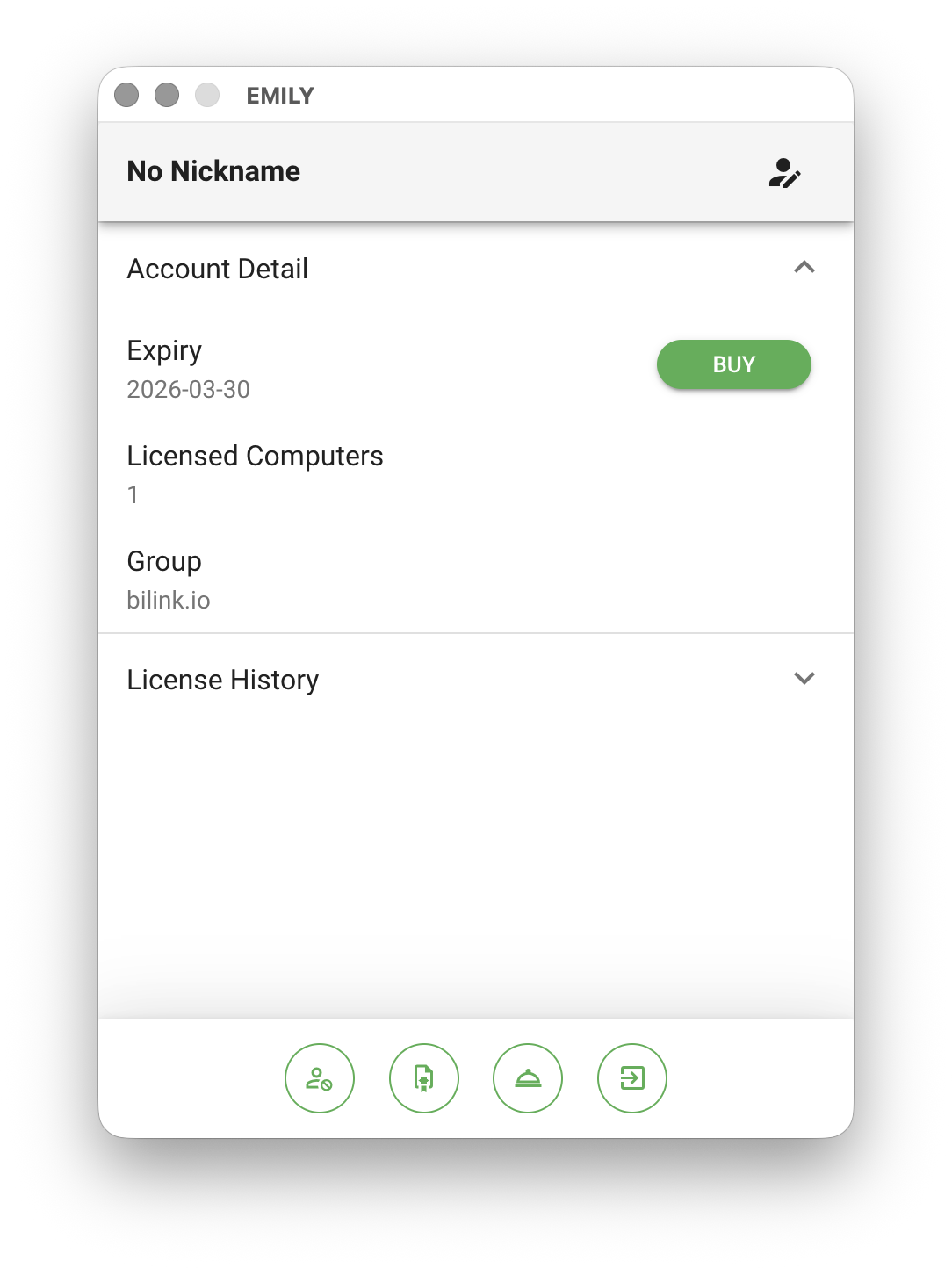
After registration, switch to the "Account Settings" page using the navigation bar at the bottom of the main screen. Below the version information, you will see the account you just registered along with its expiration date. Click on it to open the "Account Details" page:
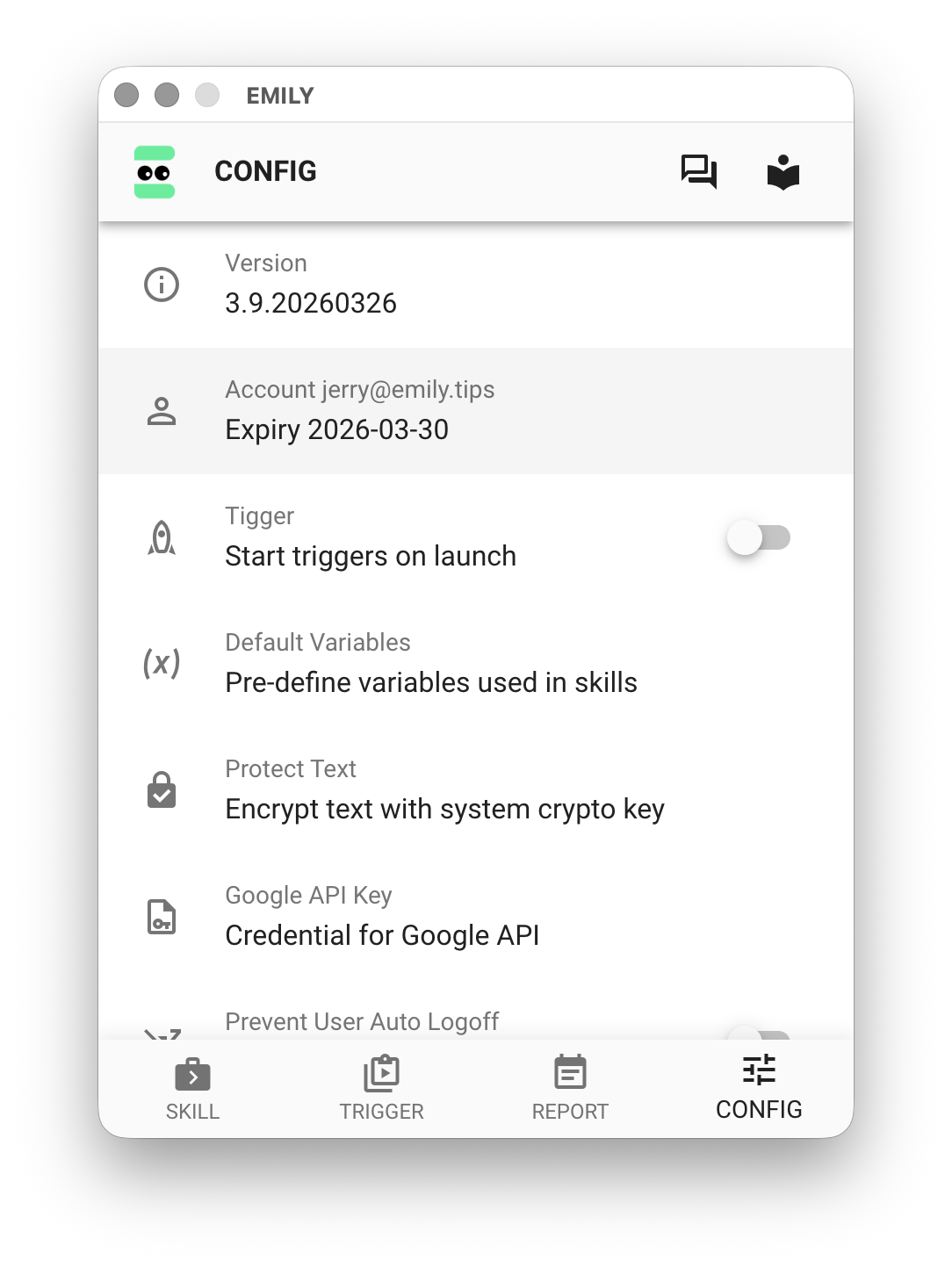
At the top of the Account Details page, you can set a nickname for your bot. Below that, you will find the expiration date and an option to purchase a license online. "Licensed Devices" indicates how many computers can run EMILY.RPA simultaneously under your account. By default, each account has one license, meaning only one computer can run EMILY.RPA at a time. There is no restriction if the bot is started on different computers at different times. The "Group" section below is an enterprise feature — accounts within the same group can share automation workflows, which we call "Skills".
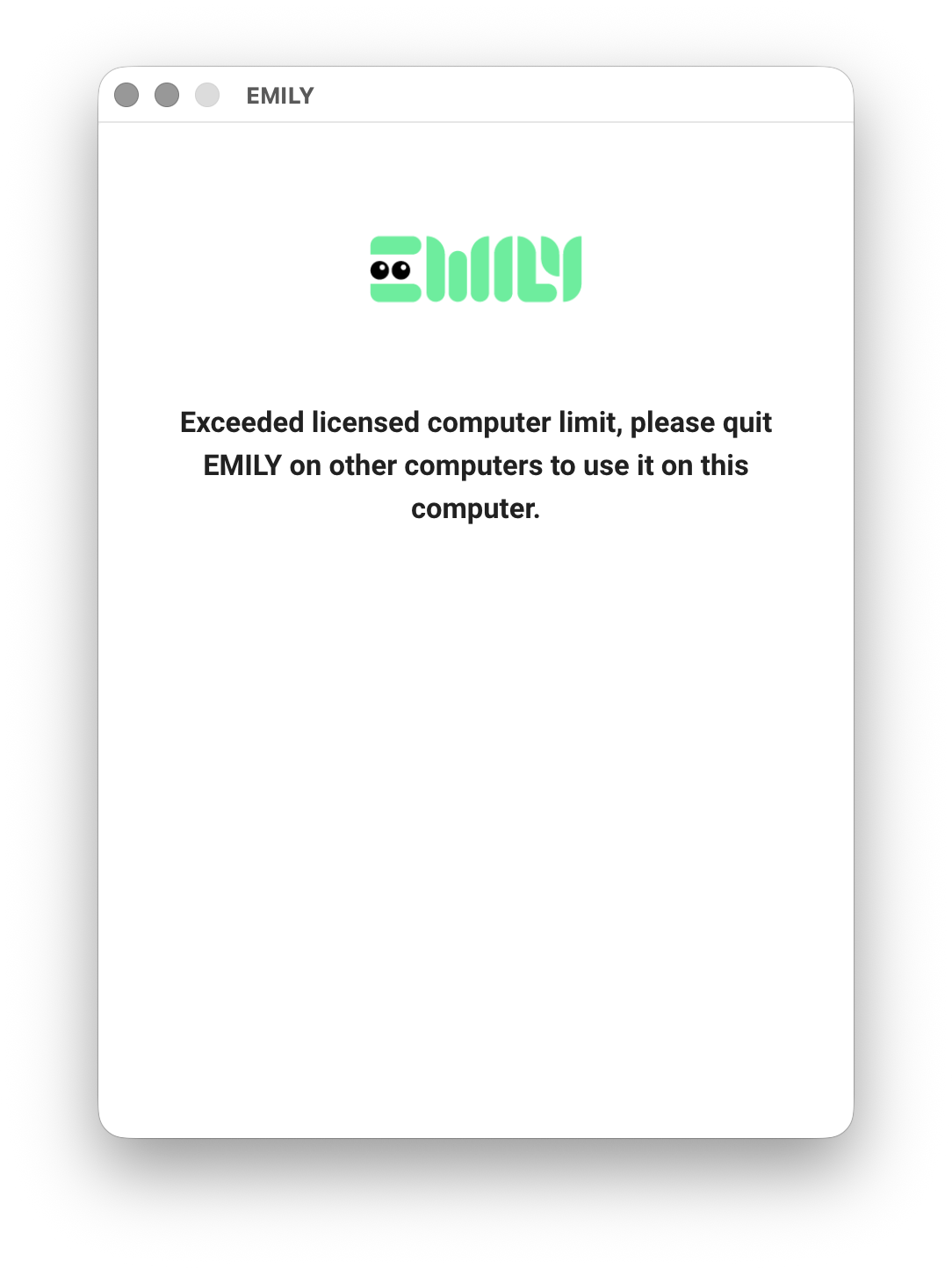
If you see the following screen, it means another computer registered with the same account is currently running EMILY.RPA and you have reached your "Licensed Devices" limit. You will need to close EMILY.RPA on the other computer before you can log in on the current one. You may also contact us to purchase additional device licenses — this feature is available for enterprise customers.